
Used by NASA · the FBI · the U.S. Navy · Since 1999
Flash Drive Data Recovery Problems & Tips to Stop Data Loss
- No Data, No Data Recovery Fee
- 27+ years of recovery experience
- Every device, every brand
- Free evaluation, no obligation
What Causes Flash Drive Data Loss, and Can It Be Recovered?
Most flash drive data loss comes from snapped connectors, dead controllers, water damage and worn-out NAND chips. The data usually survives on the NAND chip itself, which specialists can read directly. Stop using the drive, don’t attempt repairs, and get an evaluation — eProvided averages a 98% success rate since 1999.
“Flash drives fail without warning or noise. They work at lunch and then they’re blank by dinner.” — Bruce Cullen, founder, eProvided
A flash drive fails without warning: one day it mounts, the next it’s bent, unreadable or not detected at all. Most USB drive problems announce themselves with a message on the screen, and the wrong reaction to that message is the most common way a recoverable drive becomes a lost one. This guide decodes the flash drive error messages Windows shows, says what each one means and names the safe first step. It also explains what goes wrong inside a thumb drive, how specialists reach the data when the drive won’t cooperate, and the simple flash drive habits that keep your drive out of the lab in the first place. If you already know the drive is dead and want the service rather than the explanation, read how our lab recovers USB flash drives.
Flash drives fail from snapped connectors, dead controllers, water damage and worn-out NAND. On an ordinary USB drive the files usually survive on the NAND chip, which can be read directly. When Windows shows an error message, do not click Format and do not run repair tools. Unplug the drive, write down the exact words on the screen, and get an evaluation. To prevent it: buy name-brand capless drives, back up daily, and replace heavily used drives after about 3 years.
Do RIGHT NOW
- Unplug the drive and set it aside the moment it misbehaves
- Write down the exact error message before you close it
- Keep a snapped drive and its broken connector together
- Back up anything on a working drive tonight
DON’T Do
- Don’t re-solder or tape a broken USB connector
- Don’t format a drive that says “please insert disk”
- Don’t power up a drive that got wet
- Don’t keep your only copy on a flash drive
- Flash Drive Error Messages, Decoded
- Check Disk Management Before You Touch Anything
- Common USB Drive Problems: Write Protected, 0 Bytes, Disconnecting
- Causes of USB Drive Failure
- How Recovery Professionals Retrieve Your Data
- What NOT to Do With a Failing Flash Drive
- Why Thumb Drives Wear Out
- Tips for Avoiding Flash Drive Data Recovery
- Back Up Thumb Drives Regularly
- It’s Not a Do-It-Yourself Project
- Flash Drive Problems, At a Glance
- Real Flash Drive Cases From Our Records
- What Our Customers Say
- Frequently Asked Questions
- Get a Free Evaluation
- Related Recovery Services
Flash Drive Error Messages, Decoded
 Enlarge
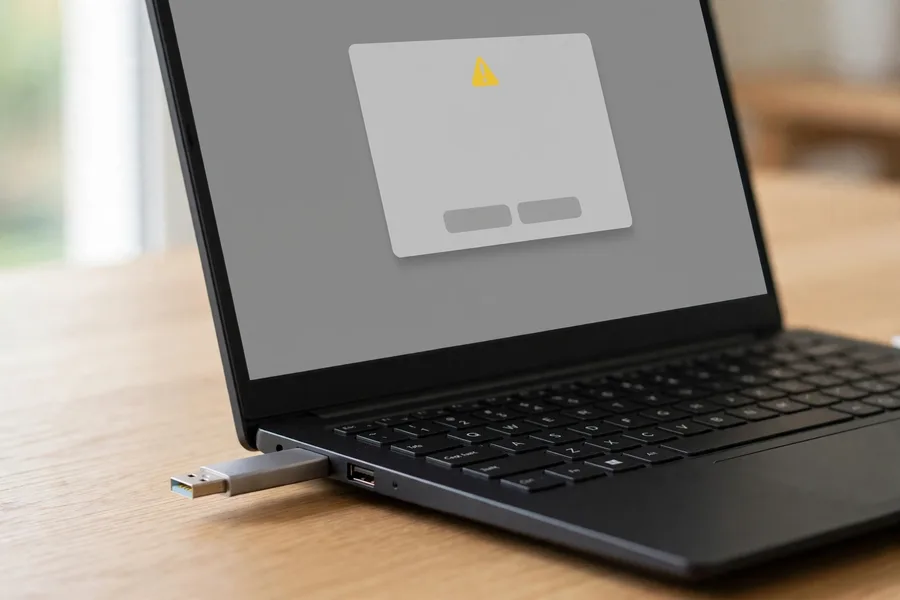
What do flash drive error messages mean? Each message is the operating system describing what it could not do, not a diagnosis of the drive. Most of them mean Windows cannot read the file system, or cannot reach the memory behind the controller. In both cases your files are often still on the memory chip. The table below gives the usual meaning of the common messages, the safest first step and the sign that you should stop.
Read the meaning column as the likeliest cause, not a certainty. Only an inspection of the drive can confirm which part failed. The wording is the Windows text most users see; a Mac or Linux machine words the same faults differently, but the first step does not change.
| Windows Message, Usual Meaning, Safe First Step and Stop Signal | |||
|---|---|---|---|
| Exact message | Usual meaning | Safe first step | Stop signal |
| “You need to format the disk in drive X: before you can use it.” | Windows cannot read the file system, because it is damaged or the memory area holding it is unreadable | Click Cancel. Do not format. | Disk Management shows RAW or a wrong size |
| “The disk is write protected.” | A lock switch is on (if your drive has one), a software setting blocks writes, or the controller locked a failing drive | Check the switch, then copy off what still reads | Copies fail or the drive drops off the port |
| “Please insert a disk into drive X:.” | Windows sees the drive letter but finds no readable storage behind it; on a flash drive this often means the controller cannot reach its memory | Try one other port, once | Same message on a second port |
| “USB Device Not Recognized” or “One of the USB devices attached to this computer has malfunctioned.” | A connector, controller or power fault, or a port problem | Try a rear port, or another computer, once | Same message on a second computer |
| “The parameter is incorrect.” or “The file or directory is corrupted and unreadable.” | File-system damage, often after an unsafe removal, or memory that is starting to fail | Copy reachable files one at a time to another drive | Copies hang or the error spreads to more folders |
| “Windows was unable to complete the format.” | The format could not write; the drive is write protected or its memory is failing | Stop trying to format | The message repeats on a second try |
| No message, but 0 bytes or the wrong size | The controller is reporting a size it cannot back with real memory | Do not format; check the drive in Disk Management | Size changes between plug-ins |
Notice what the safe steps have in common. None of them writes to the drive, and none repeats an action that already failed. A third attempt rarely works where the first two did not, and each attempt gives a weak controller another chance to fail for good.
Check Disk Management Before You Touch Anything
How do you triage a flash drive that will not open? Open Disk Management (right-click the Start button, then choose Disk Management) and look at what it lists for the drive. Look only. Do not click Initialize, Format or Delete Volume if Windows offers them. What the drive shows there tells you which of three situations you are in, and each one has a different next step.
| What Disk Management Shows and What to Do Next | ||
|---|---|---|
| What you see | What it usually means | Next step |
| Appears normal: right size, drive letter, healthy status, yet files are missing or folders will not open | The controller and memory respond, but part of the file system is damaged | Copy what opens, one file at a time, to a different drive. Our guide to recovering a corrupted flash drive lists the safe checks. |
| Shows RAW, Unallocated, or a tiny size such as a few megabytes | The file system is unreadable, or the controller reports a size it cannot support | Do not initialize, format or run repair tools. Unplug the drive and have it evaluated; the files are often still on the memory chip. |
| Missing: not listed, or listed as No Media | The controller cannot reach the memory, or a connector, power or controller fault stops the drive from starting | Try one other port or computer, once. If it is still missing, stop. See our page on a USB device that is not recognized. |
If the drive shows in Disk Management, that is good news for recovery, but it is not permission to experiment. A drive that lists but copies slowly, hangs on a file or changes size between plug-ins is telling you the memory or controller is unstable. Treat it like the third row.
Common USB Drive Problems: Write Protected, 0 Bytes, Disconnecting
Three USB drive problems send more people to a search box than any other. Each looks like a software fault and each can be a hardware one, so the first job is to tell them apart without making the drive worse.
“The Disk Is Write Protected”
Is a write-protected USB drive broken? Not always. The message means the drive refuses new data. If your drive has a small lock switch, slide it and try again; many sticks have no switch at all. Other causes are a read-only attribute set in DiskPart, a Windows policy or malware setting that blocks writes, or a controller that locked a failing drive to protect what is left.
If the drive still reads, copy your files off first. Only then try the software fixes people describe online, such as clearing the read-only attribute in DiskPart. Stop if the drive drops off the port, the copies fail or the same message returns on a second computer. A drive that has locked itself can be a sign that its memory is wearing out, so treat it as a request to copy your files, not to format. Our guide to repairing a damaged USB drive covers the safe software steps for a drive that reads normally.
0 Bytes, Wrong Capacity or “Please Insert a Disk”
 Enlarge
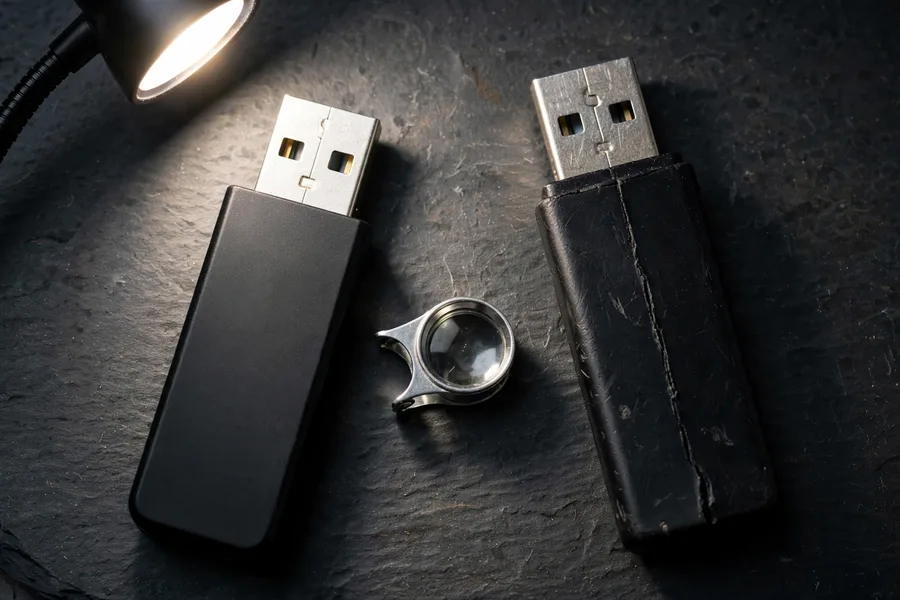
Why does a flash drive show 0 bytes or the wrong size? The controller reports the drive’s size to the computer. A drive that reports 0 bytes, a few megabytes or a strange number has usually lost contact with its own memory map after a controller or firmware fault. The memory chip itself may be fine. Do not format it; a new file system written over the old one is what turns a recoverable drive into a lost one.
There is one case where the wrong size is not a fault. Some cheap drives are sold with a false capacity, and report more space than their memory holds. The open-source F3 tool exists to test for it. Files saved past the real limit are lost the moment they are written, and no recovery lab can bring back what was never stored.
How can you tell a fake-capacity drive from a failing one? A fake drive reports its full advertised size from the first plug-in and works normally until the real memory fills; files saved past that point then read back as corrupt or missing. A failing drive behaves differently: the wrong size appears at once, or the number changes between plug-ins. Compare the capacity printed on the case with what Disk Management reports, and note whether it changes. A number that changes points at the controller. Do not run a full-capacity write test on a drive that holds files you need, because a test that writes to every free block can overwrite data a lab might still read. That test is for new, empty drives you suspect are fake.
Keeps Disconnecting and Reconnecting
 Enlarge
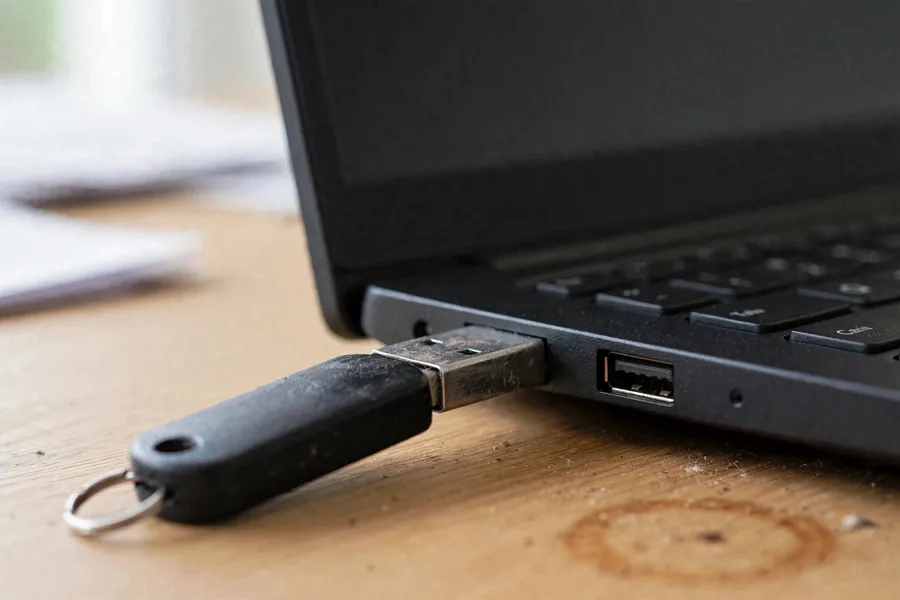
Why does my flash drive keep disconnecting? A worn connector, a cracked solder joint or a controller that resets under load can each cause it. Every reconnect is a chance to corrupt a file that was open at that moment. Stop moving the drive in the port. Try one other port once. If it still drops, unplug it, stop copying and have it evaluated. Running recovery software on a drive that keeps disconnecting is the classic way to turn a connector fault into a lost drive.
You can learn a lot by watching, without writing anything to the drive. Note whether the drops happen when the drive is touched or only during long copies. Drops that follow a nudge of the plug point at the connector or its solder joints. Drops that arrive in the middle of a large copy, with the drive sitting still, point at the controller or the memory. A short extension cable can take the weight and leverage off a worn plug for a single, careful attempt to copy your files. A drive that drops while it lies motionless on a desk should be unplugged and left alone.
Causes of USB Drive Failure
You might be unlucky enough to find your flash drive not working. You don’t see your files, and of course you’ve forgotten to back up. Panic sets in: do I need thumb drive file recovery? Failures include breaks in the hardware — flash drive physical damage, bent pins, broken ports — as well as water damage, or dropping a laptop with the drive still plugged in.
The NAND flash chips inside flash drives can also fail from overheating or excessive use, and the small controller chip that manages them can die from a short circuit or a burned capacitor. NAND recovery specialists at eProvided work on damaged USB sticks every day, using specialized equipment to reach the data even when the drive itself no longer responds. If your USB drive bends and snaps inside your computer’s USB port, reach out to professionals before trying to straighten or re-solder it. Short circuits and burned capacitors can still leave a real chance at successful flash drive data recovery — all is not lost. For more background, head over to our flash drive data recovery blog.
How File Recovery Professionals Retrieve Your Data
On an unencrypted USB flash drive, microSD card or monolithic device, the data lives on the NAND flash memory chip, and that chip can be read directly (how NAND flash recovery works). First, the specialist removes the NAND chip from the drive’s circuit board — or, on a monolithic device where everything is sealed into one package, exposes test points on the substrate. The chip is examined for defects or cracks and its contacts are cleaned, then specialized equipment dumps the raw data sets from the memory. The controller normally scrambles that data with XOR patterns and spreads it across the chip, so the dumps have to be unscrambled and reassembled, using descrambling and error correction, before they turn back into files. Once completed, the data is delivered back to you: load it onto your computer, write it to a new thumb drive, and you’re good to go.
That is why a dead controller, a snapped plug or a burned board is usually survivable: the lab keeps direct access to the memory. Only a memory chip that is itself cracked through, broken off or crushed is truly unrecoverable, and only a lab can judge that under a microscope. A chip that merely looks damaged is not automatically lost.
That chip-off approach is right for flash drives and memory cards, but it is not how modern phones are handled, and it is not the answer for a hardware-encrypted USB drive either. iPhones since the 3GS and most Android phones since about 2015 encrypt their storage with a key bound to the phone’s own processor, so a chip read on its own returns only ciphertext. Those devices are recovered by repairing the original board or moving the processor and memory together onto a donor board — the related services at the end of this page show how flash drives specifically are handled.
Flash drive data recovery from damaged storage drives is a complex process. Many cases take 1–3 days once the device is received by eProvided. NASA has also called founder Bruce Cullen directly regarding a NAND data-transmission glitch on the Mars rover, a case that made national news, and eProvided was also contacted about data storage for the Nancy Grace Roman Space Telescope program. If you’re facing data loss and need a reliable solution, call eProvided at (866) 857-5950 and we’ll explain what your drive needs.
Flash Drive Snapped, Dead or Unreadable?
Don’t plug it in again. A free, confidential evaluation tells you what’s recoverable before any work begins.
Start My Free Evaluationor call (866) 857-5950 now
What NOT to Do With a Failing Flash Drive
These five habits cause more permanent loss than the original fault. Each one feels like a reasonable fix, and each has a one-line reason to skip it.
- Do not click Format when Windows offers it. Formatting writes a new, empty file system over the old one, and the old map to your files goes with it.
- Do not run CHKDSK /f or “Scan and fix.” Both write to the drive, and on failing memory they can scramble the file system further.
- Do not keep plugging the drive in and out. Every reconnect stresses a weak connector or controller and can corrupt a file that was open.
- Do not run free “low-level format” or “repair” utilities. Tools that promise to repair a drive can erase it, and they cannot tell a dying controller from a bad file system.
- Do not save recovered files back onto the same drive. New writes can overwrite the data you have not yet recovered.
Why Thumb Drives Wear Out
Flash drives, often called thumb drives or jump drives, have advanced enormously since their invention in 1999, and a good one now holds 2 TB or more. Good drives transfer up to 180 MB/sec, and the USB 3.1 Gen 2 interface is rated at 10 Gbit/s in theory. All of them are based on NAND flash, a non-volatile memory that keeps data with the power off. A drive weighs less than 30 grams (1.1 oz), has no moving parts and makes no sound, which is also why it gives no warning before it fails.
Inside the housing sit a NAND chip and a small controller that translates between the USB port and the memory. The NAND chip is cut from a silicon wafer and laid out as a grid of rows and columns of memory cells, a form of electrically erasable programmable read-only memory. The memory cell plays the crucial role in how long a drive lives. Each cell is a transistor with a floating gate and a control gate, separated by oxide layers. As long as the floating gate holds no charge, the cell reads as 1. Changing it to 0 uses Fowler-Nordheim tunneling to push electrons through the oxide, and every one of those cycles wears the oxide a little. That is why flash drives have a limited number of writes: older single-level-cell drives were rated for up to 100,000 write/erase cycles, and today’s denser chips are rated for far fewer. For the full parts list and what each part does when it fails, see our guide to how a USB drive is built.
Tips for Avoiding Flash Drive Data Recovery

- Use established-name thumb drives. SanDisk, Lexar, PNY and Samsung are a few to consider.
- Buy capless drives. On capless storage devices, the USB tip is enclosed and kept safe.
- Especially, don’t let the dog eat it — seriously.
- Keep it safe: protect the USB tip and close it when not in use.
- Eject through the operating system before you pull the drive. An unsafe removal during a write is a common cause of the “needs to be formatted” message.
- Don’t wear them out. If a drive is used often, 3 years is the limit before you replace it.
Each of these tips targets a real failure we see on the bench. No-name drives often use lower-grade NAND and controllers, exposed connectors snap off in pockets and laptop ports, and a drive used daily for years simply runs out of write cycles. Replacing a cheap drive on schedule costs far less than recovering one.
Back Up Thumb Drives on a Regular Basis
Obvious but true: any time you use a thumb drive, back it up at the end of the day. It takes a minute or two and prevents a huge amount of grief. A simple rule works for most people: keep one copy on the drive, a second on your computer, and a third somewhere else, such as a cloud service. Then a failed stick costs you a replacement drive, not lost work. This simple practice protects you from data loss due to accidental deletion, drive failure or other circumstances. And if a drive fails before you backed it up, call professionals for flash drive data recovery before further damage occurs.
It’s Definitely Not a Do-It-Yourself Project
The specialists at eProvided average a 98% success rate across recovery cases, including thumb drives. When a thumb drive needs recovery, we begin the process as soon as your drive arrives, and some cases can be completed within 24 hours. No lab can promise a result before it has examined the drive, which is why the evaluation is free and why, when no data is recovered, there is no data recovery fee. To get started, check out USB flash drive data recovery and click “Start Your Recovery.” Home remedies — re-soldering a snapped connector, running recovery software on a drive that keeps disconnecting, or freezing the drive — can turn a recoverable drive into one that isn’t.
Flash Drive Problems, At a Glance
| Physical Flash Drive Problems and What to Do | ||
|---|---|---|
| Problem | Likely Cause | What to Do |
| Snapped connector | Bent or broken USB plug | Stop — don’t re-solder it yourself |
| Not detected at all | Dead controller, short circuit, burned capacitor | Free evaluation; NAND can often be read directly |
| Files missing or corrupt | Worn NAND, unsafe eject, file-system damage | Stop writing to the drive |
| Water damage | Corrosion on the board | Don’t power it on; send it in dry |
| Cracked or split case | A drop, a crush or a car door; the board or the chip may be hurt | Keep every piece. A lab can often recover data from a shattered USB drive, unless the memory chip itself is cracked through. |
Real Flash Drive Cases From Our Records
These are a few of the many flash drives we have handled since 1999, taken from our own case records and dated from 2014 to 2026. Every quote is the customer’s own wording, copied from the form they filled in when they sent the drive. Names and contact details are removed. Where our record shows a result, we tell it as it happened, including the drive that did not come back. Where it shows only the customer’s words, we say so, because a description is not an outcome. No lab can promise a result before it has examined the drive. For bent, snapped or crushed drives, our guide to how damage severity decides the odds adds more examples.
SanDisk 64 GB drive whose folders stopped opening, May 2026
On the form, this customer described the failure like this:
“The drive has several folders on it that are no longer accessable. Obviously this means the files contained in them are no longer accessable, as well.”
This is the first row of the Disk Management table above: a drive that looks alive but cannot open what is on it. Our first look in late May 2026 found that the drive needed the advanced recovery path, and a few days later our record shows a success recovering the data.
256 GB USB 3.0 drive reported as corrupted, December 2025
This customer wrote:
“input the usb into laptop and was told it was corrupted.”
A file-system message with no sign of physical damage is the first row of the decoder table. In December 2025 our record shows the lab sent the customer a list of the files it could recover from the drive.
Thumb drive that Windows said it could not repair, 2020 to 2021
A customer wrote on the form:
“Device is a thumb drive that my computer has a very hard time connecting to. After connecting I get a message stating that it needs to be repaired, I have done this multiple times, says Windows can’t repair it. Tried Recuva to repair files and download, didn’t work.”
Repeated repair attempts and a recovery program are exactly the habits the “what not to do” list warns about. This one became a complex recovery that took months, and in January 2021 our record shows a success recovering the data.
Thumb drive reformatted by accident, May 2014
This customer wrote:
“Accidentally reformatted a thumb drive that had important spreadsheets which had not been backed up. The drive has not been written to since the reformat.”
Not every drive comes back. In May 2014 the lab reported that it could not locate and recover those files, and it returned the drive at no cost. The customer did the right thing by not writing to the drive afterwards. A format is one of the faults that can end a recovery, which is why the format prompt is the message to refuse.
Drive that said “please insert disk,” June 2015
This customer, who had moved files from an old computer to a new one, wrote:
“Inserted a week later into new computer..error reads please insert disk in drive. Graph shows it is full but 0 bytes displayed.”
Here are two rows of the decoder table in one sentence: the “insert a disk” message, and a drive that reports no size although the space meter shows it full. We show the customer’s words only; this section makes no claim about the result.
USB drive whose videos would not play, December 2025
This customer wrote:
“The USB appears to be failing. On both Mac and Windows computers, the videos show up but are extremely slow to load and will not play properly.”
Slow loading on two different computers points at the drive, not at either computer. That is the same pattern as a drive that lists normally in Disk Management but cannot be read. We show the customer’s words only, with no claim about the result.
Lexar 64 GB drive that vanished after a crash during a file transfer, March 2025
This customer wrote:
“My computer became unresponsive and crashed while files were being transferred onto a USB flash drive. After restarting the computer and trying to reconnect the drive, it became completely unresponsive … it no longer lights up, mounts, or appears in Disk Management or Finder.”
A drive that is missing from Disk Management on both Windows and Mac is the third row of the triage table. We show the customer’s words only, with no claim about the result.
What Our Customers Say
Frequently Asked Questions
More USB & Flash Drive Recovery Guides
Which Service Fits Your Flash Media?
A standard thumb drive goes to USB flash drive data recovery; a drive whose controller is gone and whose memory has to be read on its own is NAND flash chip-off recovery. Camera cards follow the same logic under memory card data recovery and microSD card data recovery. If the files were copied off the stick to a laptop that has since failed, that is our lab for clicking or dead hard drives. If that laptop used a solid-state drive instead, the lab for failed solid-state drives handles it. Not sure which one fits? Describe the drive in a free evaluation and we will point you to the right lab, or browse all data recovery services.
A snapped plug, a dead controller or a drive that simply wore out — the NAND inside usually still holds your files. Stop using it and let us look.
Flash Drive Failed? Get a Free Evaluation
Broken, bent, water-damaged or not detected — our engineers confirm what’s recoverable during a free evaluation. No obligation, confidential.
Start My Free Evaluationor call (866) 857-5950 now
Related Recovery Services
When a thumb drive or card fails, these services get the data back: