
Used by NASA · the FBI · the U.S. Navy · Since 1999
USB Flash Drive Data Recovery Service. Help with USB Drive Recovery Solutions.
- No Data, No Data Recovery Fee
- 27+ years of recovery experience
- USB drives of every brand and size
How Does USB Drive Recovery Work?
A USB flash drive has three parts: the USB port, the controller chip and the NAND memory chip that holds the data. When the port or controller fails, engineers repair it or read the memory chip directly. Submitting a case takes 5 minutes or less, and the evaluation is free.
“Three parts, three ways to fail. Find which part quit and you know how to get the data out.” — Bruce Cullen, founder, eProvided
Moving large files to and from your PC with a USB drive has become one of the easiest ways to carry data. Also known as a USB stick or thumb drive, a USB drive provides a good deal of storage even though it’s tiny. If you work from several computers during the week, owning a USB drive is essential. It lets you carry the programs and files you need, and you can bring a library of HD movies wherever you go instead of trusting the internet connection at your vacation retreat.
A USB flash drive is built around three parts: a USB connector, a controller chip, and a NAND memory chip where the data actually lives. A crystal oscillator and a small circuit board tie them together. Broken connectors and dead controllers are the most common failures, and in both cases the data usually survives on the memory chip. Try a restart and a second computer first. If the drive still isn’t recognized, stop, and don’t attempt a repair yourself. Submitting a recovery case takes 5 minutes or less.
Do RIGHT NOW
- Restart the computer and try the drive in a second computer
- Back up a drive that works but acts strangely, right away
- Pick the right file system before you format a new drive
- Submit a case if the drive still isn’t recognized
DON’T Do
- Don’t open the drive casing or try to fix a loose port yourself
- Don’t format a drive that holds files you still need
- Don’t keep plugging a bent drive into different ports
- Don’t pull the chip off a hardware-encrypted USB drive
Need help now? Submitting a case for USB drive recovery takes 5 minutes or less, and the evaluation is free. If you have any questions, call (866) 857-5950.
- eProvided USB Drive Recovery
- USB Flash Drive Components: The Parts Inside a USB Drive
- How a Flash Drive Stores Your Data
- Which Broken USB Part Means What for Your Files
- USB-A, USB-C and Micro-USB Connectors
- USB Drive Not Recognized and Other Common Symptoms
- Formatting a USB Drive and Choosing a File System
- Habits That Turn a USB Drive Failure Into a Hard Case
- USB Drive Cases From Our Own Files: Repairs Tried First
- Contacting a File Recovery Expert
- What Our Customers Say
- Frequently Asked Questions
- Get a Free Evaluation
- Related Recovery Services
eProvided USB Drive Recovery

Have a broken or damaged USB flash drive and need USB drive recovery? Keep reading. Let’s cover the basic procedure for submitting a case for USB drive recovery. The process takes 5 minutes or less: tell us what happened to the drive, what files you need most, and how to reach you. An engineer reviews it and sends the next steps. If you have any questions, call (866) 857-5950. Thank you for visiting eProvided’s blog.
Before you send the drive, keep it as it is and put it in a small padded envelope or box. In the form, say whether it was dropped, bent, wet or simply stopped showing up, and list the files you need most. That short note helps our engineers pick the right starting point. The rest of this page explains the parts inside your drive, what each kind of damage means, and what we have seen in real cases.
USB Flash Drive Components: The Parts Inside a USB Drive
 Enlarge
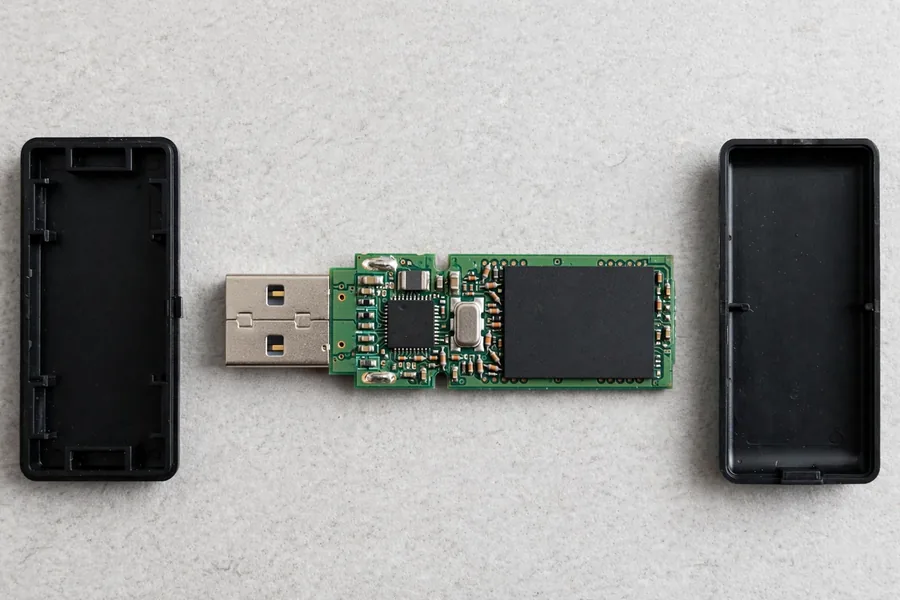
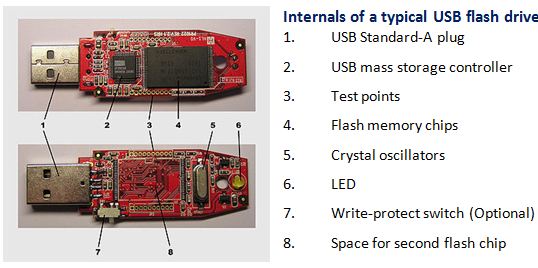
Every USB flash drive is built from the same short list of parts. Whether you call it a thumb drive, a pen drive or a USB stick, the parts of a USB stick are the same inside. Knowing the USB parts by name tells you what a failure means and what a lab can still do, and it is the quickest way to see why USB parts that look broken are often recoverable. A standard drive has six: the connector, the controller chip, one or more NAND memory chips, a crystal oscillator, a small circuit board that joins them, and a case. Some drives add an activity light or a write-protect switch. A NASA patent that describes a flash drive lists the same core USB components: a USB plug, a mass-storage controller with a small processor, a NAND flash memory chip, and a crystal oscillator that supplies a 12 MHz clock signal.
Three of the USB flash drive components decide most recovery cases. The connector joins the drive to the computer, and it often breaks or comes loose. The controller lets the computer read and write the memory chip, and it can stop working at any moment, which leaves corrupted files or a drive that shows no size. The NAND flash memory chip stores the data. Engineers read it out as raw hexadecimal data, and the data sets (banks) sit inside the NAND flash memory. Many small drives are monolithic, which means the controller and the memory share one sealed package.
What Is Inside a USB Drive? The Parts at a Glance
The table lists the parts of a USB drive, what each one does, what its failure looks like, and whether the files are usually still readable. Match your symptom to a row to see which of the USB flash drive parts is most likely involved.
| Parts of a USB Flash Drive and What Their Failure Means | |||
|---|---|---|---|
| Part | Its job | What failure looks like | Files usually readable? |
| USB connector | Carries power and data between the drive and the computer | Loose fit, the drive drops in and out, or the plug is bent or snapped | Usually yes. The memory chip is often untouched. |
| Controller chip | Manages the drive: talks to the computer, maps where files sit, spreads wear across the memory | Not recognized, 0 bytes, wrong size, “Please insert a disk” | Often yes. A lab can often read the memory chip directly. Hardware-encrypted drives are the exception. |
| NAND memory chip | Stores your files | Corrupt or missing files. If the chip is cracked or crushed, the data is lost. | Yes if the chip is whole. No if it is cracked through or crushed, and only a microscope can confirm which. |
| Crystal oscillator | Keeps time for the controller and the USB link | A cracked crystal can stop the drive working, often after a drop | Usually yes. The memory chip is typically undamaged. |
| Circuit board | Links every part and carries power | Cracked board, lifted traces, burn marks after a power surge | Often yes, when the memory chip survived |
| Write-protect switch, if your drive has one | Asks the drive or the reader to block new writes | The drive reads but refuses new files | Usually yes, when the drive still reads |
| Case and light | Protects the board; the light shows activity | Cracked or split shell, which can hide damage inside | Yes if the parts inside are undamaged |
 Enlarge
The labeled picture shows where each of the USB flash drive parts sits on a real board: the plug at one end, the controller beside it, the memory chips in the middle, and the crystal near the controller. USB flash drives are made for consumers to carry data from one system to another by plugging the drive into a computer’s USB port. This storage device is extremely convenient. However, a USB flash drive can fail for no apparent reason. Often the cause is a loss of connectivity from a broken USB port. Sometimes you bend the tip, and the data seems lost. USB flash drive data recovery experts solve these annoying problems daily. Because the data sits on the memory chip, it usually survives when the port or the controller does not. That is why a snapped connector is often a repair job, not a lost cause: the engineer rebuilds the path from the port to the controller, or reads the chip directly, and the files come back without the drive ever working normally again.
How a Flash Drive Stores Your Data
Among the parts of a flash drive, only one keeps your data: the NAND flash memory. The other parts of a flash drive only move it, time it or power it. Inside the memory chip, millions of tiny cells each hold a small electrical charge, and the pattern of charges stands for your files. The cells are grouped into pages, and the pages into blocks. A block has to be erased as a whole before it can be written again, and each block survives only a limited number of erase cycles.
That limit is why the controller does wear leveling: it spreads writes across all the blocks so that no single block wears out first. To do this it keeps a map of where every piece of every file sits, and it scrambles the data and corrects errors as it writes. Your computer never sees the raw layout of the chip. It only sees the neat drive the controller presents. Of all the USB components, the memory chip is the one that matters most to a recovery, and the other USB components exist to serve it, and the controller is the one that can stand in the way.
When the controller of a drive with separate chips fails, the memory chip can still hold the data, but in its raw form. A lab that reads the chip directly then has to undo the controller’s work with descrambling and error correction, and rebuild the file system, before the files appear. For a plain-English tour of how NAND flash stores each bit, read our guide to flash memory in plain English.
Which Broken USB Part Means What for Your Files
 Enlarge
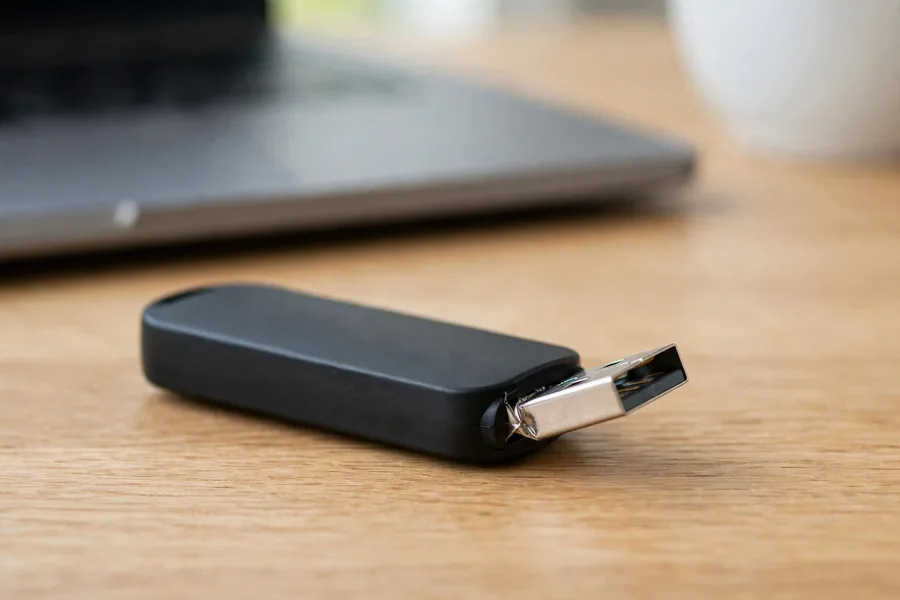
Most failures come down to one of the USB parts. Match what you can see, or what the computer does, to one of the USB flash drive parts below, and you know whether the files are likely safe, at risk or beyond saving. Only a lab can confirm it, so treat this as a guide and not a diagnosis.
A bent or snapped connector
The plug has been bent, twisted or snapped off the board. The metal shell takes the knocks, and the memory chip behind it is usually unharmed, so this is the most hopeful kind of damage. Engineers rebuild the path from the plug to the controller, or read the memory chip directly. Do not try to straighten the plug.
A dead or failed controller chip
The drive is not recognized, shows 0 bytes or reports the wrong size, yet the plug and the case look fine. The controller manages everything between the computer and the memory, so when it fails the files often stay on the memory chip, and a lab can often read that chip directly. A hardware-encrypted drive is the exception, because its controller holds the key. Drive gone from the computer entirely? See why NAND flash shows as not detected.
A cracked or crushed memory chip
This is the one kind of damage that can end a recovery: the NAND memory chip itself cracked through, broken off or crushed into pieces. A chip that only looks smashed is not automatically lost, and if the damage is not that bad it can still be read. Only a lab can tell, under a microscope, unless the chip is in obvious pieces.
A sealed, monolithic drive
Many small and thin drives put the controller and the memory in one sealed package, so there is no separate chip to point at. Our guide explains how monolithic flash works. How a given drive can be read depends on the drive, and a lab has to judge it case by case. Do not pry it open.
A cracked case or a burned board
The case is the outermost of the parts of a USB flash drive, and a split shell can hide a cracked board. A power surge can leave burn marks near the plug. Neither one alone means the files are gone. What matters is whether the memory chip survived. Keep every piece of the case and tell us what happened to the drive.
USB-A, USB-C and Micro-USB Connectors
 Enlarge
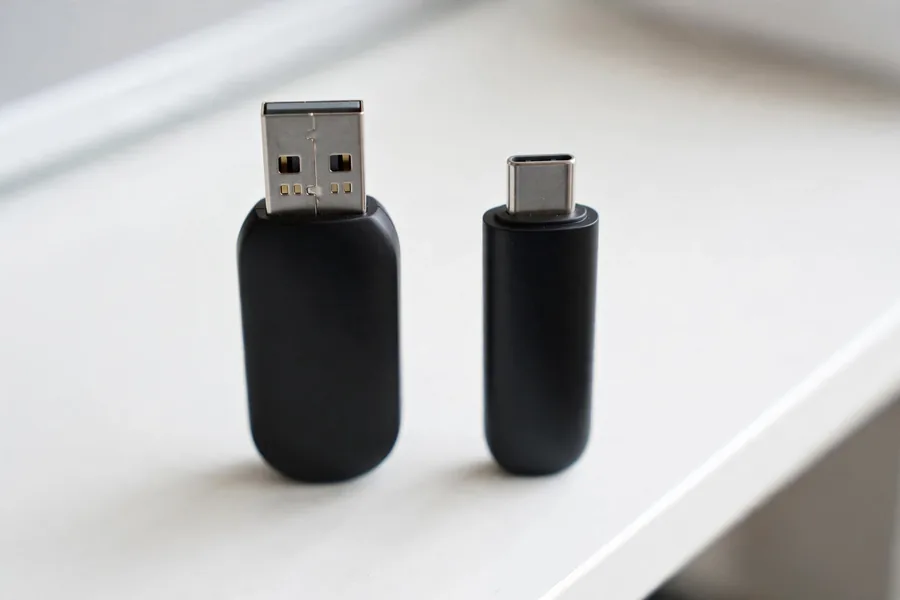
Among all the USB drive components, the connector is the only one of the USB parts you can see and touch, so it takes the abuse. Three plug types are common on flash drives. The plug changes how a drive breaks. It does not change where your files live: on all three, they sit on the memory chip behind the controller.
A plug that is loose, not broken, causes its own trouble. The drive drops out in the middle of a copy, and a power cut during a write can leave the file system half finished. That is why a drive that disconnects when you touch the cable should be backed up at once, not wiggled until it works. If the drive connects steadily in one port and not in another, the worn port is the likely cause. If it drops out in every port, suspect the plug or the board, and stop plugging it in.
Among the USB parts, the connector comes in three common shapes, and the table sets the three plug types side by side, with the failure each one tends to suffer. It is a guide to what usually goes wrong, not a promise about any one drive.
| Common USB Flash Drive Connectors | ||
|---|---|---|
| Plug | Shape and where you see it | What usually goes wrong |
| USB-A | Wide, flat, rectangular plug. The classic stick for laptop and desktop ports. | Bent or snapped shell, or a loose fit in a worn port |
| USB-C | Small oval plug that fits either way up. Found on newer sticks. | A small plug can loosen under side force |
| Micro-USB | Small flat plug with two angled corners, on dual-plug drives made for phones and computers | The small plug can loosen or tear away when the drive hangs from a phone |
Speed is a separate question. Drives with the same plug can run at different speeds, and our guide to how USB speeds and features differ covers it. For a failed connector, the speed rating matters little. What matters is whether the plug can still reach the board.
USB Drive Not Recognized and Other Common Symptoms
Usually, after you insert a USB drive, the PC recognizes it and assigns it a drive letter. When you see the message “USB device not recognized” instead, or the drive never appears, work through three checks. First, restart the computer, which rules out a Windows glitch. Second, try another USB port, then another computer or laptop. If the other computer recognizes the drive, the problem is in the first computer’s drivers or USB port. A “driver” is the software that lets the operating system talk to the hardware, and keeping your drivers up to date also helps protect your information against security holes. Third, open Disk Management in Windows and look for the drive there. A drive that lists with no size or no media often points at the drive itself, not the computer. If no computer recognizes the drive, the problem is inside the drive, and that is a job for a lab. Our guide to an unreadable USB drive covers the other messages you may see.
USB flash drives sometimes fail to open when you click on them in My Computer. This happens when USB drives are corrupt or damaged. The device may also have physical damage to one of the parts of a USB drive; in that case it is usually a circuit failure. A “write protected” message is worth a quick check of the lock switch, if your drive has one.
There are two kinds of problems:
- Logical problems: the file system or file table is corrupted, but the hardware still works. The drive may ask to be formatted or show the wrong files.
- Hardware and controller problems: the port, circuit or microcontroller has failed, which stops you from opening the device at all. When a drive’s controller has failed, reading the memory chip directly (chip-off) is often how a lab gets the files back. Hardware-encrypted drives are the exception.
One exception: some USB drives are hardware-encrypted, with a keypad or a security-branded controller. On those, the key lives in the controller, so reading the memory chip alone returns scrambled data. The original controller has to work for the files to be readable. Tell us if your drive is encrypted when you submit the case. If the drive still opens and you only want it working again, our guide to repairing a USB stick covers the safe fixes.
Formatting a USB Drive and Choosing a File System
When you choose a file system to format your USB drive, consider a few things. First, if any of your files are larger than 4GB, choose NTFS or exFAT, because FAT32 can’t store a single file over 4GB. FAT32 works with all major operating systems, but the Windows format tool limits FAT32 partitions to 32GB, which creates volume limits. Large photo and video editing projects and high-end game titles won’t fit. NTFS isn’t fully supported by every operating system, so make sure yours supports NTFS before you choose it. Lastly, exFAT works on both Windows and Mac computers and handles files larger than 4GB, but it has no journal (log) function. Every file system has some kind of drawback.
| Choosing a File System for a USB Drive | ||
|---|---|---|
| File System | Strength | Limit |
| FAT32 | Works with all major operating systems | No single file over 4GB; 32GB partition in the Windows tool |
| NTFS | Large files, journaling | Not fully supported on every operating system |
| exFAT | Windows and Mac, files over 4GB | No journal (log) function |
Format a new or empty drive, never a drive that still holds files you need. If Windows says “You need to format the disk” when you open a drive that holds your files, refuse the prompt and stop using the drive.
Habits That Turn a USB Drive Failure Into a Hard Case
 Enlarge
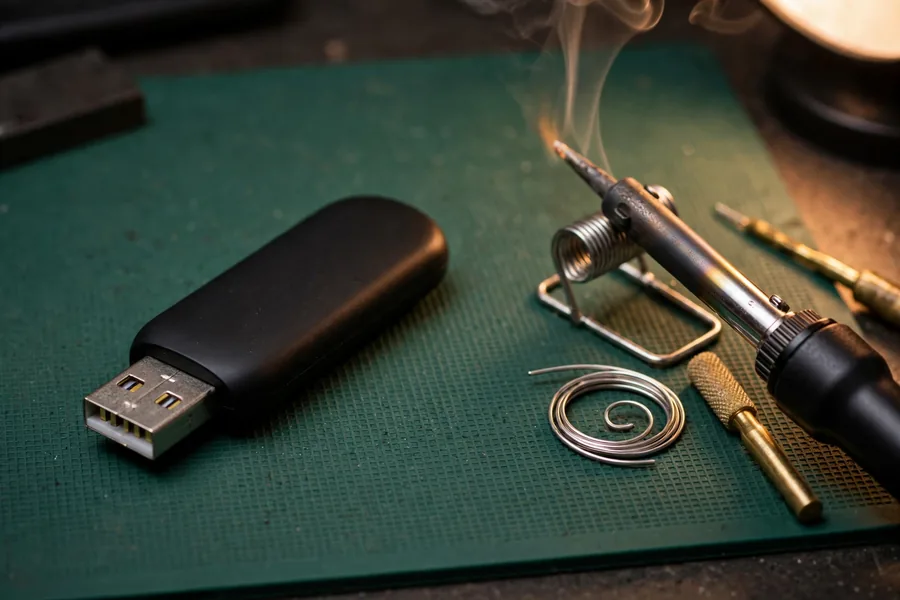
The parts of a flash drive are small and fragile, and the parts of a USB drive are soldered close together, so five habits turn a recoverable drive into a hard case. Each has a one-line reason.
- Do not bend a bent connector back and plug it in, because a bent shell can short the board.
- Do not glue or tape a loose plug, because the glue hides the damage and makes the lab’s work harder.
- Do not solder or heat the board yourself, because heat and static can damage the memory chip.
- Do not pry open a monolithic drive or a microSD card, because sealed memory can crack.
- Do not format the drive or run repair tools, because both write new data onto the drive.
Several of the cases below began with a solder repair that did not finish the job. If someone has already tried one, tell us when you submit the case. It changes where the engineer starts.
USB Drive Cases From Our Own Files: Repairs Tried First
Since 1999 we have handled a great many USB drives, and the ones below come from our own case files, dated 2014 to 2026. Each quote is what the customer typed into our case form, word for word, with names, contact details and file names taken out. Where the file shows an outcome, we report it plainly, the drive that did not come back included. Where it holds only the customer’s account, we say so, because an account is not an outcome. Nobody can promise an outcome without the drive in hand. Most of these cases come down to one of the parts of a flash drive that the guide above describes, and a pattern runs through them: someone tried a repair first. Our guide to how damage severity decides the odds shows how bent and crushed drives fare.
Thumb drive that fell out of a laptop, a shop tried jumper wires, September 2018
On the form, this customer described what happened:
“Laptop fell while thumb drive was still connected. Took thumb drive to a local shop and they were not able to complete the job after they tried to solder some jumpers.”
A drive knocked loose while it is plugged in is the bent-connector row of the guide above. The shop’s solder work did not finish the job. Our record shows the drive reached the lab in September 2018, and in November 2018 the recovered files went to the customer as a download of about 1.13 GB.
Flash drive whose connector broke off, a dongle was soldered on, March 2015
This customer wrote:
“The flash drive was in my laptop and the laptop fell. The USB interface connector was broken off of the flash drive PCBA. A USB dongle was soldered to the PCBA by qualified PCBA repair technicians in an effort to recover the data. The USB drive was unable to connect to a PC after the repair and no further troubleshooting was attempted.”
This customer did the helpful thing at the end: after the repair failed, no more troubleshooting. Our record shows the drive arrived in early March 2015 and the lab reported a successful recovery the next day.
Thumb drive that hung on every copy, 2020 to 2021
This customer, who had already tried a recovery program, added more detail:
“I tried to copy but was only able to copy a few and then hangs up. The data I need recovered are all the photos and I had a few word documents, like a letter to my Grandma that I would like to get, there is less than 3GB of data on the drive.”
A drive that shows its folders but stalls on every copy is an unhealthy drive, and each retry can make it worse. This case became a complex recovery that took months. In January 2021 our record shows a success recovering the data.
Thumb drive reformatted, recovery programs run first, May 2014
This customer wrote:
“I have tried downloaded programs (EaseUS, PhotoRec) which were able to recover most files, but of course could not find the ones that matter.”
Not every drive comes back. In May 2014 the lab reported that it could not locate and recover the files, and its note says its best guess was that they had been overwritten in the flash memory. The drive went back to the customer at no charge. The customer did well to stop writing to the drive after the reformat. Per the lab’s note, the likely cause was overwritten flash memory, which leaves nothing to rebuild.
Flash drive chewed by a dog, August 2019
This customer wrote:
“My dog had chewed my flash drive … You have previously tried to advance recovered that with no success due to too much damage.”
This 2019 case was a follow-up. The customer sent a hard drive from their own computer, hoping to find an old copy of the files. In November 2019 the lab reported that it had put the drive through just about everything possible, that none of the files it could reach would work, and it sent the drive back. Damage that reaches the memory chip itself is the kind that can end a recovery, and only a lab under a microscope can judge it.
Bent 4 GB drive that a local computer store tried to solder, February 2014
This customer wrote:
“Verbatim 4G flash drive, connector bent while in computer, no connection following, local computer store attempted to solder connections with no luck (previous repair attempted).”
The words match the bent-connector row of the guide above, and the store’s repair came first. Here we have the customer’s account and nothing more, so no result is claimed.
Bent USB drive that someone tried to solder back together, July 2017
This customer wrote:
“My USB flash drive was bent. The connectors were disconnected, someone tried to solder it back together but it never worked.”
That is the same pattern again: a bent plug, then a repair attempt with no result. The record gives us only this account, so we claim no outcome for this drive.
Slider flash drive with a snapped connector, May 2026
This customer wrote:
“Sandisk slider flash drive, the connector snapped off the board. I brought it to a local shop to do a trace jump, but they said there is a ‘gouge’ in the chip and they couldn’t recover. I’m just trying to get a single spreadsheet off it.”
A shop’s remark about a gouge in the chip is one opinion. Whether a chip is cracked through is the single question that decides the odds, and only a lab under a microscope can answer it. The record holds the customer’s account alone, so we do not say how this one ended.
Contacting a File Recovery Expert

As we can see, USB flash drives are complex pieces of hardware, with many small USB components packed into a tiny case, and each of those USB components can fail on its own, and USB drive recovery is often needed. It is best to contact people with experience. All the circuits and the other parts of a USB drive sit inside the case, and it’s never a good idea to try a repair yourself. If you do, you might create a bigger problem. Leave it to document recovery experts.
eProvided has specialized in USB drive recovery since 1999. First and foremost, eProvided data recovery works with all consumers. We have also worked for the Department of Defense. NASA has also called founder Bruce Cullen directly regarding a NAND data-transmission glitch on the Mars rover, a case that made national news, and eProvided was also contacted about data storage for the Nancy Grace Roman Space Telescope program. See how our USB recovery service works. You can rest assured, we care about your files. If you need professional data recovery, contact us.
eProvided USB Drive Recovery. Call toll-free (866) 857-5950. Our website address: https://www.eProvided.Com
What Our Customers Say
Frequently Asked Questions
Recovery Services for USB and Flash Media
eProvided covers every kind of flash storage: USB flash drive data recovery; NAND flash chip-off recovery; memory card data recovery; microSD card data recovery; and the SSD data recovery service for SATA and NVMe drives. Spinning disks are covered too, through professional hard drive data recovery, and the same lab also handles phones, tablets and computers. Browse all data recovery services →
More USB & Flash Drive Recovery Guides
- Recovering a formatted USB thumb drive
- Encrypted device vulnerabilities
- What makes a flash drive fast
- Why flash drives shrink over time
- New developments in flash memory storage
- Decoding flash drive error messages
Port, controller, memory chip: knowing which of the three failed tells you what recovery will involve. The memory chip is usually the part that survives.
USB Drive Still Not Recognized?
Tell us which computer you tried and what the drive does now. Our engineers will check the port, the controller and the memory chip, and tell you what can be recovered, free.
Start My Free Evaluationor call (866) 857-5950 now
Related Recovery Services
These services cover USB drives and the flash media around them: