
Used by NASA · the FBI · the U.S. Navy · Since 1999
Recover Data from Formatted USB Thumb Drives
- No Data, No Data Recovery Fee
- 27+ years of recovery experience
- USB thumb drives of every brand
- Free evaluation, no obligation
Can You Recover Data From a Formatted USB Thumb Drive?
Often, yes. A quick format only marks the space as empty, so the files usually stay on the drive until new data overwrites them. Stop using the drive now and save nothing new to it. A full format can overwrite the data. eProvided has recovered formatted USB drives since 1999.
“A quick format erases the map, not the land. Stop writing to the drive and the files stay put.” — Bruce Cullen, founder, eProvided
Data is always precious, whether it’s a single document, a presentation, or a group of birthday shots. With USB thumb drives, moving data from one device to another is simple. But what happens if you format your thumb drive by accident? Here is how to recover data from formatted USB flash drives, and the mistakes that turn a recoverable drive into a lost one.
Formatting a USB thumb drive usually does not erase your files right away. A quick format rewrites the file table and marks the space as free, and the old data stays until something new is written over it. So the first rule is simple: stop using the drive. Don’t copy anything to it and don’t format it again. Recovery software can work on a healthy drive if you are careful. If the drive also shows errors, disconnects or is not recognized, a lab is the safer path.
Do RIGHT NOW
- Unplug the formatted drive and set it aside
- Write down what happened: quick format, full format, or a Windows “you need to format” prompt
- Recover to a different drive, never back onto the same thumb drive
- Get a free evaluation if the drive is also acting up physically
DON’T Do
- Don’t save any new files to the formatted drive
- Don’t click “Format disk” when Windows offers it for a drive holding your files
- Don’t keep plugging it in again and again to check
- Don’t run several recovery programs one after another on a failing drive
If the files are important and you would rather not risk a DIY attempt, a free evaluation will show what can still be read from the formatted drive. You can also call (866) 857-5950 to talk it through first.
- What Happens When a USB Drive Is Formatted
- Quick Format or Full Format: What Did You Run?
- Recover a Formatted USB Flash Drive
- Recovering Lost Data From USB Thumb Drives: Stop Using It
- Why Formatted Data Can Still Be Recovered
- Format Prompts and Messages, Decoded
- What Not to Do After a Format
- Recovery Software or a Lab: Which Fits Your Drive
- Formatted and Format-Prompt Drives From Our Case Files
- What Our Customers Say
- Frequently Asked Questions
- Get a Free Evaluation
- Related Recovery Services
What Happens When a USB Drive Is Formatted
All of the data stored on the USB drive seems to be lost. Now the problem becomes serious. If you don’t have a backup of everything that was on the USB flash drive, you’re in trouble. In this situation the first question that comes to mind is “Is it possible to recover data from formatted USB thumb drives, or is it lost forever?” The good news is that you can often recover data from formatted flash drives. You must be extremely careful while handling the situation.
Millions of users across the globe rely on USB drives to save and protect their data. People store videos, music files and photos on USB thumb drives, and move photos and files from smartphones and cameras onto them. Accidental deletion is a common problem with all digital storage devices, and even deleted files are often possible to bring back.
Inside a USB stick sit two separate things: an index and the files it points to. The first is a small index, the file table, which lists every file name, folder and location. The second is the files themselves, spread across the memory. When you format the drive, the computer builds a new, empty index. It does not walk through the memory and wipe each file. That is why a format that took three seconds could not have erased 32 GB of photos, and why the files are often still there to find.
Quick Format or Full Format: What Did You Run?
The kind of format decides almost everything. Microsoft’s documentation says a quick format deletes the file table and the root directory of the volume and does not scan the drive sector by sector. Your photos, documents and videos are not touched. A full format on Windows Vista or later goes further. Microsoft documents that a full format writes zeros to the whole disk. Zeros written over your data cannot be undone by any software or any lab, so a finished full format is the one case where we usually have to say no.
Not sure which one ran? These clues help:
- Time. A quick format of a USB stick usually ends in seconds. A full format of a large stick runs for many minutes or longer, because it writes to the whole drive.
- The box. The Windows Format window has a Quick Format check box, and it is ticked by default. If you never unticked it, the format was quick.
- The command line. The format command’s /Q switch means quick. Its /P switch writes zeros, and Microsoft notes that /P is ignored when /Q is used.
- A Mac. Disk Utility’s Erase builds a new, empty file system. Apple’s guide warns that it erases the files on the volume, so treat it as a real format and stop.
- Another device. A camera, TV or printer menu rarely says which kind it ran. Treat it as unknown.
If you cannot tell which format ran, assume the better case and protect it. Every minute the drive stays unplugged keeps that case alive.
Changing the File System: FAT32, exFAT and NTFS
Many people format a stick to switch it from FAT32 to exFAT or NTFS, often because a single file is larger than 4 GB. A new file system lays down its own structures at the start of the drive. Wikipedia’s entry on disk formatting notes that formatting with a different file system than before can overwrite data that the old file system would have left alone, and that a larger partition overwrites more. So a stick that went from FAT32 to NTFS is a slightly harder case than a quick format that kept FAT32. Harder is not lost, but it is one more reason to stop and ask before you try anything.
Recover a Formatted USB Flash Drive

Did Windows say, “You need to format the disk in drive before you can use it”? This is one of the most common causes of data loss, because many people click Format. Deleted data from a formatted drive is often recoverable. When your thumb drive stops working, or an error message says you need to format, stop and consider a few things. Is it crucial to keep the data stored on that USB drive? If so, seek out professional data recovery engineers before you do anything else.
That Windows message usually means the file system is damaged or the drive is failing, not that the files are gone. Formatting at that point replaces the damaged file table with a new, empty one and makes the job harder.
eProvided has the experience and the tools to repair USB sticks and retrieve corrupted and damaged files from formatted USB drives. On USB flash drives and memory cards, the files live on a NAND memory chip, and when the drive’s controller or connector fails, our engineers can read that chip directly in the lab. Request a free evaluation to get your data back, or call and speak to an engineer.
Recovering Lost Data From USB Thumb Drives: Stop Using It
 Enlarge
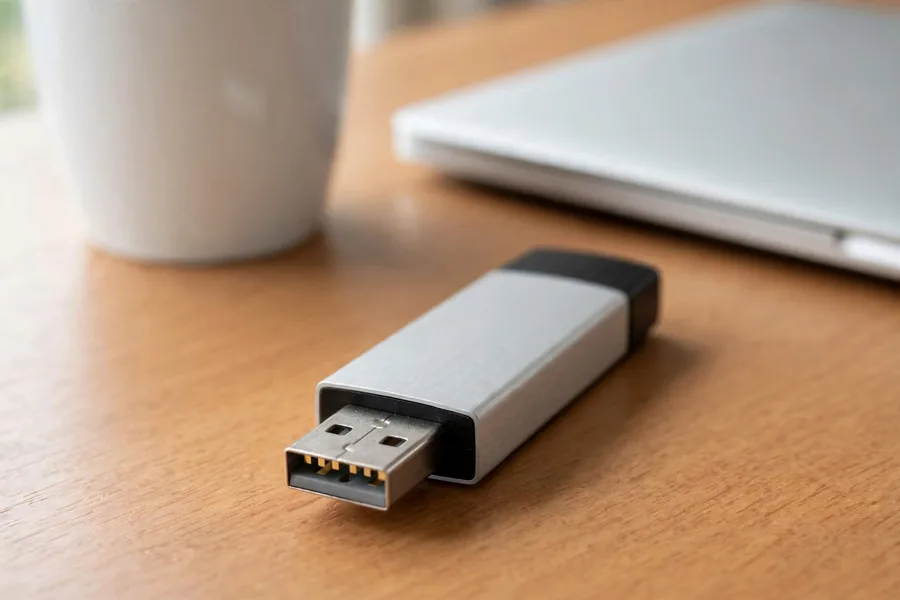
Once you realize that the files on your USB thumb drive have been formatted, corrupted or lost, the first thing you need to do is stop using the device. It’s natural to feel a sense of loss or guilt when a USB thumb drive is formatted by accident.
You might feel like connecting the USB thumb drive to your computer again and again to see if your files are back. But this can make the situation worse. Your computer may write new data to the drive, and a failing drive can degrade further every time it powers up. You might ruin the chances of recovering your data for good. If the drive has stopped showing up at all, see our guide to a USB device that is not recognized.
If you must do something in the meantime, do one thing: eject the drive with Safely Remove Hardware on Windows or Eject on a Mac, unplug it, and put it somewhere safe. A drive that sits unplugged cannot be overwritten, and it gives you time to get advice before you decide.
Why Formatted Data Can Still Be Recovered
 Enlarge
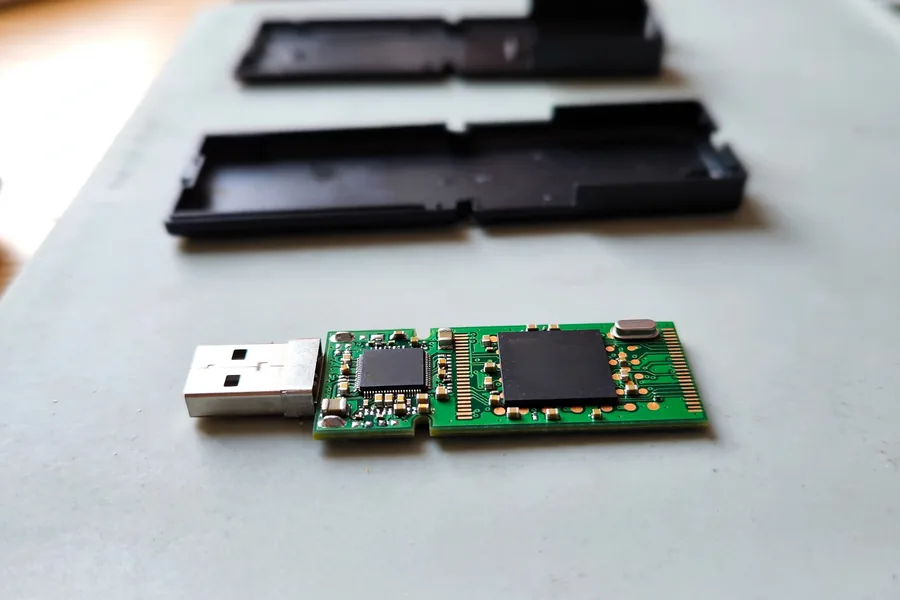
The fact is that the files are usually not fully deleted from your USB thumb drive when you format it. A quick format marks the space where your files were stored as empty, so your data might still be right there on the thumb drive. But if those files are overwritten by new data, it becomes very difficult or impossible to recover them. So don’t use your USB thumb drive in this condition, and never save a new file to a formatted USB stick before the data recovery process. The files themselves sit on the drive’s NAND memory chip, which is why chip-level flash recovery can still reach them when the drive will not mount.
There is one important exception: the full format described in the quick-or-full section above. Once a full format finishes, the old data is overwritten, and no software or lab can bring it back.
Formatted by a Camera, TV, Car Stereo or Printer
Many cameras, TVs, game consoles, car stereos and printers can format a USB stick for their own use. It is the same act, and it follows the same rules. These devices usually need one tap and a short warning, so people confirm without noticing that the stick holds their only copy of something. Devices may also choose a file system of their own, so the stick can look empty or unreadable on your computer afterward. Treat it as a quick format unless you know otherwise, unplug it, and note which device ran it. For hard drives, SSDs and computers that were wiped and reinstalled, the rules differ, and our guide to recovering reformatted data covers them.
Encrypted USB Drives Are the Exception
Some sticks encrypt their contents, either with software such as BitLocker To Go or with a hardware chip inside the drive. Encrypted data is scrambled, and only the key can turn it back into your files. A hardware-encrypted stick keeps that key in a separate secure controller, not in the memory chip, so reading the memory chip alone returns scrambled data. A software-encrypted stick needs your password or recovery key, and a format replaces the structures the encryption relies on. A reset or secure erase on an encrypted drive can destroy the key outright, and then nothing brings the data back. If your stick is encrypted, say so when you contact us, and keep the password and recovery key safe.
Format Prompts and Messages, Decoded
Most people meet this problem as a pop-up, not as a decision. The table below matches the messages that mention formatting with what they usually mean. For other error messages, see our guide to an unreadable USB drive.
| Format Messages on a USB Drive and What They Usually Mean | ||
|---|---|---|
| What you see | What it usually means | What to do |
| “You need to format the disk in drive before you can use it” | Windows cannot read the file system. This is an offer, not proof the files are gone. It also appears when the memory chip itself is failing. | Click Cancel. Do not format. |
| Disk Management shows RAW | Windows sees the drive but finds no file system it can read, because the file table is damaged or a format did not finish. | Do not format or repair. Scan to another drive, or ask a lab. |
| 0 bytes or the wrong size, plus a format prompt | The drive’s controller cannot present its memory correctly. This points to hardware, not to a file-system slip. | Stop. Software cannot fix it. Lab only. |
| Drive came back empty after someone else used it | A person or a device formatted it or deleted the files. | Save nothing. Ask which device ran it and whether it was a quick format. |
| Mac says the disk is not readable and offers Initialize | The Mac cannot read the file system, for example one written by Windows, or the drive is damaged. | Click Ignore or Eject, never Initialize. |
| Password box, then a format prompt | An encrypted drive whose encryption data is damaged or was overwritten. | Keep the password and recovery key. Do not format. Call us. |
| Recovered files have generic names and no folders | Normal after a format. The file table that held names and folders is gone, so software finds files by type. | Keep the output. Sort it by file type. |
What Not to Do After a Format
 Enlarge
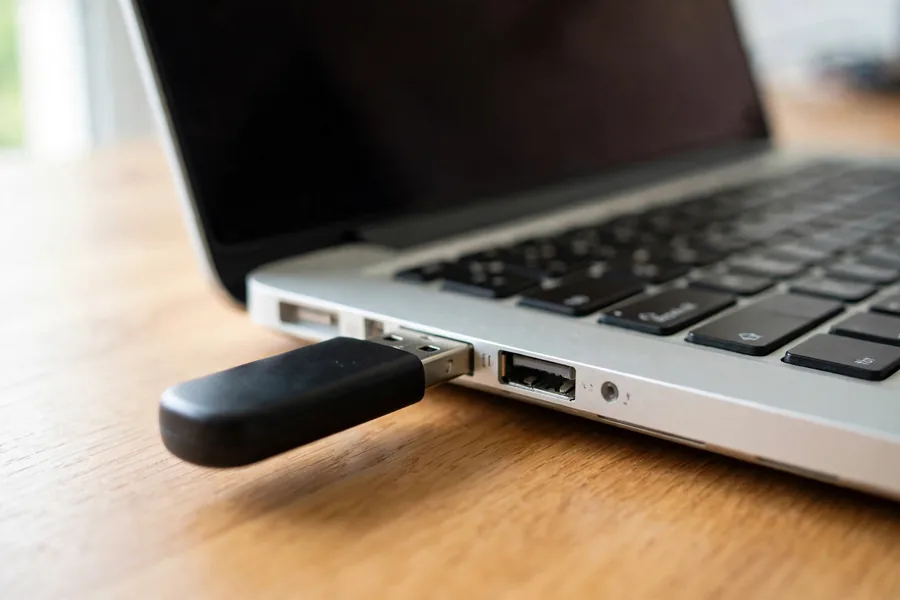
Five common moves can turn a drive that could be saved into a difficult one. Each has a one-line reason.
- Do not format the drive again to see what happens, because every format rewrites the start of the drive where the file table sits.
- Do not copy a test file onto it, because new files land in the same free space your old files occupy.
- Do not save recovered files back to the same stick, because the program overwrites the very files it just found.
- Do not run repair tools such as chkdsk on a drive holding files you need, because they write changes to the file system.
- Do not plug it into one machine after another, because each system may write small hidden files to a removable drive.
If one of these has already happened, mention it on your request. The engineer then begins in a different place.
Recovery Software or a Lab: Which Fits Your Drive
 Enlarge
Tools a Non-Professional Can Use on a Formatted USB Thumb Drive
If you search the web for a way to recover data from a formatted USB thumb drive, you will see a huge list of data recovery software applications. Not many of them are effective, but some can help you recover lost data from a formatted USB flash drive. Your files could be documents, photos, videos, audio files or any other format that holds your precious data.
Most of today’s data recovery applications have an easy-to-use interface that you can run on your own. Even so, you need to be fairly tech-savvy to use recovery software properly. Completing a data recovery from a formatted USB flash drive yourself is not impossible, but be careful, and assume you just may cause further data corruption. Choose very reliable USB data recovery software, save recovered files to a different drive, and only proceed if you are confident using it on your own.
Software only works when the drive itself is healthy. If the drive disconnects, freezes, shows the wrong capacity or is not recognized at all, the problem is physical, and scanning it again and again can finish it off.
What Recovery Software Actually Does After a Format
Because the format replaced the file table, the software has no list of your files to follow. It scans the raw drive for the byte pattern that opens each known file format. The documentation for the free tool PhotoRec explains that a file’s name, date, size and location are lost with that metadata, so it searches for known file headers instead. It adds that when a file is not fragmented, which is often the case, the whole file can come back. Fragmented files are harder. Expect photos and documents to return under generic names and without folders, and expect a few to open damaged. PhotoRec also reads the drive in read-only mode, which is the right habit for any tool you choose.
When a Formatted Drive Belongs in a Lab
Choose a lab over another download in these situations:
- The drive also disconnects, freezes, gets hot, or shows 0 bytes or a wrong size.
- The format ran on a stick that was already throwing errors.
- Software returned only some files, or the files it returned will not open.
- The stick is encrypted, or it was bent, dropped or wet before the format.
At the lab our engineers read what the format left behind without writing to the drive, then tell you what can come back before you decide anything. Names and folders return when the old file table survives. Otherwise files return by type. Each evaluation is free, and you can start one with the form at the top of this page. If you want to see what is inside a stick, our guide to the parts of a USB flash drive shows the memory chip and the controller.
| Formatted USB Drive: What Your Chances Look Like | ||
|---|---|---|
| What Happened | Where the Files Are | Best Next Step |
| Quick format, nothing saved since | Still on the drive, file table replaced | Careful software or lab |
| Quick format, new files saved | Partly overwritten | Stop now, lab evaluation |
| Windows “you need to format” prompt | Still there, file system damaged | Don’t format, lab evaluation |
| Full format completed | Overwritten with zeros | Usually not recoverable |
| Formatted and not recognized | On the memory chip | Lab only |
Formatted and Format-Prompt Drives From Our Case Files
The cases below come from our own files, dated 2013 to 2024. Each quote is what the customer typed on our case form, with names, contact details and file names removed. Where our notes record an outcome, we state it straight, drives that did not come back included. Where the file holds only the form, we say that too.
USB stick that came back from a borrower with the data gone, July 2013
This customer wrote:
“I believe the USB has been formatted for another computer … [it] returned [with] all my data missing.”
In August 2013 our record shows no success: the data had been permanently erased, so recovery was not possible, and the drive went back to the customer. The note does not say which kind of format ran. It does show that a drive that someone else has handled is worth setting aside before anyone plugs it in again.
Flash drive that showed as RAW and asked for formatting, May 2013
This customer wrote:
“Flash Drive shows as raw device. Ask for formatting when inserted into USB. Files in Feb, Mar and April of 2013 are most important.”
In June 2013 the lab reported a partial success. The FAT table had been erased and the master boot record corrupted. The lab recovered hundreds of text files along with some Excel files. A partial result is common when the file table is gone: some files come back, and some do not.
Flash drive that asked to be formatted after working the day before, June 2013
This customer wrote:
“‘You need to format the disk in drive G: before you can use it.’ I have not formatted it … There’s no physical damage.”
The customer suspected corrupt software on the drive. In July 2013 the lab wrote that there was too much internal corruption to the memory chip and that recovery was not possible, and the drive was sent back. A format prompt can come from damage inside the memory itself, not just from a damaged file system, and no setting on your computer can undo that.
Drive that stopped working and asked for formatting, August 2013
This customer wrote:
“[USB] drive stopped working. computer requesting formatting.”
This one came back. In September 2013 our record shows a success recovering the data, and the drive was shipped out to the customer. The customer did not click Format, and that choice kept the files readable for the lab.
Drive that snapped in a backpack and offered to format, October 2020
This customer wrote:
“My flash drive was connected to my computer inside a backpack when it snapped. I tried to plug it back in but got an error that the computer couldn’t read the device and it was asking if I wanted to format the drive. The USB connector and green chip broke.”
This case ran for months. In June 2021 the lab put the drive through a direct internal data extraction, which tries to stream data out of the device. That method did not produce data; there was too much damage, and our note records no success. The drive was prepared for return in October 2021. A format prompt after a physical break is a hardware signal. Clicking Format would not have helped, and neither would software. Our guide to a shattered USB drive covers what a break like this means for your files.
Encrypted USB stick that asked to be reformatted, November 2016
This customer wrote:
“The USB drive being sent is an encrypted, password-protected one … another message appeared saying that the USB would need to be reformatted.”
In November 2016 the lab wrote that the data was not clean, that it was not possible to reconstruct the files, and that this was not a success. The note does not name the cause. It fits the pattern described above: on an encrypted drive, the memory chip alone does not hold what is needed to read the files. Keep the password and recovery key somewhere other than the stick.
Flash drive that suddenly needed formatting after nine months, May 2024
This customer wrote:
“Computer said that it needed to be formatted and if it was formatted I would lose everything that stored on it.”
Our file holds only the case form for this one, with no outcome. The customer did the right thing by asking before clicking Format, which is the choice that keeps every option open.
What Our Customers Say
Frequently Asked Questions
Recovery Services for Formatted and Failed Drives
eProvided handles formatted and failing media across every device class: USB flash drive data recovery; the SSD data recovery service; NAND flash chip-off recovery for USB and card media; Professional hard drive data recovery; memory card and microSD card data recovery. Browse all data recovery services →
More Thumb Drive Recovery Guides
- thumb drive recovery — our main thumb drive recovery service.
- Common thumb drive failure problems
- Thumb drive tips to avoid damage
- Top 5 thumb drives on the market
A formatted thumb drive is usually a recoverable thumb drive, as long as nothing new lands on it. Stop using it, then decide between careful software and a lab.
Formatted the Wrong Thumb Drive?
Unplug it and send us the details. Our engineers will check what the format left behind and tell you what can come back, free and with no obligation.
Start My Free Evaluationor call (866) 857-5950 now
Related Recovery Services
These services handle formatted, corrupted and physically failed thumb drives: