
Used by NASA · the FBI · the U.S. Navy · Since 1999
How to Avoid Damaging a Thumb Drive: 5 Habits to Break
- No Data, No Data Recovery Fee
- Every brand — SanDisk, Kingston, PNY, Lexar
- 27+ years of recovery experience
- Five real habits, shown in real photos
How do I avoid damaging a thumb drive?
Most thumb drive damage traces back to five avoidable habits: unsafe ejection, keychain wear, heat exposure, loose connections, and not knowing what is actually inside the case. Fixing those five habits prevents the vast majority of the damage that reaches our recovery bench.
“The drives we see are almost never destroyed by one dramatic accident — it’s five small habits, repeated for years.” — Bruce Cullen, founder, eProvided
Thumb drives — also called flash drives or memory sticks — take more day-to-day abuse than almost anything else people carry — clipped to keys, tossed on a dashboard, yanked out between meetings. After 27+ years running USB flash drive data recovery on the drives that arrive after all of that, the same five habits show up again and again. None of them are complicated to fix. Here they are, in five real photos, plus what a thumb drive actually looks like inside when prevention comes too late.
The five habits that damage thumb drives most: unsafe ejection mid-transfer (corrupts the file system), keychain wear on an exposed connector (bends or shorts the pins), heat exposure like a hot car dashboard (warps the casing and stresses the board), a loose or damaged connection during a transfer (interrupts writes), and simply not knowing that the actual data lives on one small chip inside the case — not the plastic housing around it. Fixing the first four habits prevents most damage; understanding the fifth is what makes the rare failure that does happen recoverable.
Do
- Use “Safely Remove Hardware” every time, even for a quick copy
- Carry a drive in a case or pocket, not loose on a ring of metal keys
- Keep drives out of hot cars, direct sun, and glove compartments
- Check a connection is fully seated before starting a large transfer
DON’T Do
- Don’t yank a drive out mid-transfer or mid-write
- Don’t let a bare metal connector rub against keys for years
- Don’t leave a drive on a dashboard, even “just for the drive”
- Don’t force a wobbly cable or hub connection to “just finish the copy”
Already have a damaged drive and need it evaluated instead of prevented? Send it in for a free evaluation, or call (866) 857-5950 first.
Habit 1: Unsafe Ejection
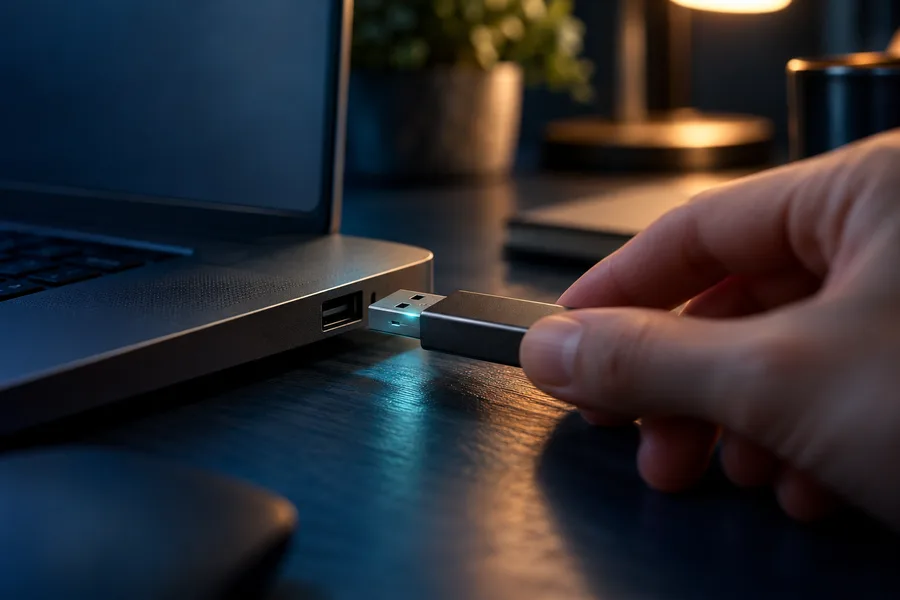
Windows and macOS both buffer writes, so pulling a drive mid-transfer can leave a file half-written or corrupt the file system entirely — even if the copy dialog looked finished. Use “Safely Remove Hardware” (or “Eject” on Mac) every single time, even for something as small as one document. This one habit alone prevents the largest single category of thumb drive damage we see arrive on our bench.
The corruption from an unsafe removal is not always obvious right away. Sometimes the drive still mounts fine and most files open normally, but one file that was mid-write shows as zero bytes or won’t open at all, and the file system itself can develop errors that only surface days later when Windows suddenly asks to “format the disk before you can use it.” If that message appears, stop — formatting overwrites the very data you’re trying to keep, and a free evaluation can usually tell you what’s actually still there before you touch anything.
Habit 2: Keychain Wear

An exposed metal connector carried loose against keys for years is one of the top reasons customers need USB connector recovery. The scratching itself is cosmetic, but it wears the connector’s contacts thin and can eventually bend a pin or work a solder joint loose at the board. A capless or retractable design, or simply a separate small pouch instead of a bare keyring, avoids this entirely.
Worse than the slow wear is the sudden bend — keys shift in a pocket, the connector catches at an angle, and a pin folds or snaps clean off. A bent pin can sometimes be straightened carefully with the right tools, but a snapped tip almost always means the drive needs to come to a bench rather than a home fix, since forcing it back into a port risks pushing the damage further into the board. If the connector looks visibly off, stop plugging it in and get it looked at instead of testing how far it still works.
Habit 3: Heat Exposure
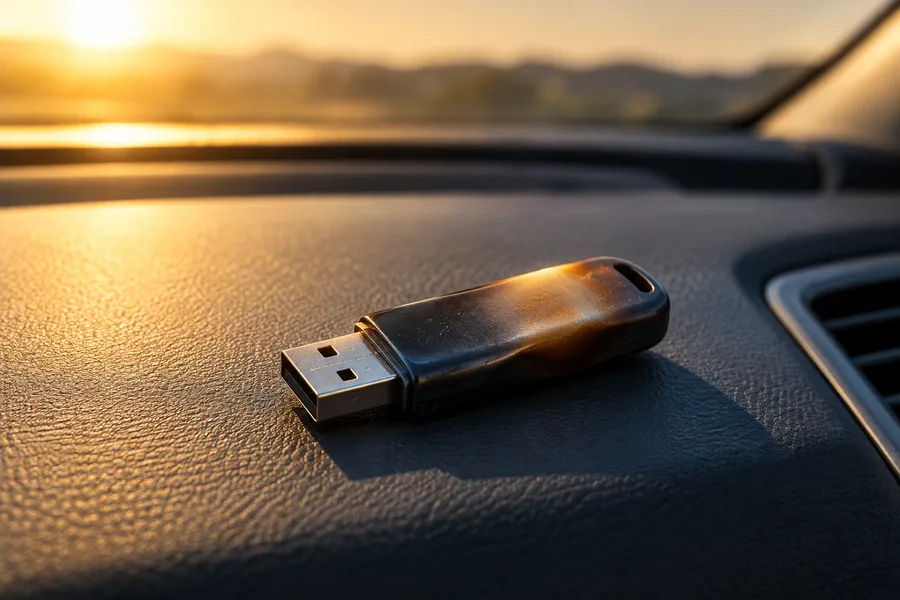
A closed car on a sunny day routinely exceeds 150–160°F on the dashboard — far past what a thumb drive’s plastic casing or internal solder joints are rated for. Repeated heat cycling like this can warp the housing, stress the connection between the chip and the board, and shorten the drive’s working life even when nothing looks visibly wrong afterward. Keep drives in a bag or glove box out of direct sun, not on the dash “just for the drive.”
Cold exposure carries a smaller version of the same risk — a drive left in a freezing car overnight can develop condensation the moment it warms back up in a warm room, and that moisture lands directly on the exposed connector and board. The safest habit covers both ends: treat a thumb drive the way you’d treat a phone, keep it at roughly room temperature, and let anything that has been very hot or very cold sit and stabilize before plugging it in.
Habit 4: Loose Connections
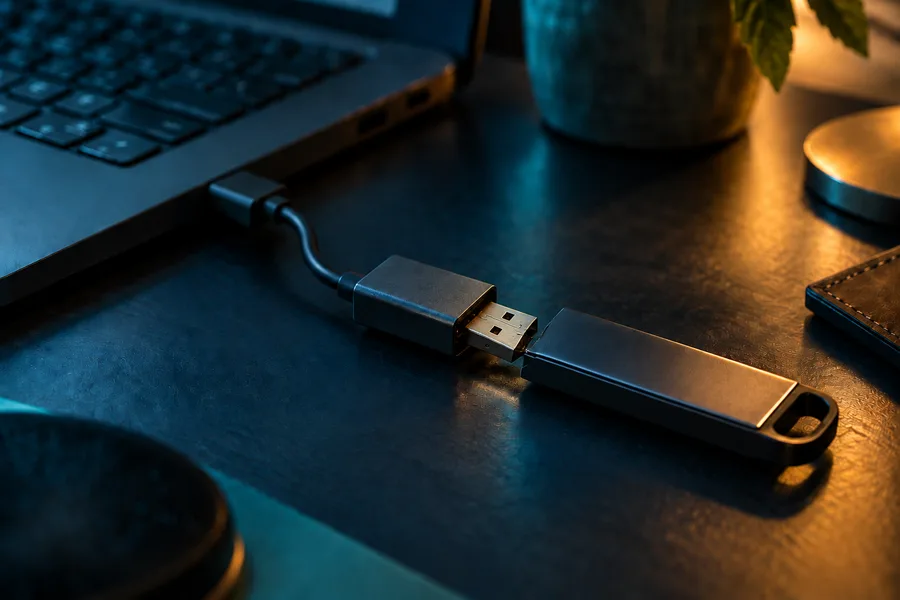
A loose USB-C adapter, a worn hub port, or a cable that only makes contact at one angle can interrupt a transfer exactly the way yanking the drive out does — except it happens by accident, mid-write, with no warning. If a connection feels wobbly or drops in and out, fix the connection before starting a large or important transfer, not after it fails partway through.
This is especially common with USB-C-to-A adapters on newer laptops, since the adapter adds one more mechanical joint that can wear loose over time even when the drive and the port are both fine on their own. A quick test before any transfer that matters: plug it in, gently wiggle the connection, and watch whether the drive disconnects and reconnects in File Explorer or Finder. If it does, replace the adapter or cable before trusting it with anything you can’t afford to lose mid-copy.
Habit 5 & What’s Actually Inside a Thumb Drive
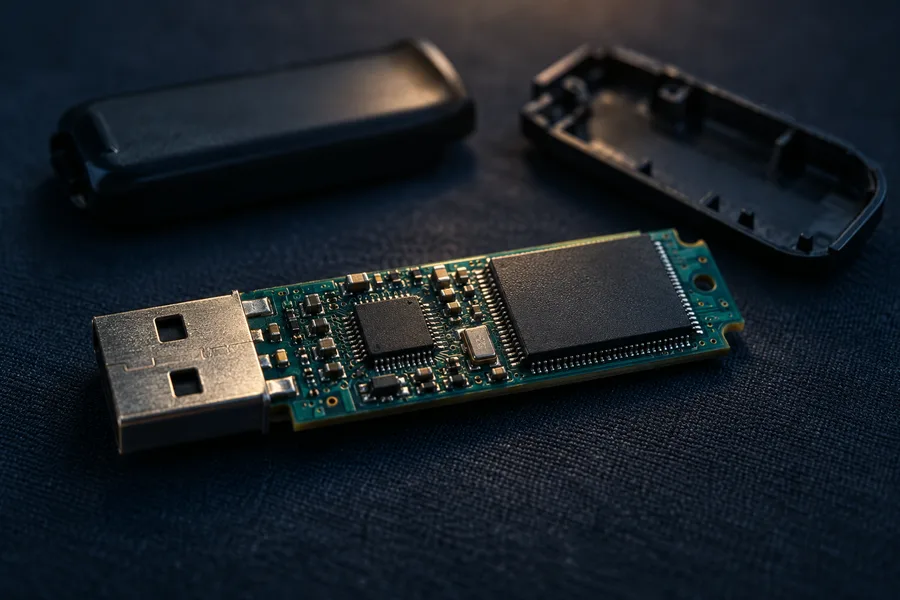
The fifth habit is really a misunderstanding, not an action — most people picture the whole plastic drive as “the data,” when the files actually live on one NAND memory chip soldered to a small circuit board inside. The case and connector protect that chip but store none of the data themselves. That matters the moment something goes wrong: when the housing cracks, the connector bends, or the controller fails, the chip itself is usually still intact underneath.
Chip-off recovery removes that chip and reads it directly in a dedicated reader, bypassing the damaged housing and controller entirely — on a standard thumb drive, this is the correct, most direct path to the data, because there is no separate security chip holding an encryption key hostage. Hardware-encrypted drives (IronKey-class and similar) are the one exception: the decryption key lives in a separate chip, not the NAND, so a damaged drive of that type recovers differently — mention it up front if that’s the drive you have.
The most damaging thing to do once a drive is already failing is keep forcing it — repeated plug-in attempts, bending a bent connector back into shape, or running generic repair tools all risk stressing the memory cells further. Stop, and start a free data recovery case before applying more force. For the fuller recovery picture across every symptom and thumb drive failure type, see thumb drive recovery.
What Our Customers Say
Frequently Asked Questions
Recovery Services for Every Storage Device Class
Whatever device these habits didn’t quite save, eProvided covers every storage class from one lab: hard drive data recovery (Seagate, Western Digital, Toshiba mechanical and logical failures), SSD recovery (Samsung, Crucial, WD, NVMe & SATA), and memory card recovery (SD, microSD, CompactFlash, every format and brand). See all our data recovery services →
More Thumb Drive Recovery Guides
- 10 tips to prevent flash drive damage — the fuller prevention checklist, including backup strategy and drive lifespan.
- Bumped your USB drive? What happens next — what actually breaks a drive before it ever reaches a recovery lab.
- Recovering a corrupted flash drive — when the drive still mounts but the files won’t open.
- About eProvided — who we are and why devices from NASA to home users end up on this bench.
Get a Free Thumb Drive Evaluation
Whether one of these five habits already caught up with your drive or you just want to protect the data on it, our engineers will confirm what’s recoverable during a free evaluation. No obligation, confidential.
Start My Free Thumb Drive Evaluationor call (866) 857-5950 now
Related Recovery Services
If prevention comes too late, eProvided recovers every flash-based storage class from one lab — these recovery services get the data back: