
Used by NASA · the FBI · the U.S. Navy · Since 1999 · 98% Success Rate
Why Do Flash Drives Lose Storage Space — and Fail — Over Time?
- No Data, No Data Recovery Fee
- Every major brand — SanDisk, Kingston, PNY, Lexar
- Written by a 27-year recovery engineer
- Chip-level, controller-bypass recovery in-house
Why Is My Flash Drive Showing Less Storage Than It Should?
A flash drive doesn’t physically shrink. Its usable capacity drops because NAND memory cells wear out after a limited number of write and erase cycles, and the controller quietly retires failing cells from its reserved spare pool. A second, unrelated cause is fraud: some cheap or counterfeit drives report a capacity far larger than the NAND actually installed.
“Wear does not announce itself. The drive gets quietly smaller for months, and then one morning it will not mount.” — Bruce Cullen, founder, eProvided
Your flash drive used to hold everything you put on it. Now Windows says there isn’t room for a file that’s smaller than what you deleted to make space, or a drive that showed 64GB last year now behaves like it barely holds 40GB. NAND flash memory has revolutionized how much we can carry in a pocket-sized drive, but it comes with a real, physical limitation: every cell inside it can only be written and erased so many times before it wears out. A completely separate problem produces the exact same symptom for a totally different reason — a cheap or counterfeit drive that never had the capacity its label claims in the first place. After 27+ years of failed and worn-out flash drives crossing our bench, this guide covers both causes of “my flash drive got smaller,” how to tell which one you have, and whether the files already on the drive are still recoverable — including a corrupted flash drive that shows the same symptom.
A flash drive “shrinking” almost always comes from one of two unrelated causes: genuine NAND wear, where the controller retires worn-out memory cells and the usable capacity it reports slowly drops, or a counterfeit drive whose firmware lied about its capacity from day one. Wear-related capacity loss doesn’t erase what’s already stored — files written to healthy cells stay intact until the drive fails outright, at which point chip-off recovery reads the NAND chip directly. A fake-capacity drive is riskier: once you write past its real physical limit, it silently wraps around and overwrites your own earlier files. Either way, the fix is the same first step — stop writing new files to the drive the moment you notice it.
Do RIGHT NOW
- Stop copying new files to the drive immediately
- Copy anything you still need off it to a different drive
- Check what the drive was actually sold as and for how much
- Note whether the shrinking was gradual (years of use) or immediate (brand new)
DON’T Do
- Don’t keep filling a drive that’s already showing less space than expected
- Don’t run a full write-and-verify capacity test on a drive still holding files you need
- Don’t reformat it hoping that restores the missing space
- Don’t assume the manufacturer stamped on the case is who actually made it
Not sure which of these two problems you actually have? Before you write anything else to the drive, you can find out free what’s recoverable » or call (866) 857-5950 to talk it through now.
- Why Do Flash Drives Lose Storage Space Over Time?
- NAND Wear Leveling & Bad-Block Remapping Explained
- Counterfeit & Fake-Capacity Flash Drives
- Signs Your Flash Drive Is Losing Usable Capacity
- Is the Data Still Recoverable?
- How Flash Drive Data Recovery Works
- Preventing Capacity Loss and Catching It Early
- What Our Customers Say
- Frequently Asked Questions
- Recover Files from a Shrinking or Failed Flash Drive
- More USB & Flash Drive Recovery Guides
- Related Recovery Services
Why Do Flash Drives Lose Storage Space Over Time?
Flash drives lose usable storage space for one of two reasons: genuine NAND wear, where the controller retires memory cells that can no longer hold data reliably, or a counterfeit drive that never had the capacity it claims. Both produce the same symptom — less usable space than expected — for completely different reasons, and telling them apart changes what you should do next.
NAND flash memory, explained in plain English, has genuinely revolutionized how much data fits in a pocket-sized drive, a camera, or a phone — the same underlying technology that made cameras and phones as capable as they are today. But NAND has a real physical limitation baked into how it works: unlike a hard drive’s magnetic platter, which can be rewritten essentially forever, each individual NAND cell can only be written to and erased a finite number of times before the physical process that stores a charge in it starts to fail. A tiny controller chip manages every read and write to the memory, and it is that controller — not the NAND chip itself — that decides how much of the drive’s total memory is safe to expose to your computer at any given moment. As cells wear out, the controller sets more of them aside, and the usable capacity it reports can quietly shrink.

A second, unrelated cause produces the identical symptom for a completely different reason: the drive was sold with a capacity that was never real. Fake-capacity flash drives report a size to your computer that has nothing to do with how much NAND is actually soldered inside — a drive labeled 1TB might contain 8GB of real memory. Nothing in a fraudulent drive “wears out” to cause this; the space was simply never there. It is a manufacturing and labeling fraud, not a hardware defect, and it is surprisingly common on drives sold through third-party marketplace listings rather than an authorized retailer. Genuine wear takes months or years to show up and gets worse gradually; a fake-capacity drive can show the identical symptom on day one, the very first time you fill it past its real physical limit. We cover both causes in detail below, because the fix and the recovery outlook are different for each one.
NAND Flash Drives and Low Endurance: How Wear Leveling and Bad-Block Remapping Work
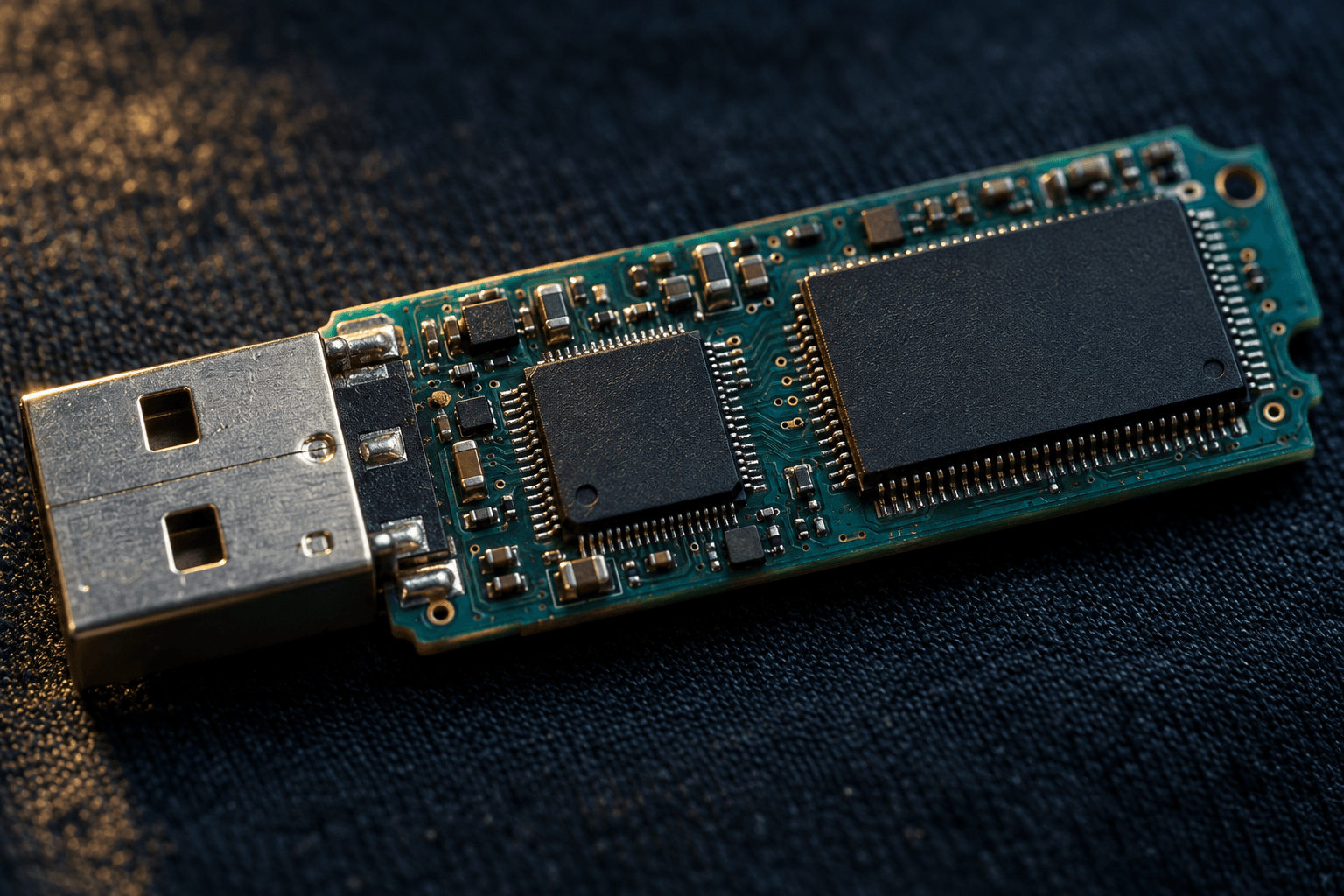
Ask any engineer who has handled flash media for years and they will tell you the main disadvantages of flash memory all trace back to one thing: wear. To offer reliable performance, every flash device is built to handle a limited number of program/erase cycles — industry-wide, this is measured against JEDEC endurance standards. Depending on how often you use a drive and how much you rewrite the same files, that limit can arrive faster than you’d expect. NAND comes in a few flavors: SLC (Single-Level Cell) stores one bit per cell and endures the most rewrites; MLC (Multi-Level Cell) stores two bits per cell at roughly half the cost per gigabyte, with lower endurance; and the TLC and QLC NAND common in today’s inexpensive consumer flash drives push three and four bits into each cell, which is what makes large drives affordable but further lowers how many rewrites each cell can survive.
Physically, what happens inside the chip during a program/erase cycle is that electrons are forced through a thin oxide layer to charge a “floating gate,” which is what lets the cell hold data with no power at all. Every cycle wears that oxide layer very slightly; eventually it degrades to the point where the cell can no longer reliably hold a charge, and the controller has to stop using it. The controller doesn’t let this happen at random: it uses wear leveling to spread writes evenly across every cell on the chip instead of hammering the same physical location every time you save a file, which is why a well-designed drive lasts far longer than the raw endurance of a single cell would suggest. Every drive also ships with a hidden reserve of spare cells set aside during manufacturing — called over-provisioning — specifically so the controller has somewhere to go when a cell finally fails. When a cell wears out, the controller performs bad-block remapping: it retires the failed block and quietly substitutes one from that spare pool, invisibly to you, and your files keep working normally. The capacity loss you actually notice only shows up once that reserved spare pool itself starts running low — at that point the controller has fewer good cells left than the capacity it originally advertised, and it either reports less usable space, slows down, or eventually can’t guarantee reliable writes at all. As with any storage failure, damage severity, not brand, decides recovery odds — how far the wear has actually progressed matters far more than the name printed on the case.
Counterfeit & Fake-Capacity Flash Drives: A Different Kind of “Shrinking”
Some flash drives report a capacity to your computer that is simply false — firmware modified to claim far more storage than the NAND chip inside can actually hold. Nothing wears out here; the missing space was never real to begin with.
Counterfeit and fake-capacity flash drives are a real, well-documented problem, most common on marketplace listings offering an absurdly large capacity — a 2TB flash drive for a few dollars — at a price no legitimate 2TB of NAND could be manufactured for. The drive’s firmware is deliberately altered so your computer’s file system believes the full advertised capacity exists, even though the physical NAND chip soldered inside might hold a small fraction of that. As you copy files onto it, everything appears to work normally right up until you approach the real, physical ceiling of the chip — at which point the drive silently wraps back around to the beginning of its actual memory and starts overwriting data you already saved there, rather than warning you that it’s full. From the outside, this looks exactly like files randomly corrupting or a drive “losing” storage, but the cause has nothing to do with wear.

Free write-and-verify testing tools exist that write a pattern across a drive’s claimed capacity and read it back to confirm the data matches, which reliably exposes a fake-capacity drive before you trust it with anything important. That kind of full-capacity test is the right move on a brand-new, empty drive you’re vetting before use — it is the wrong move on a drive that already holds files you care about, since the test itself writes across the entire claimed capacity and can trigger the very overwrite you’re trying to avoid. If you already suspect an in-use drive is fake-capacity and it holds files you need, the safer step is the one in the box above: stop writing to it and get it evaluated before testing it yourself. A drive that has already gone unreadable near its advertised limit is showing exactly this symptom.
Signs Your Flash Drive Is Losing Usable Capacity
Both wear and fake capacity announce themselves through similar symptoms, but the pattern of when they show up is different. A drive your computer no longer recognizes at all is a related but distinct symptom — see our guide on a USB device not recognized for that specific case. Timing is usually the biggest clue: a symptom that crept in gradually over months or years of everyday use points to wear, while the identical symptom showing up the very first week you owned the drive points to a capacity that was never honest in the first place. Price is the other tell — a drive that cost far less than its advertised capacity should reasonably cost is worth testing before you trust it with anything you can’t afford to lose. The table below maps what people notice to what’s actually happening underneath, whether the cause is years of ordinary use or a drive that was never honestly labeled.
| Flash Drive Capacity Symptoms — What’s Actually Happening | |||
|---|---|---|---|
| Symptom you notice | Usual cause | When it shows up | Files recoverable? |
| Reports less free space than the files stored should use | Controller has quietly retired worn cells from its spare pool | ⚠ Gradual, years of heavy use | ✓ Yes, files intact |
| Older files corrupt or vanish after copying new large files | Fake-capacity drive wrapped around and overwrote real data | ⚠ Sudden, near advertised limit | ⚠ Partial, before wrap point |
| Copies fail partway through, well short of “full” | Spare-block pool nearly exhausted; controller can’t guarantee a safe write | ⚠ Gradual, aging drive | ✓ Yes, via chip-off |
| Drive goes read-only near a “limit” | Controller protecting itself once too few good cells remain | ⚠ Gradual, aging drive | ✓ Yes, read files off |
| Advertised capacity looked too good for the price | Counterfeit firmware reporting a false, inflated capacity | ⚠ Immediate, from day one | ⚠ Partial, before wrap point |
Is the Data on a Worn-Out or Fake-Capacity Flash Drive Still Recoverable?
For genuine wear, the honest answer is usually good news: files already written to healthy cells stay intact even as the controller retires worn ones, and even after the drive fails completely the NAND chip itself typically still holds every byte, readable by pulling it off the board directly. For a fake-capacity drive, the honest answer is more mixed — files that were physically overwritten during the wraparound are genuinely gone, the same way any data is gone once new bits are written over the old ones. What’s usually still intact is everything you saved before the drive reached its real physical ceiling, since those files were written to cells that were never touched again.
This distinction matters, and eProvided will tell you plainly which situation applies rather than promise a result neither cause guarantees. A worn-out flash drive that has stopped responding altogether is read directly off the NAND chip using chip-off NAND recovery — the same chip-level technique used across BGA, TSOP and monolith flash packages — which bypasses a failing or dead controller entirely and reads the memory cells on their own terms. A fake-capacity drive gets the identical chip-level read; the difference is what we can tell you about what’s actually recoverable once we can see the real data on the chip versus what the controller was pretending was there.
How Flash Drive Data Recovery Works
Professional flash drive data recovery starts by identifying which of these two problems actually happened, because that changes what the NAND chip is expected to contain. A drive that has failed from genuine wear is opened in a controlled lab environment, the NAND chip is desoldered from the circuit board, and it’s read directly on specialized hardware that speaks the chip’s raw protocol — bypassing the worn-out controller entirely rather than trying to repair it. A suspected fake-capacity drive gets the same direct chip read, followed by careful reconstruction of what data is actually present versus what was overwritten during the wraparound, since the controller’s own reported file structure can’t be trusted on a drive that was misreporting its capacity from the start.
This article’s job is to explain why flash drives lose capacity and what that means for your files; if your drive has already failed or is showing this exact symptom and you need it fixed, that’s a different task with its own page. If you need a failed or worn-out USB flash drive recovered, that team handles the free evaluation, the quote, and the physical chip-level work of getting your files back — our flash drive recovery service, linked in the guides below, is where you start when you’re ready to send a drive in. Most drives are back in a few business days, and if the files can't be recovered, the “No Data, No Data Recovery Fee” guarantee means there's nothing to pay.
Ways to Deal with Flash Drive Failures: Prevention & Early Detection
Since it’s inevitable that any flash drive will wear down over time, the habits that matter most are backing up before that happens and buying in a way that avoids fake-capacity drives entirely. The cornerstone is the 3-2-1 backup rule: keep 3 copies of anything you can’t afford to lose, on 2 different types of media — a flash drive and a cloud folder, or a flash drive and an external hard drive — with 1 copy kept somewhere else entirely. No single worn-out or fraudulent drive can take out all three copies at once.

Beyond backups, a few habits genuinely slow how fast a flash drive wears out and help you catch capacity problems early. Buy from reputable sellers and be skeptical of unusually large capacities at unusually low prices — this single habit avoids nearly every fake-capacity drive before it ever reaches you. Always eject safely using “Safely Remove Hardware” rather than pulling the drive out mid-write, which protects the file system rather than the NAND itself but prevents a second, unrelated failure mode. Keep the cap on when the drive isn’t in use — dust working into an exposed connector causes physical failures that have nothing to do with wear, and if you’ve lost the cap, store the drive somewhere dry and clean instead. Avoid extreme temperatures and high humidity, both of which measurably affect how flash memory performs over time. Never force a drive out of a USB port if it feels stuck — forcing it risks damaging the connector or the board underneath, which is a physical failure layered on top of whatever wear was already happening. Retire heavily-used drives proactively once you notice any of the warning signs above, and migrate the data off before the controller runs out of spare cells rather than after. Carrying a drive on a keyring instead of loose in a pocket also cuts down on the physical damage that ends a drive’s life early — our thumb drive recovery guide covers the form-factor-specific handling habits that matter most.
What Our Customers Say
Frequently Asked Questions
Concerned your flash drive is a fake-capacity fake and it already holds files you need? Don’t run a full capacity test on it yourself — that’s exactly the scenario where DIY testing can trigger the overwrite you’re trying to avoid. A professional evaluation reads the chip directly and tells you what’s actually there before anything else gets written to it.
Recover Files from a Shrinking or Failed Flash Drive
Worn-out, fake-capacity, or simply won’t mount anymore — our engineers will tell you exactly what’s recoverable from your flash drive. Free, no obligation, confidential.
Start My Free Flash Drive Evaluationor call (866) 857-5950 now
More USB & Flash Drive Recovery Guides
If you’re ready to send a drive in, our flash drive recovery service is where the free evaluation and quote happen. If you’d rather read more first, our guide on how to recover a USB flash drive walks through the process end to end, and a separate piece covers repairing a damaged USB drive when the connector or board is physically broken. Own a SanDisk drive specifically? Our SanDisk flash drive recovery guide covers that brand’s specific quirks in more depth. We also maintain a broader roundup of USB drive recovery solutions for less common failure patterns, and a companion piece asking the harder question of why USB flash drives lose data in the first place, for anyone who wants the fuller technical picture.
Recovery Services for Every Storage Device Class
A flash drive isn’t the only device that wears out or comes with a fake capacity claim. eProvided recovers every storage class from one lab — these recovery services get the data back: