Used by NASA · the FBI · the U.S. Navy · Since 1999 · 98% Success Rate
External Hard Drive Failed? Why It Happens and What To Do
- Written by a 27-year data recovery engineer
- Covers clicking, corrupted & undetected drives
- What to check safely, and what to leave alone
- No Data, No Data Recovery Fee if we can’t bring it back
Why Do External Hard Drives Fail?
External hard drives fail from three things: a worn or damaged connector/enclosure, a mechanical fault inside the drive itself (clicking, buzzing, bad sectors), or logical file-system corruption from an unsafe unplug. The fix depends on which one it is — stop using the drive, don’t reformat it, and don’t run repair software until you know which failure you have.
“The format prompt is not an instruction. It is the drive admitting it cannot read itself any more.” — Bruce Cullen, founder, eProvided
External hard drives are the workhorse of home and small-office backups — cheap, portable, and easy to plug in and forget about. Which is exactly why it’s so unsettling when one stops responding: a clicking sound, a “you need to format this disk” prompt, or a drive that simply doesn’t show up anymore. After 27+ years recovering data from failed external and portable drives on our bench, this guide walks through why external hard drives actually fail, the warning signs worth taking seriously, and exactly what to do — and not do — before you risk losing the data for good. If your drive is a USB flash drive or thumb stick rather than a spinning hard drive in an enclosure, see how we recover a failed USB flash drive instead. If it is a spinning external drive and you would rather hand it to a lab, our external hard drive recovery service starts with a free evaluation.
External hard drives fail from a bad connector or enclosure, a mechanical fault in the drive itself (clicking, bad sectors), or file-system corruption from an unsafe disconnect. Stop using the drive the moment you notice a problem, don’t reformat it, and don’t run repair software on a drive that clicks or won’t spin — each of those risks making the data unrecoverable. A professional evaluation identifies which failure you actually have before anything is attempted.
Do RIGHT NOW
- Stop using the drive immediately once you notice a problem
- Try a different USB cable and a different USB port first
- Note any sound the drive makes — clicking, buzzing, or silence
- Check whether the drive still spins up or gets warm at all
DON’T Do
- Don’t click “Format” when Windows or macOS prompts you to
- Don’t open the drive enclosure yourself without proper tools
- Don’t keep power-cycling a drive that clicks or won’t spin
- Don’t run chkdsk or disk-repair utilities on a clicking drive
Worried about files on a drive that just failed? Start a free evaluation before you try anything else, or call (866) 857-5950 to talk it through.
- External vs. Internal Drive — What’s Actually Inside
- Why External Hard Drives Actually Fail
- Warning Signs You Shouldn’t Ignore
- Symptom to Cause: Which Layer Failed
- What To Do When It Fails, Step by Step
- Five Things Not To Do, and Why
- DIY Software vs. Professional Recovery
- Why Choose eProvided
- Real External Drive Cases From Our Records
- What Our Customers Say
- Frequently Asked Questions
- Related Articles
- Recover Data from a Failed External Hard Drive
- Related Recovery Services
External vs. Internal Drive — What’s Actually Inside
 Enlarge
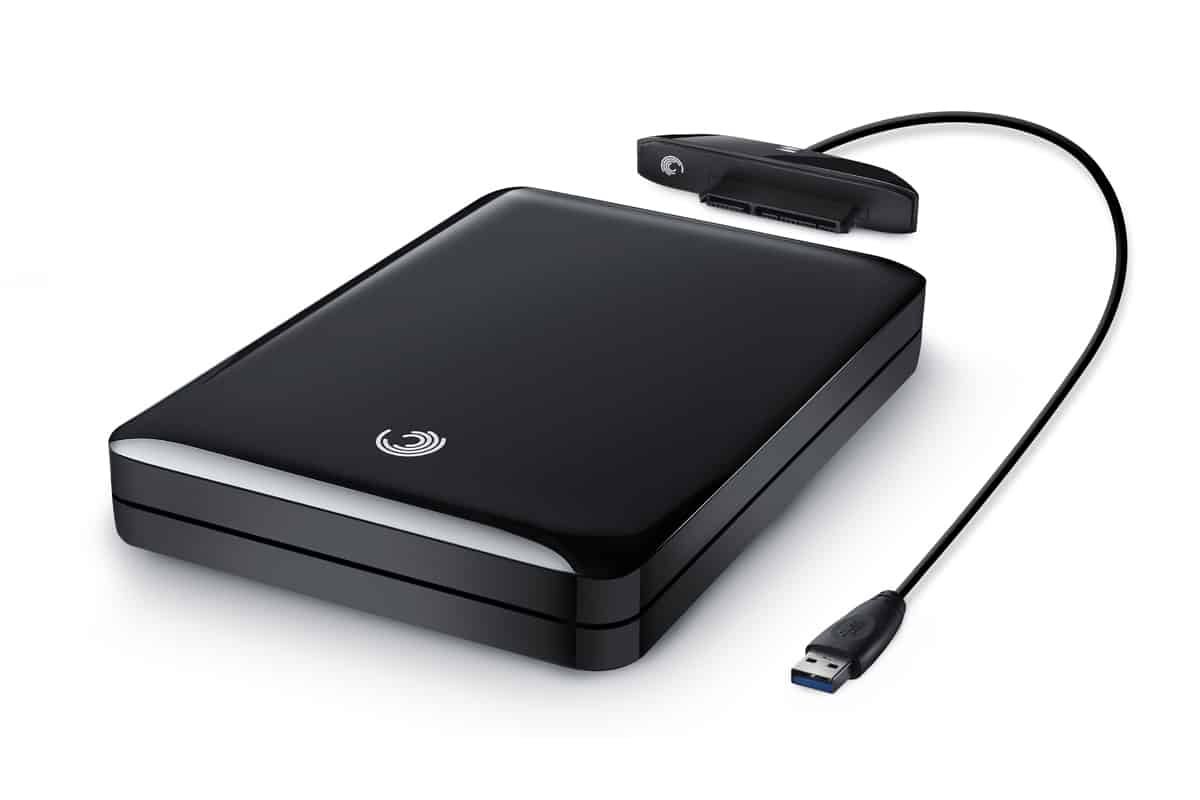
An “external hard drive” is almost always a normal internal-style hard drive — the same kind found inside a desktop PC — sealed inside a plastic or metal enclosure with its own small circuit board that translates USB signals into the language the drive itself understands. That circuit board, called a USB-to-SATA bridge, is a completely separate part from the drive, and it fails on its own far more often than the drive inside it does. This matters because the fix is different depending on which part failed: a bad bridge board can often be bypassed by connecting the bare drive directly, while a mechanical fault inside the drive needs the same lab-level work we use when a hard drive won’t spin up at all.
Recognizing which one you have starts with a simple question: does the drive spin up and get warm at all when plugged in? If yes, the enclosure or cable is the more likely suspect. If the drive is silent, or it clicks, the fault is very likely inside the drive itself, and no cable swap will fix it.
The Bridge Board and the Drive Fail Separately
The enclosure adds parts that an internal drive does not have: a USB connector soldered to a small board, a power regulator, and the bridge chip that translates USB into SATA. Any of those can fail while the drive inside stays healthy, which is why an external hard drive not detected by the computer is not always a dead drive. The drive has its own electronics too. Reference sources on hard disk failure note that a drive’s controller board can fail, that replacing the board can bring back all the data, and that on newer drives the swap usually means moving a small ROM chip from the original board to the donor board. That is why we keep the original bridge board, the enclosure and the drive together, and why we ask you not to swap boards yourself: on some models the original board takes part in how the data is stored, and a mismatched board can cost you the file system.
Shucking an External Drive: Two Cautions
“Shucking” means removing the bare drive from its case to use it inside a PC. It is a fair way to reuse a healthy drive, with two cautions. First, power: the Serial ATA 3.3 specification redefined pin 3 of the power connector as a Power Disable signal. A drive that supports it stays in reset, and will not spin, on an older power supply that puts 3.3 volts on that pin, and a Molex-to-SATA adapter usually clears it (Serial ATA, Wikipedia). So a healthy shucked drive can look completely dead. Second, shucking does not repair anything: a drive that was clicking in its case will click on your desk, and every extra power-up on it does more harm than good. If the drive makes noise, leave the case alone and get it evaluated.
Why External Hard Drives Actually Fail
 Enlarge
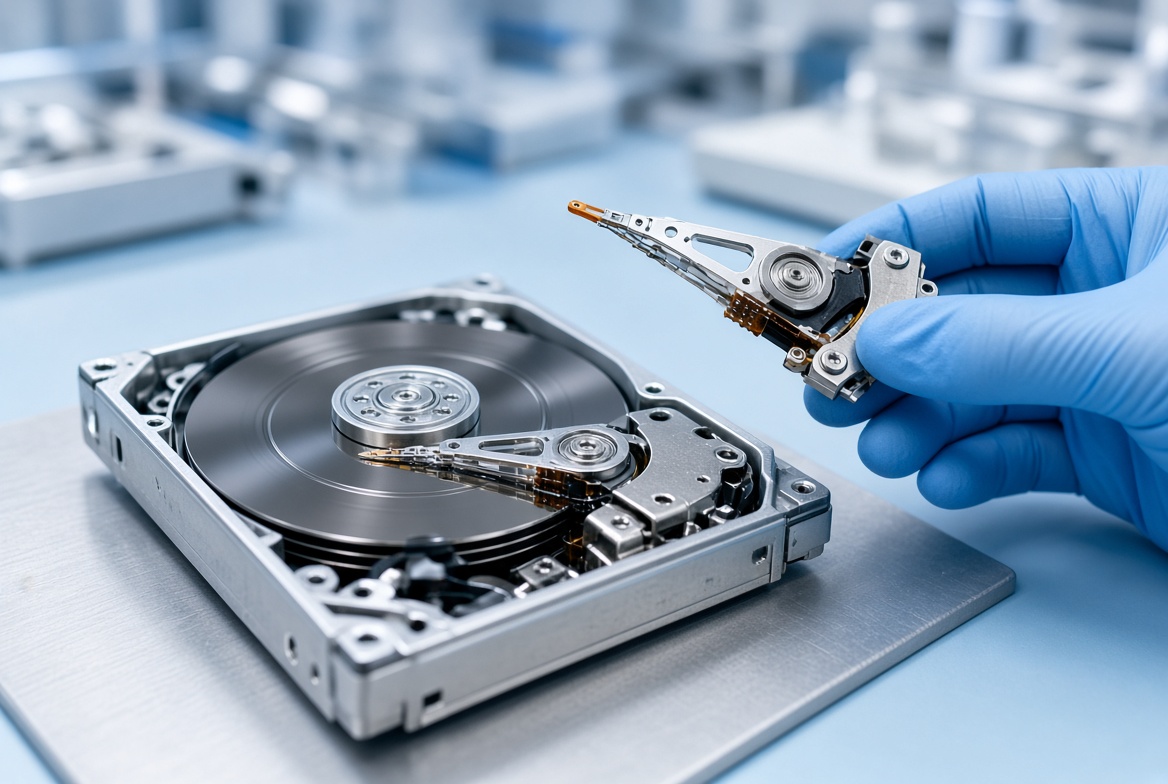
Most external hard drive failures fall into one of three categories, and knowing which one applies changes what happens next. Connector and enclosure failure is the most common and the easiest to fix: a worn USB port, a failing bridge board, or a cable that’s been bent or pinched one too many times. Mechanical failure inside the drive itself is more serious — a read/write head that’s failed, a spindle motor that won’t spin, or bad sectors that have spread across the platters, usually announced by a clicking or buzzing sound. Logical failure sits between the two — the drive spins normally and is mechanically fine, but the file system on top of it has been corrupted, almost always from being unplugged while Windows or macOS was still writing to it.
A drive that clicks is failing the same way an internal one does. Our guide to why hard drives fail explains the damage types, and the same lab methods apply once the drive is out of its case.
Physical abuse accelerates all three: being dropped while plugged in (the read/write head can strike the platter mid-spin), knocked off a desk, or simply carried loose in a bag for years. Overheating from being tucked into a warm space with no airflow shortens the life of both the bridge board and the drive’s own motor. None of this means the data is gone — it means the failure needs to be correctly identified before anything else is tried.
Warning Signs You Shouldn’t Ignore
Catching a failing external hard drive early is the single biggest factor in how much comes back. The hard-drive equivalent is stopping the moment you notice something is wrong — every extra power-up on a failing mechanical drive risks the platters further:
| External Hard Drive Warning Signs — What They Actually Mean | ||
|---|---|---|
| What you notice | What it usually means | What to do |
| Clicking or buzzing sound | Read/write head or spindle motor failure — a mechanical fault inside the drive | Unplug it now; do not keep retrying |
| “You need to format this disk” | The file system is unreadable to the OS, but the data underneath is very often still intact | Click Cancel, never Format |
| Drive not recognized at all | Could be the enclosure, the cable, the USB port, or the drive itself | Try a different cable/port once, then stop testing |
| Files or folders missing | Often partial file-system corruption, not full data loss | Stop saving new files to the drive immediately |
| Extremely slow or freezing transfers | Early sign of developing bad sectors | Back up what you still can, then stop using it |
Any one of these on its own is worth taking seriously. Two or more together — especially clicking combined with a format prompt — means the drive should be powered off and left alone until it can be properly evaluated.
Symptom to Cause: Which Layer Failed, and the First Safe Action
The same complaint can come from different layers, so it helps to match what you see to the layer most likely at fault. An external hard drive not showing up, an external hard drive not detected in Disk Management, a beeping or clicking drive and a drive that says it needs formatting each point somewhere different. The table narrows the field. Only a bench check confirms it.
| External Hard Drive Symptoms, Likely Layer and First Safe Action | |||
|---|---|---|---|
| What you notice | Likely layer | Why | First safe action |
| Repeating clicks or ticks; the drive never appears | Read/write heads inside the drive | The heads cannot read the position data on the platter, so the arm keeps resetting. A cable swap does not stop it. | Unplug it and leave it off. Do not retry. Head work belongs in a controlled lab environment. |
| Beeping or repeated spin-up attempts; the drive never settles | First power, then a stuck spindle or heads | A bus-powered portable drive that gets too little power from a weak port or hub loops on start-up. A seized motor does the same. | Try a rear USB port and a short, good cable once. If it still loops, stop. |
| Light on, quiet spin, but not in File Explorer or Disk Management | Bridge board, USB connector or cable | The drive may be fine while the enclosure cannot pass the signal. The same drive often reads when bridged another way. | Test one other computer, once. Keep the drive, enclosure and original board together for the lab. |
| Disk Management shows “Unknown” or “Not Initialized”, or a prompt says the disk needs formatting | File system or partition table | The operating system cannot read the map of your files. The files are very often still on the platters. | Cancel the prompt. Do not initialize, format or run chkdsk. |
| No light, no spin, no sound | Power adapter, bridge power circuit or drive board | Nothing is reaching the drive, or a protection part on a board has failed after a surge or a bad adapter. | Check the adapter and cable only. Do not keep power-cycling it. |
| Very slow transfers, freezing, files vanishing, then disconnects | Developing bad sectors or a weak head | The drive re-reads damaged areas again and again until it times out. | Copy off only what you must, then stop. Do not run a full scan. |
A repeating click is the one symptom that should end your testing right away. If you also see the clicking row on a drive that lost power during a storm, our guide to data loss after a power surge covers the electrical side.
What To Do When It Fails, Step by Step
 Enlarge
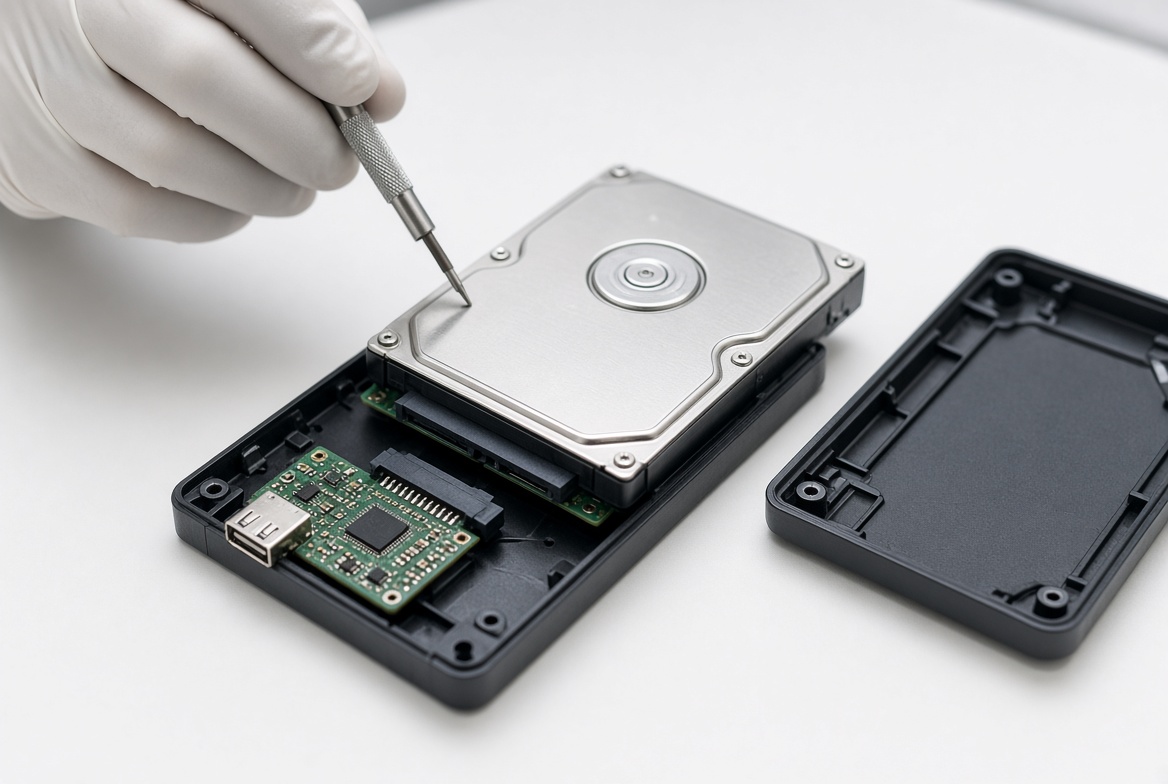
The right response depends on what you’re seeing, but the sequence below applies almost universally and is designed to avoid the two mistakes that turn a recoverable drive into an unrecoverable one — reformatting, and repeated power cycling on a mechanically failing drive. This matters most for two situations people get wrong every day: an external hard drive not recognized by the computer, and an external hard drive making a clicking noise. In the first case, don’t assume the drive itself is dead — a failed USB-to-SATA bridge board inside the enclosure is one of the most common causes, and moving the bare drive into a different enclosure (or having a lab do it) often brings every file back with no recovery work needed at all. In the second case, a clicking or buzzing external hard drive should never be plugged back in to “see if it still works” — each additional spin-up on a failing head or spindle motor shortens the window in which recovery is even possible. The same caution applies to an external hard drive that suddenly asks to be formatted: that prompt means Windows or macOS can’t read the file system, not that the data underneath is gone, and clicking Format is the one action on this list that can’t be undone afterward. Whether the fault turns out to be the enclosure, the drive mechanics, or the file system, a free evaluation is what actually tells you which failure type you have before any repair, software, or cost is discussed.
| External Hard Drive Failure — What To Do, In Order | ||
|---|---|---|
| Step | What to do | Why it matters |
| 1. Stop | Unplug the drive the moment you notice a problem | Every extra power cycle on a failing drive risks the platters or the file system further |
| 2. Try once | A different cable and a different USB port — one time | Rules out the simplest cause (a bad cable or port) without stressing the drive repeatedly |
| 3. Listen | Note any clicking, buzzing, or silence — this tells a technician a great deal before the drive is even opened | Distinguishes a mechanical fault from an enclosure/logical issue over the phone |
| 4. Don’t reformat | Cancel any “format this disk” prompt | Formatting rewrites the file system table that a lab needs intact to map your files back |
| 5. Get a free evaluation | Send or drop off the drive for diagnosis before trying anything else | Confirms exactly which of the three failure types you have, at no cost, before any work begins |
Every case starts the same way: a free evaluation that identifies whether the failure is in the enclosure, the drive mechanics, or the file system, before any recovery work or cost is discussed.
Five Things Not To Do, and Why
Most failed external drives that cannot be recovered were made worse after the first failure. These five habits cause most of that damage.
- Do not power the drive on again and again while it clicks. If a head has touched the platter and the damage is only partial, continued rotation can spread it until it is total, as the reference article on hard disk failure explains.
- Do not put the drive in the freezer. It does not fix a head or a board, and moisture on the platters adds a new risk. Our article on the freezer trick explains why.
- Do not open the drive itself. Opening the plastic enclosure is one thing. Opening the metal drive inside it lets in dust, and one dust particle on a platter can start a head crash.
- Do not run software scans or chkdsk on a clicking drive. Microsoft’s own documentation says chkdsk with /f fixes errors on the disk and /r adds a bad-sector scan, so it writes to a disk whose heads are failing.
- Do not swap the circuit board yourself. Boards are matched to their drive, and a wrong or mismatched board can overwrite data the drive needs to find your files.
DIY Software vs. Professional Recovery
 Enlarge
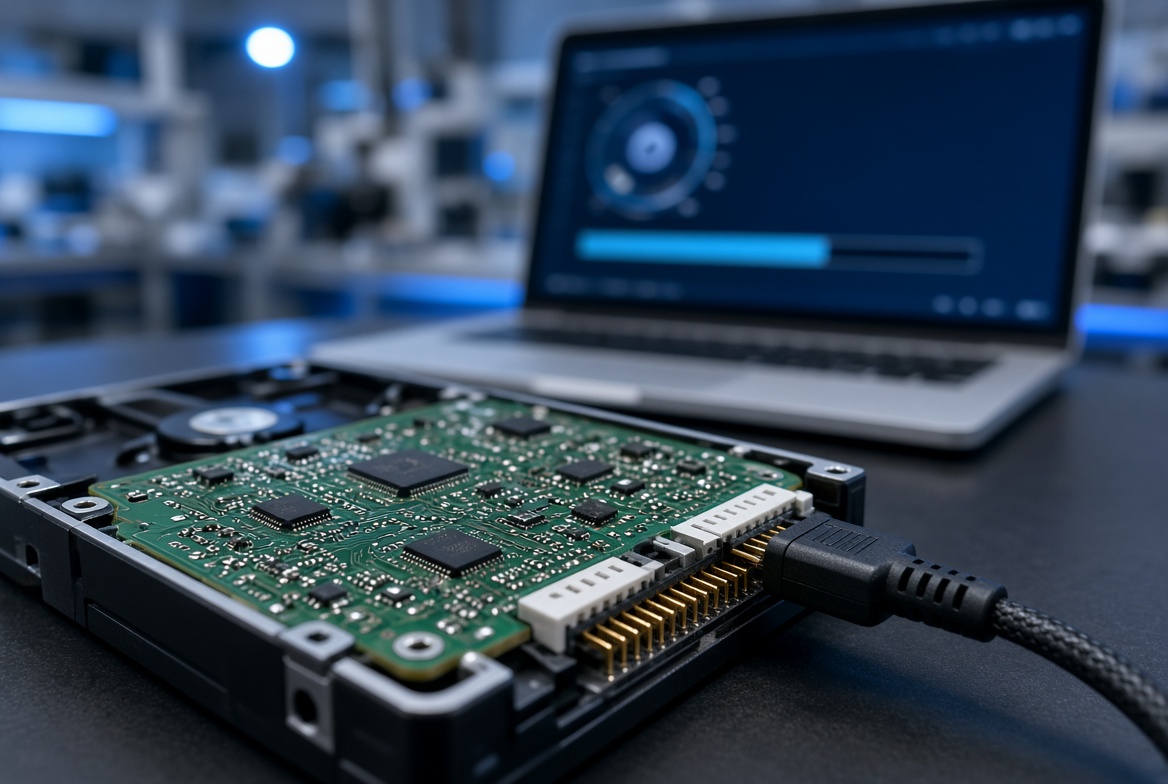
Consumer recovery software has a real, narrow place: it can sometimes bring back recently deleted files from a drive that is mechanically healthy and still spins normally. It has no place on a drive that clicks, buzzes, won’t spin, or has already been reformatted — running software against a mechanically failing drive keeps it spinning and reading exactly when it needs to stop, and often finishes the job a small mechanical fault started. The honest rule: if the drive sounds or behaves abnormally, or the data matters, a free professional evaluation before any software is the safer first step. If it’s a normal-sounding drive with a handful of accidentally deleted files, DIY software is a reasonable first try. Running a DIY recovery scan on a healthy-sounding external hard drive is low-risk because the scan only reads existing sectors and writes its results to a separate destination drive, never back to the failing one. The moment a scan runs unusually slowly, throws repeated read errors, or the drive starts making a new sound partway through, that is the signal to stop immediately and treat it as a hardware case instead of a software one. Because a logical diagnostic like the one shown above checks the file system and scans for bad sectors before any method is chosen, running that same check first — rather than guessing — is what actually decides whether DIY software or a professional evaluation is the right next step for your specific drive.
Why Choose eProvided
 Enlarge
eProvided external hard drive recovery, in one sentence: we diagnose the actual failure first, and only then choose the right recovery method for it.
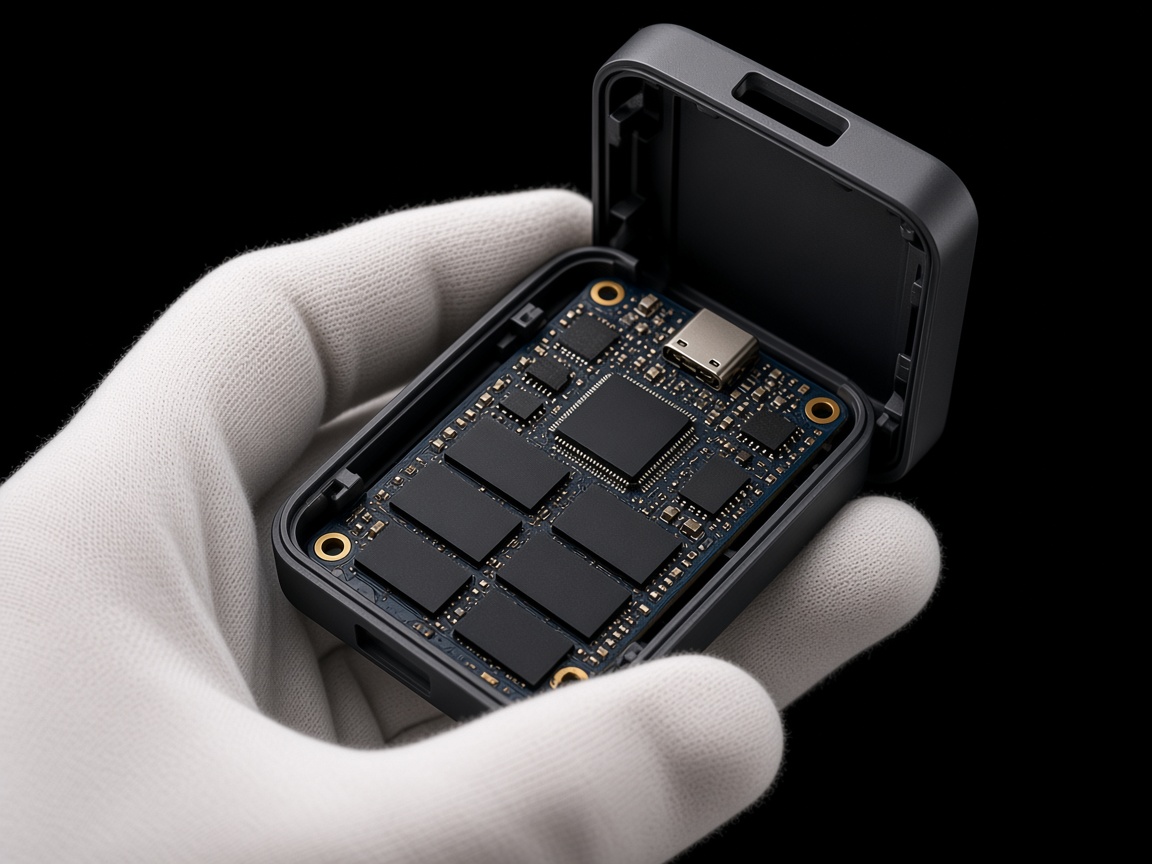
eProvided has recovered data from external and portable hard drives since 1999 — Seagate, Western Digital, Toshiba, and every other brand — across enclosure failures, mechanical drive faults, and file-system corruption alike. The same in-house lab performs board-level enclosure diagnostics, mechanical drive-level repair (donor heads, platter transplant when needed), and logical file-system recovery — choosing the right one for each drive rather than defaulting to a single method. If you searched for how to recover data from external hard drive problems in general, this is the same lab and the same free-evaluation process, whichever of the three failure types turns out to be yours. eProvided has recovered data for NASA’s Helios mission after saltwater exposure and assisted with NASA storage-related consulting, backed by the same “No Data, No Data Recovery Fee” guarantee on every case. (A small number of newer portable drives use an internal SSD instead of a spinning platter — if yours is one of those, recovery means board-level repair that revives the drive’s original controller (many encrypt data with a key held there), instead of the mechanical work described here.)
Real External Drive Cases From Our Records
These cases come from our own records and run from 2023 to 2026. Every quote is the customer’s own wording from the form they filled in, with names and contact details removed. Results ranged from full recovery to none, and each one is told as it happened. Nobody can know which layer failed until the drive is on the bench.
A Seagate that repeats the same click pattern, October 2026 (just received)
Case 6GCM79. The owner wrote:
“The drive makes four or five repetitive clicking sounds, pauses for a few seconds, and then repeats the same pattern. The blue light flashes when the clicking occurs. I have tried connecting it to different computers and laptops, but none of them recognize the drive.”
No result is recorded yet. The case is here because it is the textbook clicking pattern, and because the owner already did the one test that matters: more than one computer, same result. The fault travels with the drive, so the drive itself is the place to look.
A clicking WD My Passport, June 2026
Case FRJBU2. The owner wrote:
“My WD passport is clicking and I cannot access the files.”
Recovered. The lab notes describe significant damage to moving parts, which made the job slow and needed matching replacement parts. The owner then received a directory list of the recovered files.
A dropped WD Elements, February 2026
Case ME4MB9. The owner wrote:
“Makes noise when plugged in but does not show up on file explorer. My daughter dropped it and it seems to have affected it. I would like to keep all pictures and videos I have stored.”
Not recovered. After more than two months of work with ordered parts, the lab found compatible heads and the matching loader. Most of the drive’s own system-area data had been corrupted once the heads failed, so the drive could not be brought back and went home. Drops are the cause behind some of the hardest cases.
A Toshiba that makes a sharp sound at plug-in, September 2025
Case KRN3KZ. The owner wrote:
“Toshiba 1TB external HD: No longer reads. Small sharp sound heard when plugging in.”
Recovered. The notes record a successful recovery within days, and the owner received a directory list of the recovered files. A brief sharp sound at plug-in with no drive letter is a drive-level symptom, not a cable one.
A drive that asks to be reformatted but makes no noise, June 2025
Case NA5FGK. The owner wrote:
“The system prompts me to reformat the drive when connected. It takes a very long time to try to access folders or files — often the computer just hangs and the files never populate (especially photos). No unusual noises — no clicking, grinding, or beeping.”
No result. The owner declined the quote and the drive went back. It is a good example of the file-system row in the table above: a silent drive that spins, hangs and offers to format. That prompt is the moment to cancel and not to format.
A Seagate FreeAgent with a light but no drive, April 2025
Case UYAYP7. The owner wrote:
“I have an old Seagate FreeAgent Desktop external hard drive that seems to have failed. The power indicator light will turn on but none of my computers recognize the drive.”
Recovered. The first-level check could not read the drive. The advanced work could, and the data came back. A light that comes on proves only that power reaches the case, not that the drive behind it works.
A wrong-device format, September 2024
Case RRNU8U. The owner wrote:
“External 5TB hard drive. Accidentally formatted the wrong device. No data has been saved to the drive since the accidental formatting.”
Not recovered. The lab tried a direct data extraction from the drive. Too much of it had been overwritten, so no usable data came out. The owner did the right thing by saving nothing new, but a format on a large drive can still overwrite more than people expect. Our notes on recovering reformatted data cover what to do right after a format.
A Backup Plus with a blinking light, September 2024
Case 4H96UF. The owner wrote:
“Light was blinking but drive was not recognized. Opened the case a bit, then turned back as it seemed more complicated than I was willing to get involved in.”
Recovered. The owner stopped at the enclosure, which is the right place to stop. The drive inside the case was an ordinary internal-style drive, as in most portable drives.
A LaCie that stopped mounting on a Mac, January 2024
Case 6G668R. The owner wrote:
“Lacie 500GB external hard drive stopped mounting on my Mac. Registers sometimes on Disc Utility but does not show any drive information.”
Recovered. The lab notes say areas of bad sectors were stopping the data from being read. The owner approved the file list and the recovery went ahead. A drive that appears in Disk Utility only some of the time is a drive reading with difficulty.
A large Seagate that powers on and clicks, May 2023
Case HUC8AU. The owner wrote:
“External hard drive, stopped working, Will power on, but there’s a clicking sound making data unreadable.”
Recovered. The owner dropped the drive off in person, approved the advanced work after the first check failed, and received a file list in about three weeks.
A beeping ADATA, March 2023
Case 4M4YZV. The owner wrote:
“External Hard drive Adata is non working and is making beeping noises... bought new drive Sandisk need data recovery from old external drive and transfer to new drive.”
Not recovered. The lab located and swapped in donor heads twice, and the drive still would not initialize because the platter surface was too damaged. A donor head is a repair, not a guarantee, and some surfaces are beyond it.
Across these records the pattern is steady: a repeating click or a beep that survives a power check points inside the drive, a silent drive with a light points at the case or the file system, and the owners who stopped early had the most to gain. If your drive matches one of these, stop testing and request the free evaluation before anything else is tried.
What Our Customers Say
Frequently Asked Questions
Related Articles
More storage-failure guides for further reading: how NAND flash recovery works explains how flash memory stores data, for the rarer case where your “external drive” is actually an SSD. Many external SSDs encrypt data with a key held in their controller, so recovery there means reviving that original controller through board-level repair, not removing the memory chips. If your device is a USB flash drive or thumb stick rather than a spinning hard drive, the flash-drive guides below cover that device class specifically, and the intro above points to the matching service page.
More USB & Flash Drive Recovery Guides — if it turns out your device is a USB stick rather than a spinning external drive:
- what makes a flash drive fast
- why flash drives shrink over time
- what is new in flash memory storage
- USB features explained
- recovering a corrupted flash drive
Recover Data from a Failed External Hard Drive
Clicking, not recognized, corrupted, or dropped — our engineers will tell you exactly what's recoverable. Free, no obligation, confidential.
Start My Free Evaluationor call (866) 857-5950 now
Recovery Services for Every Storage Device Class
Whatever kind of drive failed on you, eProvided recovers it from one lab: