
98% success rate · Since 1999
Hard Drive Failure: Why Drives Fail and Whether Your Files Are Really Gone
- No Data, No Data Recovery Fee
- Every brand — Seagate, WD, Toshiba, HGST
- Written by a 27-year recovery engineer
- Platter-level recovery in-house
Can a clicking or unrecognized hard drive be recovered?
Often, yes. A clicking or unrecognized hard drive is usually a mechanical or board problem, not lost data, and a lab can often read the platters again. It depends on the damage: scored platters lose the data in the scored area. eProvided works on Seagate, Western Digital, Toshiba, HGST and Samsung drives, and has opened failed drives since 1999.
“A clicking drive is a mechanical problem, not a dead one. Stop powering it on and the files are usually still there.” — Bruce Cullen, founder, eProvided
Your hard drive was working yesterday. Today the computer won’t recognize it, or it spins up with a faint, rhythmic click and then goes silent. Here is the part nobody tells you in the first frightened hour: a drive that has stopped working almost never means your files have stopped existing. Professional hard drive data recovery succeeds because the data and the failed part are two different things — which is exactly the gap a dedicated repair lab is built to close. After 27+ years of failed drives on our lab bench, this guide explains what breaks inside a hard drive, whether your data is truly gone, and how to stay out of this situation next time.
A failed hard drive is a blocked doorway, not a burned-down house. The data sits on the platters (HDD) or NAND chips (SSD); what usually fails is the heads, motor, circuit board, or firmware around it. Recovery bypasses the failed part and reads the storage directly — which is why many clicking, dead and water-damaged drives can be read again. How well it goes depends on what actually broke and on what happened after the first symptom. The single biggest thing that lowers those odds is continuing to power on a failing drive.
Do RIGHT NOW
- Power the drive down the moment you suspect failure
- Note the exact symptom — clicking, not spinning, not detected
- Stop using the computer the drive is attached to
- If the files matter, unplug it and set it aside
DON’T Do
- Don’t keep rebooting to “see if it comes back”
- Don’t open the drive — a speck of dust ruins a platter
- Don’t run repair software on a physically failing drive
- Don’t try the freezer or PCB-swap tricks you read online
Worried about specific files on a drive that already failed? Before you touch it again, you can find out free what’s recoverable »
- Understanding Hard Drive Failure: HDD vs. SSD
- Signs Your Hard Drive Is Failing
- What to Do First, by Symptom
- The Four Types of Hard Drive Damage
- Is Your Hard Drive Data Really Gone?
- Hard Drive Myths That Cost People Their Files
- How Hard Drive Data Recovery Works
- Real Hard Drive Cases from Our Records
- When Sending the Drive Is Not Worth It
- Preventing Hard Drive Failure and Data Loss
- What Our Customers Say
- Frequently Asked Questions About Hard Drive Data Recovery
- Get Your Files Back from a Failed Hard Drive
- Related Recovery Services
Understanding Hard Drive Failure: HDD vs. SSD
 Enlarge
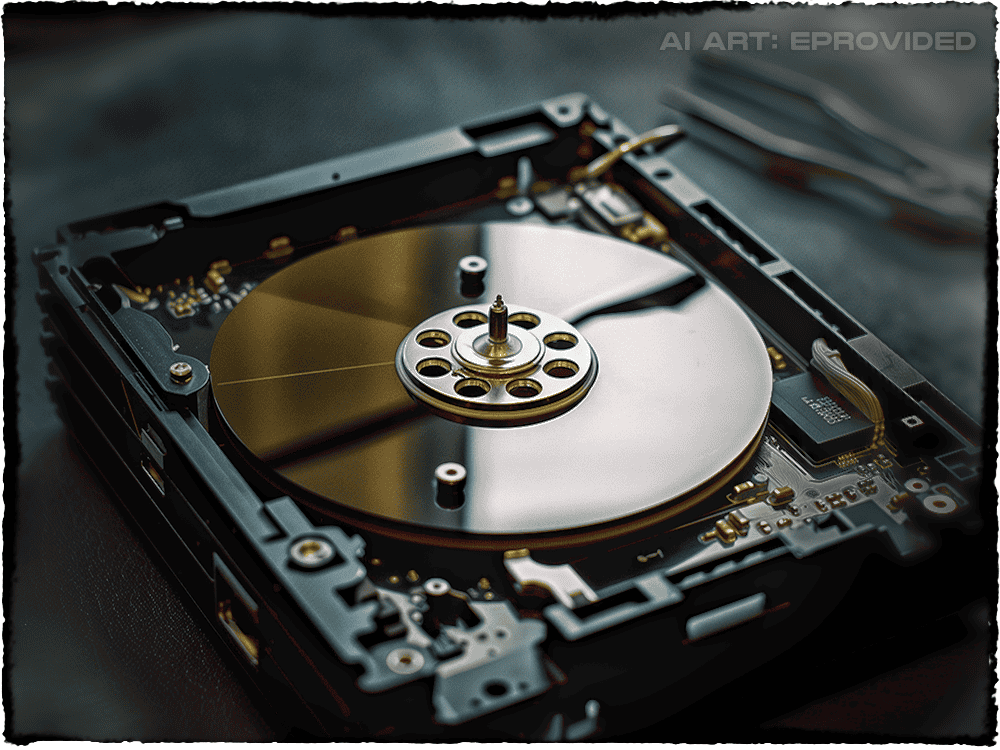
“Hard drive” now covers two very different technologies that fail in completely different ways, and knowing which one you have changes everything about how a hard drive failure is diagnosed and recovered. A traditional hard disk drive (HDD) stores data magnetically on spinning platters, read by heads that hover microns above the surface on a cushion of air. It is a mechanical instrument, and it fails mechanically — heads crash into platters, spindle motors seize, and the read/write arm wears out. A solid-state drive (SSD) has no moving parts at all; it stores data as electrical charge in NAND flash memory chips, governed by a controller. It fails electronically — a dead controller, corrupted firmware, or NAND cells that wear out after their rated write cycles. This guide covers internal, bare drives connected by SATA; if yours is a portable drive in its own USB enclosure, see recovering data from an external hard drive instead.
The practical difference matters when a drive dies. An HDD that clicks is telling you its heads can no longer read the platters — but the platters, and your data, are usually untouched; recovery means opening the drive in a controlled environment and replacing the heads to read the surface again. An SSD that vanishes from the BIOS has usually lost its controller or firmware, not its data; recovery means reviving that original controller so it can read its own NAND chips again. Both are recoverable; they just take opposite toolsets. Solid-state failure is its own discipline, so we treat it separately under SSD data recovery. For the rest of this guide, “hard drive” means the mechanical HDD most people picture, with notes where SSDs differ. Not sure which kind you have? Windows Device Manager or the Mac System Information app lists the model number, and a quick search on it tells you.
Signs Your Hard Drive Is Failing
Most hard drive failures announce themselves before the drive goes fully dark. The table below maps the symptoms we see most often to what is failing underneath and whether the data typically survives. If your drive is doing any of these, stop using it; every further minute of spinning on a failing drive can turn recoverable data into scored platters.
| Hard Drive Failure Symptoms — What’s Failing & Whether Files Survive | |||
|---|---|---|---|
| Symptom you notice | Usual cause | Failure type | Files recoverable? |
| Clicking, grinding or beeping | Head crash or seized spindle motor — heads can’t read the platter | ⚠ Mechanical | ✓ Often, via head swap |
| Drive not detected in BIOS | PCB (circuit board) failure, or firmware corruption on the drive | ⚠ Electronic / firmware | ✓ Often, via lab access |
| Freezes, slow reads, files vanishing | Bad sectors, or a corrupted file system on healthy hardware | ⚠ Logical | ✓ Usually, from a forensic image |
| Won’t spin up at all | Power surge, dead PCB, or stuck heads holding the platters | ⚠ Electronic / mechanical | ✓ Usually, in lab |
| “Disk read error” on boot | Corrupt boot records or early logical corruption; sometimes bad sectors | ⚠ Logical | ✓ Usually |
What to Do First, by Symptom
 Enlarge
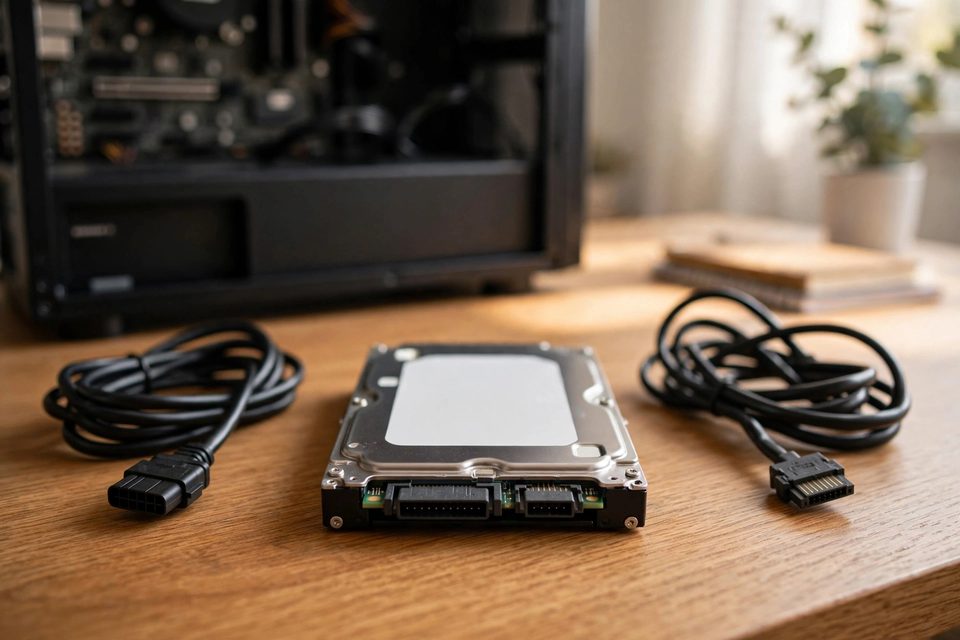
Whatever your drive is doing, the first step is the same: power it off, unplug it and stop trying. If the drive was dropped, bumped or got wet, say so up front, because that changes how a lab opens it.
Clicking or ticking
Repeated clicks usually mean the heads cannot find the data on the platters. Each restart can drag a damaged head across the surface, so leave the drive off. This holds for portable drives too.
Not detected in the BIOS or in Windows
Rule out the cheap causes once: a different cable, a different port, a different power source. If the drive still does not appear, the cause is more likely the circuit board or the firmware than your files.
Spins up but asks to format or shows the wrong size
Click Cancel, never Format. A wrong size or a format prompt often means damaged file system records or firmware on a healthy drive, and formatting only writes over the evidence.
Bad sectors, freezing and slow reads
Do not run repair tools or scan the whole drive; every pass stresses a weak drive. Copy off only what you must, and check the drive’s S.M.A.R.T. status before you decide.
Dropped, knocked or wet, including laptop drives
A fall can seize the motor or crash the heads even when the drive looks fine outside. A wet drive should stay damp in a sealed bag, not be dried with heat.
The Four Types of Hard Drive Damage
Every hard drive failure we recover falls into one of four damage categories, and each demands a different approach. eProvided handles all four across every major make — Seagate, Western Digital, Toshiba, HGST, Hitachi, Samsung and Maxtor — because the recovery technique follows the failure mode, not the brand on the label.
| Hard Drive Damage Types — What a Lab Does and What to Expect | |||
|---|---|---|---|
| Damage type | What you notice | What a lab does | What to expect |
| Logical (file system) | Drive appears but is empty, asks to format, or freezes | Images the drive read-only and rebuilds the file structure from the copy | Usually good when the hardware is healthy |
| Board (electronic) | No spin and no sign of power, often after a surge | Repairs the board, or moves the drive’s own ROM chip to a matched board | Often good; the platters are usually untouched |
| Firmware | Spins, shows in the BIOS with a wrong name or size, will not initialize | Reads and repairs the drive’s service area with specialist tools | Often good |
| Stuck heads or seized motor | Buzzing, or one click and silence | Frees or replaces the head or motor assembly, then images the platters | Fair; depends on platter damage |
| Head crash, scored platters | Repeated clicking or grinding, often after a drop | Replaces the heads and images what the platters still hold | Partial; scored tracks cannot be read back |
| Water or fire | Wet, corroded or heat-marked drive | Cleans and repairs the board; opens the drive only if the platter chamber is affected | Varies widely; never power it on |
Mechanical failure
 Enlarge
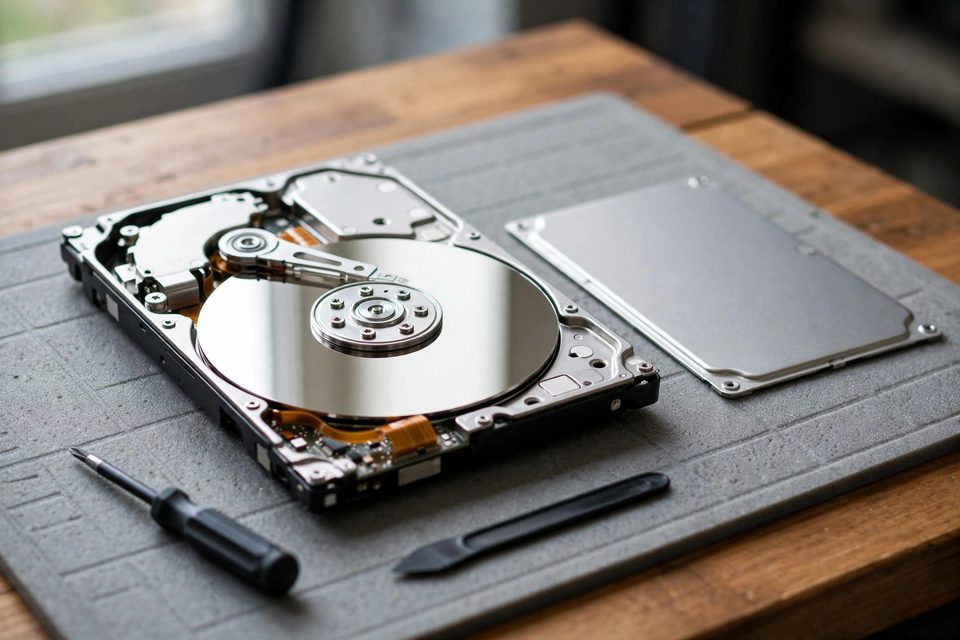
Mechanical failure — head crashes, seized spindle motors, scored platters — is the most common cause of sudden data loss and the reason a drive clicks; it requires opening the drive in a controlled, particle-free environment to replace the heads and image the platters despite the platter damage.
Electronic failure
Electronic failure happens when a power surge or a faulty circuit-board component stops the drive spinning up; the platters are fine, and a matched board or ROM transplant brings the data back. A brownout, lightning strike, or failing power supply can kill a drive’s circuit board instantly while leaving the platters pristine — which is exactly why power surge data loss is one of the more recoverable failures we see.
Logical failure
Logical failure leaves the hardware perfectly healthy but the file system corrupted — accidental formatting, deleted partitions, malware — and is treated by imaging the drive read-only and rebuilding the file structure from the image.
Firmware corruption
Firmware corruption, less common, is when the drive’s own internal operating code is damaged and the drive won’t initialize. Keep the drive powered off until a lab has looked at it.
Platter scoring: where the odds depend on what happened next
 Enlarge
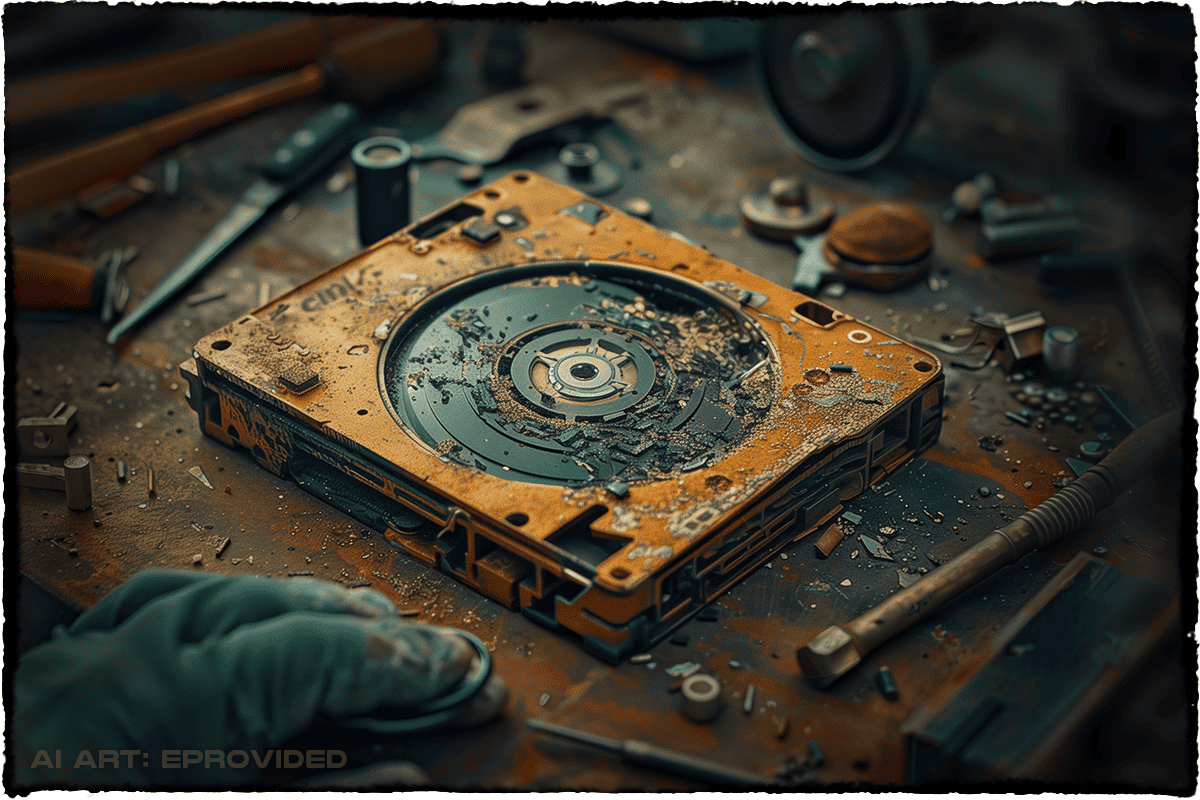
Physical damage to the platter surface, like the scoring shown here, is the one category where the odds depend heavily on what happened after the first symptom. Light scratches from a single brief head contact often leave most of the surface readable, and imaging software can work around the damaged tracks. Deep concentric rings, visible as bright circles on the platter, usually mean the drive kept spinning with a crashed head for minutes or hours. Those rings are material scraped off the magnetic coating, and the data on that stripe cannot be read back, while the undamaged parts of the surface can still be imaged. A lab can often tell the two apart by imaging: a drive that reads most sectors but fails on a band of tracks points to a scored stripe, while one that reads nothing points back to the heads. Tell the lab how long the drive kept clicking; it helps predict how much of the surface is scored. That is the practical reason for the stop-now advice: the first click is a warning, and the hundredth can be the damage itself.
Is Your Hard Drive Data Really Gone?
 Enlarge
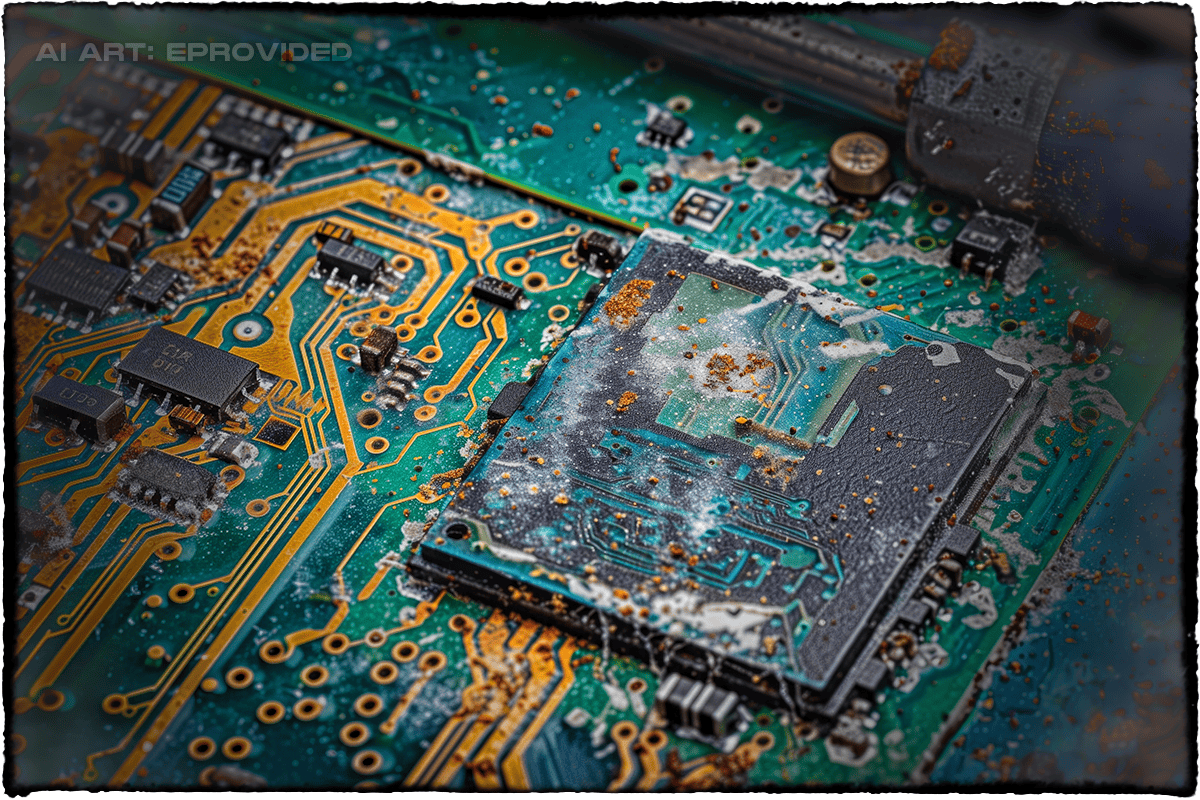
This is the question that actually keeps people up at night, so here is the direct answer: in most hard drive failures, the data is still on the platters and waiting. Magnetic platters hold their contents with no power at all — a drive can sit dead in a drawer for years and every file is still written on the surface. That gap between “the drive failed” and “the data is gone” is the entire reason professional recovery exists — and why even the extremes come back: eProvided recovered NASA Helios mission data from a module pulled out of the Pacific Ocean after roughly sixty days submerged in saltwater.
What genuinely does lower your odds is almost never the original failure — it is what happens afterward. Powering a clicking drive again and again lets crashed heads gouge the platters. Running recovery software against physically failing hardware keeps a dying drive spinning while it degrades. And the internet’s favorite home remedies, like the freezer trick, put condensation on the platters. The single best thing you can do to keep your data recoverable is counterintuitive but simple: once a drive shows signs of real failure, stop — leave it powered off and let a lab open it once, correctly. A wet drive is the exception people misjudge most: keep it sealed in a bag, damp as it is, and never dry it with heat.
Hard Drive Myths That Cost People Their Files
Three home fixes do the most harm. Opening the drive lets dust onto platters that sit microns from the heads, and one speck can ruin a surface. Swapping in a head set or a board from a similar drive fails because every drive carries its own adaptive data, and a mismatched part can corrupt the drive further. Running chkdsk or a repair tool on a clicking drive forces the same weak heads to read again and again.
Tapping or shaking a drive does not re-seat anything; it only moves loose heads.
How Hard Drive Data Recovery Works
Professional recovery works by diagnosing the hard drive failure mode first, then bypassing the failed part rather than repairing it. A mechanically failed HDD is opened in a controlled environment, its heads replaced with a matched donor set, and the platters imaged sector by sector before any file reconstruction begins. An electronically failed drive gets a board repair or ROM transplant; a logically failed one is imaged read-only and its file system rebuilt from the copy, never the original. The guiding rule throughout is that the original drive is preserved and never written to. A hard drive case usually wraps in a few business days, backed by the same “No Data, No Data Recovery Fee” promise — nothing owed if the data doesn't come back.
This article explains what failed and why. If your drive has already failed and you need your files back, start a free evaluation when you are ready to send it in.
Real Hard Drive Cases from Our Records
These four cases come from our own records. The customer’s own form words appear in quotes where we have them. Names and contact details are removed; each date is the month the case came in. One came back in full, one came back mostly, one came back from one of two drives, and one met a physical limit. Each is told as our notes record it: what the lab did and what came back.
An old external drive full of photos, September 2025
When they filled out our form, this customer wrote:
“… hard drive maybe 20 years old by know. hope you can recover my hundred’s of images”
Our case record shows a successful recovery: all 440 GB came back, and we sent sample images from the recovered data for the customer to check.
A portable drive that clicked, June 2026
On our online form, this customer put it this way:
“My WD passport is clicking and I cannot access the files.”
It proved a difficult drive. Our notes record more than one head failure while the drive was being read, and each time the lab replaced the heads and carried on. Imaging was slow, but most of the important files were recovered and delivered. Clicking is a mechanical warning, and a lab can sometimes work through it. Portable drives fail the same ways as internal ones; why external drives fail covers the enclosure side.
Two drives in one case, September 2025
This is how the customer described it on our form:
“Toshiba 1TB external HD: No longer reads. Small sharp sound heard when plugging in. Seagate 750 Gb: Does not spin. Last working symptom was clicking noises”
The lab worked on both drives, and the data from the Seagate came back. On the Toshiba the lab replaced the heads and tried to read the platters. That drive had a seized motor and head-strike marks on its top platter, which pointed to a hard fall, and a surface marked that way is a physical limit on what could be read from that one drive. The form never mentioned a fall, and our notes say that detail helps the lab plan. If a drive has been dropped, say so, and a free evaluation will tell you where your own drive stands.
A clicking drive that would not initialize, February 2026
The form for this case reads:
“Hard drive Clicking. Will NOT initialize. Assume damaged platter(s).”
The lab examined the platters, which had taken heavy damage. Where the magnetic surface has been scraped away, the data on it cannot be read back; that is a physical limit, and a lab can evaluate it. Switching a drive off at the first click helps keep more of its surface, so the free evaluation is best taken early. When no data is recovered, there is no data recovery fee. No Data, No Data Recovery Fee.
When Sending the Drive Is Not Worth It
 Enlarge
Sometimes the sensible answer is a new drive. If you have a current backup, or the drive held nothing you cannot replace, recovery may not be worth it. If a few files still open, copy them off before you power the drive down for good. What a recovery costs depends on the damage, the drive and the parts needed, so ask for an evaluation before you decide; see how a recovery is priced.
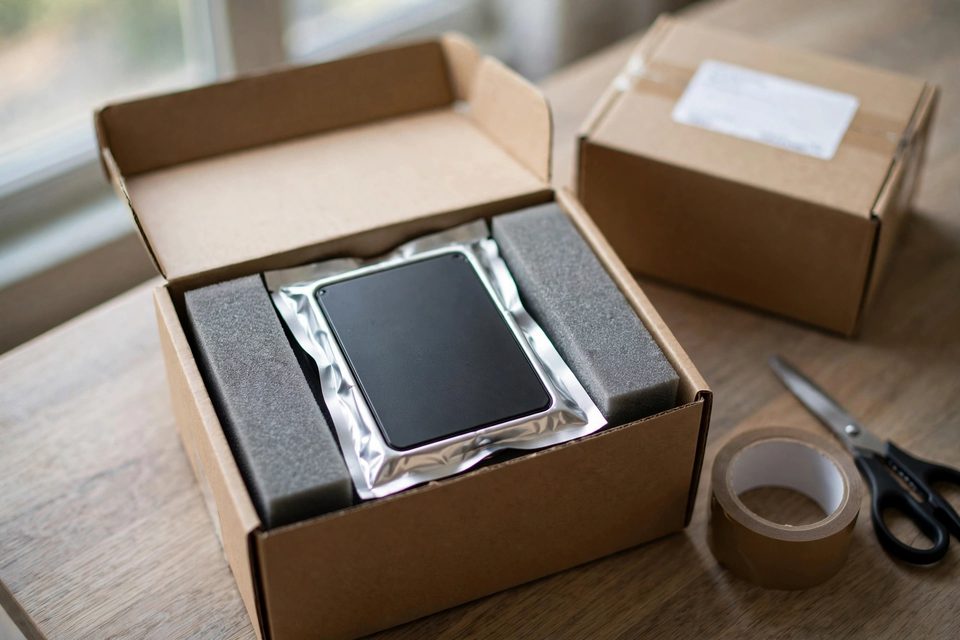
If you do send the drive, pack it so it cannot move, powered down and in its own box rather than loose in a bag with the computer. Put it in an anti-static bag, surround it with firm foam in a small box, and leave the cables out. Write down the symptom, any drop or spill, and what you tried, and put the note in the box. Mark the package fragile and send it with tracking and insurance.
Preventing Hard Drive Failure and Data Loss
 Enlarge
The cheapest data recovery is the one you never need, and the habits that prevent hard drive failure take an afternoon to set up. The cornerstone is the 3-2-1 backup rule: keep 3 copies of anything you can’t afford to lose, on 2 different types of media (say, an internal drive and an external one), with 1 copy kept offsite — a cloud service or a drive stored somewhere else entirely. No single event can take out all three at once.
Beyond backups, a few habits meaningfully extend a drive’s life. Keep drives cool: give a desktop room to breathe and keep vents clear of dust. Protect against power spikes: put desktops and external drives on a surge protector or a UPS. Watch the drive’s health: heed S.M.A.R.T. warnings; a drive that reports reallocated sectors is telling you to replace it. Retire aging drives on schedule (and erase a hard drive properly before it leaves your hands): failure rates climb after the three-to-five-year mark.
What Our Customers Say
Frequently Asked Questions About Hard Drive Data Recovery
Prevention beats recovery every time. Once your files are safe, our hard drive care tips lay out the simple habits that keep a healthy drive off our bench and head off the next hard drive failure before it starts.
Get Your Files Back from a Failed Hard Drive
Tell us what the drive does and what is on it. We evaluate it free and in confidence, and tell you what we can read before you spend anything.
Start My Free Hard Drive Evaluationor call (866) 857-5950 now
Related Recovery Services
Failed drive is not the only device at risk? eProvided recovers every storage class from one lab — these recovery services get the data back: