
Used by NASA · the FBI · the U.S. Navy · Since 1999 · 98% Success Rate
Hard Drive Recovery Service Tips: Backups, Cooling & What to Do When a Drive Fails
- No Data, No Data Recovery Fee
- Free, confidential evaluation
- 4.9 / 5 on Trustpilot (67 reviews)
- Worldwide lab recovery
Most hard drive recovery cases we see share the same root cause: nobody was backing up, and the drive gave no clear warning before it stopped. In 27+ years of recovering failed hard drives, we’ve learned which habits actually prevent data loss and which ones just feel like they do. This page collects the practical tips — backups, cooling, choosing a reliable external drive, and RAID — plus exactly what to do the moment a drive already has failed.
None of this is theoretical. It comes from thousands of drives that have come through our lab since 1999 — the ones that arrived properly packed and recoverable, and the ones that didn’t need to fail in the first place. “The drives that arrive in a padded box tend to go home with their data. The ones that arrive loose in a jiffy bag sometimes do not,” says founder Bruce Cullen.
What Are the Most Important Hard Drive Tips to Avoid Data Loss?
Back up on a real schedule, keep every drive — internal or external — adequately cooled, buy from a reputable retailer, and avoid risky RAID levels (RAID 0, RAID 00) for anything you can’t afford to lose. If a drive already shows symptoms, stop using it immediately and get a free evaluation.
“Data backups are like insurance — needing a hard drive recovery service is the after-effect of not insuring yourself to begin with.” — Bruce Cullen, founder, eProvided
- Why Hard Drives Fail
- Back Up Your Files & Photos Regularly
- Keep Drives Cool — Heat Is the Real Enemy
- Choosing & Buying a Reliable External Drive
- RAID Backup Systems: What’s Actually Safe
- If Your Drive Has Already Failed
- Our Recovery Process
- Customer Reviews
- Frequently Asked Questions
- Data Recovery for Every Device We Handle
Why Hard Drives Fail

A hard disk drive is a mechanical device — spinning platters, a read/write head assembly, and a controller board that manages all of it. That mechanical complexity is exactly why hard drives fail differently than flash media: heads can crash into the platter surface, motors can seize, and controller boards can simply blow a component the same way any circuit board can. Consumers buy hard drives because they hold far more data per dollar than SSDs or USB flash drives — today’s consumer drives commonly range from 1 TB to well over 10 TB — but that same capacity means a single failure puts a lot more at risk than a small flash drive ever could.
The good news: in the large majority of cases we see, the platters themselves are undamaged. A seized motor, a failed controller board, or worn read/write heads can all be worked around in the lab — either by repairing the original board or by transplanting the platters into a matched donor drive — without ever needing to touch the data sitting on the magnetic surface itself. This is the same reason a hard drive that has stopped responding is very often a much better recovery candidate than most people assume: the electronics that failed and the storage medium that holds the data are two separate parts of the same enclosure, and one failing rarely takes the other down with it.
Back Up Your Files & Photos Regularly
Everyone tells themselves, “I’m going to back up my files and photos.” First question: have you? Studies on consumers who needed hard drive recovery services found that roughly 70% had planned to make a backup and simply never got to it. The fix isn’t complicated — it’s a schedule. Set a recurring reminder on your phone for a quiet moment each week (many people find a fixed evening hour easiest to actually keep), and back up to a second external drive or a cloud service every time it fires.
Memory is personal — photos and lifelong documents are the files people regret losing most, and they’re also the easiest to protect with a habit this simple. If your backup routine has gaps, close them before a drive failure forces the issue.
A backup schedule only works if it’s actually scheduled. An intention to “back up soon” is, statistically, the single most common reason a hard drive recovery service gets a call in the first place.
Keep Drives Cool — Heat Is the Real Enemy

Excessive heat inside a hard drive enclosure accelerates component wear and can cause outright file damage. When buying an external USB hard drive, check that the enclosure is built well and, ideally, includes a small fan to push hot air out from around the drive. Not every external enclosure ships with one — look for it specifically if you plan to run the drive for extended sessions.
The same applies inside a desktop computer case. Internal hard drives need airflow too: confirm your case has working fans, and fill any empty fan mounts if you have them. This matters just as much for SSDs, which commonly ship with no heat sink and no airflow of their own — running one hot for long periods measurably shortens its working life. The cooler any drive runs, the longer it lasts. A drive bay that sits directly above a graphics card or power supply exhaust is one of the most common hidden heat sources in a home-built desktop, and it’s worth checking with your hand on the enclosure after a few hours of use.
Choosing & Buying a Reliable External Drive
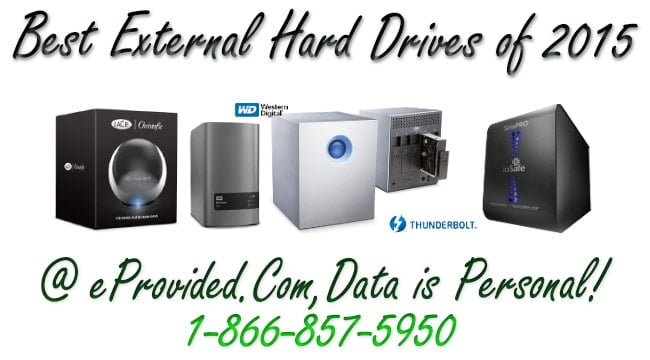
Buy external storage from a reputable retailer with a real return policy, and seriously consider the extended purchase protection plan — a backup drive is functionally insurance, and it’s worth insuring. Needing a hard drive recovery service later is very often the direct after-effect of skipping that step up front.
On capacity: don’t over-buy. Drive prices per gigabyte fall steadily and capacities keep climbing — see our note on how new hardware boosts drive capacity — so purchase what covers your current needs plus reasonable headroom rather than the largest drive available. Use a recommended-drives roundup for the shortlist of brands worth trusting (Seagate, Western Digital, Toshiba, LaCie, and similar established names), then compare current models and reviews before buying.
RAID Backup Systems: What’s Actually Safe

RAID storage is a reasonable option for consumers who want redundancy, but the specific RAID level matters enormously. RAID-10 is generally the safer consumer choice because it mirrors data across drive pairs. RAID 0, RAID 00, and RAID 5 configurations carry real risk for a home user — RAID 0 and RAID 00 stripe data with zero redundancy, so a single drive failure can take the entire array with it, and RAID 5 rebuilds can themselves fail on larger consumer drives. Novice users are generally better served by simple mirrored backups or cloud storage than by a striped RAID array they don’t plan to monitor closely.
If a RAID array does fail, do not run a rebuild or a repair utility against it before getting professional advice — a rebuild attempted on an already-degraded array is one of the most common ways a recoverable RAID failure becomes an unrecoverable one. If you ever plan to retire a drive instead of reusing it, see our guide on how to completely erase a hard drive first.
If Your Drive Has Already Failed
Stop using the drive immediately. Write down exactly what it did and when, leave the enclosure sealed, and never run disk utilities, chkdsk, or a firmware update against a drive that’s clicking, grinding, or not spinning up — each of those can turn a fully recoverable drive into a much harder case. Skip home remedies too, including the old stick-it-in-the-freezer trick — it does not address a mechanical fault and often makes the eventual recovery harder. Pack the drive in anti-static wrap with firm padding if you’re shipping it; eProvided has taken in drives for hard drive recovery this way since 1999.
Whether the drive is dead, clicking, has bent or damaged ports, was dropped, or the data itself looks corrupted, stay calm — the platters are very often intact even when the drive sounds alarming. A portable or external drive that took a knock while unplugged from power is usually in even better shape than an internal drive that failed mid-write. Free evaluations exist for exactly this reason: to tell you honestly what happened and what your real odds are before any work begins.
Our Recovery Process
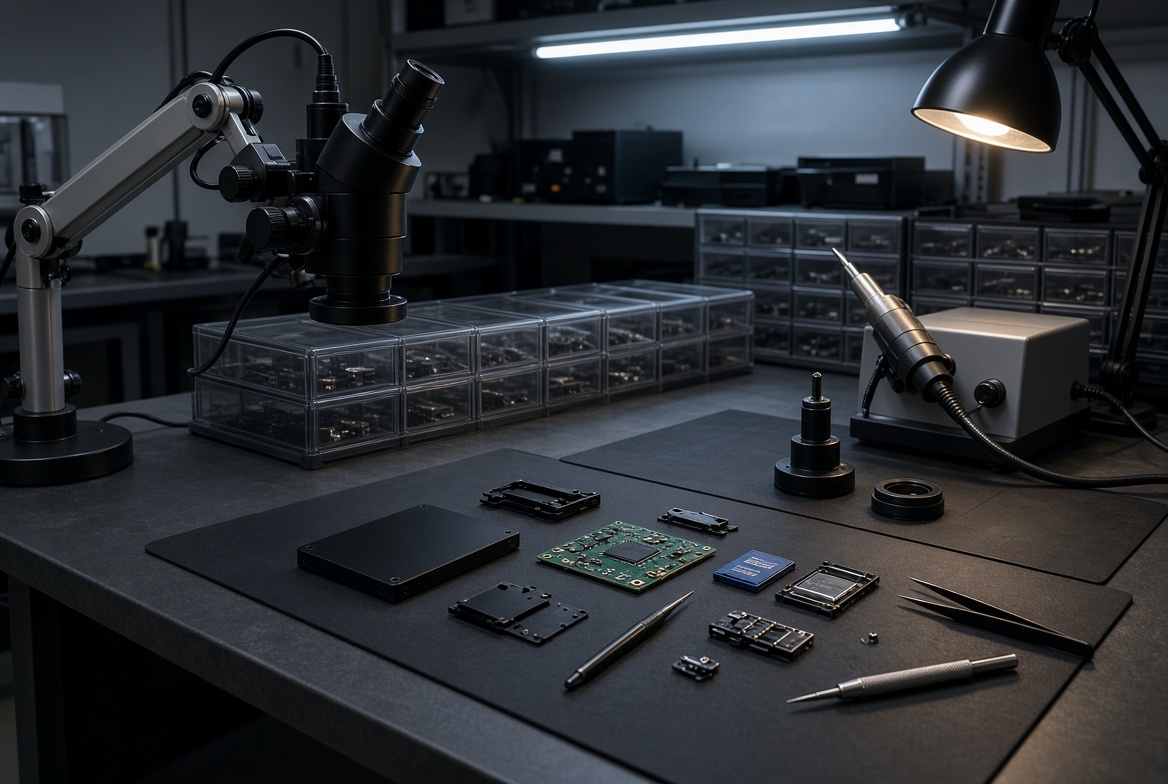
Every hard drive case starts the same way, regardless of failure type:
- Free evaluation — Our engineers inspect the drive and give you a firm quote before any work begins. No Data, No Data Recovery Fee.
- Diagnosis — We identify the exact failure point: motor, read/write heads, controller board, or the platters themselves.
- Repair or donor transplant — A failed controller board is repaired or swapped; damaged heads or a seized motor may require transplanting the platters into a matched donor drive in a controlled lab environment.
- Raw data recovery — Once the drive spins and reads reliably, data is imaged sector by sector and the file structure is reconstructed.
- Verification & delivery — we open and confirm every recovered folder before your hard drive's files ship back on new media or a secure download.
Every hard drive that comes through the lab is handled under the same confidentiality standard, whether it belongs to a home user or a government agency. Read more in our hard drive data recovery guide, or start your case when you’re ready.
Hard Drive Acting Up? Stop Using It Now.
Every extra spin-up on a clicking drive risks turning a recoverable failure into an unrecoverable one. Free, confidential evaluation — no obligation.
Start My Free Hard Drive Evaluationor call (866) 857-5950 now
What Our Customers Say
Frequently Asked Questions
A few more questions come up often once someone is already past the tips stage and dealing with a drive that has actually failed. If yours is a portable or external drive that took a knock, the cases below still apply.
Hard Drive Acting Up? Stop Using It Now.
The sooner a struggling hard drive gets powered down, the better its odds of a full recovery. Free, confidential evaluation — no obligation.
Start My Free Hard Drive Evaluationor call (866) 857-5950 now
Recovery Services for Every Storage Device Class
A hard drive is not the only device at risk — eProvided recovers every storage class from one lab: