
Used by NASA · the FBI · the U.S. Navy · Since 1999
Why Hard Drives Fail — and Whether Your Lost Files Are Really Gone
- No Data, No Data Recovery Fee
- Every brand — Seagate, WD, Toshiba, HGST
- Written by a 27-year recovery engineer
- Platter-level & chip-off recovery in-house
Your hard drive was working yesterday. Today the computer won’t recognize it, or it spins up with a faint, rhythmic click and then goes silent. Panic sets in — the photos, the tax records, the only copy of a project are all on that drive. Here is the part nobody tells you in the first frightened hour: a drive that has stopped working almost never means your files have stopped existing. Professional hard drive data recovery succeeds because the data and the failed part are two different things. After 27+ years of failed drives crossing our lab bench, this guide explains what actually breaks inside a hard drive, how HDD failure differs from SSD failure, whether your data is truly unrecoverable, and the simple habits that keep you out of this situation next time.
A failed hard drive is a blocked doorway, not a burned-down house. The data sits on the platters (HDD) or NAND chips (SSD); what usually fails is the heads, motor, circuit board, or firmware around it. Recovery bypasses the failed part and reads the storage directly — which is why even clicking, dead, and water-damaged drives are recoverable roughly 98% of the time. The single biggest thing that lowers those odds is continuing to power on a failing drive.
Do RIGHT NOW
- Power the drive down the moment you suspect failure
- Note the exact symptom — clicking, not spinning, not detected
- Stop using the computer the drive is attached to
- If the files matter, unplug it and set it aside
DON’T Do
- Don’t keep rebooting to “see if it comes back”
- Don’t open the drive — a speck of dust ruins a platter
- Don’t run repair software on a physically failing drive
- Don’t try the freezer or PCB-swap tricks you read online
Worried about specific files on a drive that already failed? Before you touch it again, you can find out free what’s recoverable »
- Understanding Hard Drive Failure: HDD vs. SSD
- Signs Your Hard Drive Is Failing
- The Four Types of Hard Drive Damage
- Is Your Hard Drive Data Really Gone?
- How Hard Drive Data Recovery Works
- Preventing Hard Drive Failure and Data Loss
- What Our Customers Say
- Frequently Asked Questions About Hard Drive Data Recovery
- Recover Files from a Failed Hard Drive
- Related Recovery Services
Understanding Hard Drive Failure: HDD vs. SSD
“Hard drive” now covers two very different technologies that fail in completely different ways, and knowing which one you have changes everything about how a hard drive failure is diagnosed and recovered. A traditional hard disk drive (HDD) stores data magnetically on spinning platters, read by heads that hover microns above the surface on a cushion of air. It is a mechanical instrument, and it fails mechanically — heads crash into platters, spindle motors seize, and the read/write arm wears out. A solid-state drive (SSD) has no moving parts at all; it stores data as electrical charge in NAND flash memory chips, governed by a controller. It fails electronically — a dead controller, corrupted firmware, or NAND cells that wear out after their rated write cycles. The same NAND flash sits inside the M.2 NVMe SSDs shipping in most new laptops today.
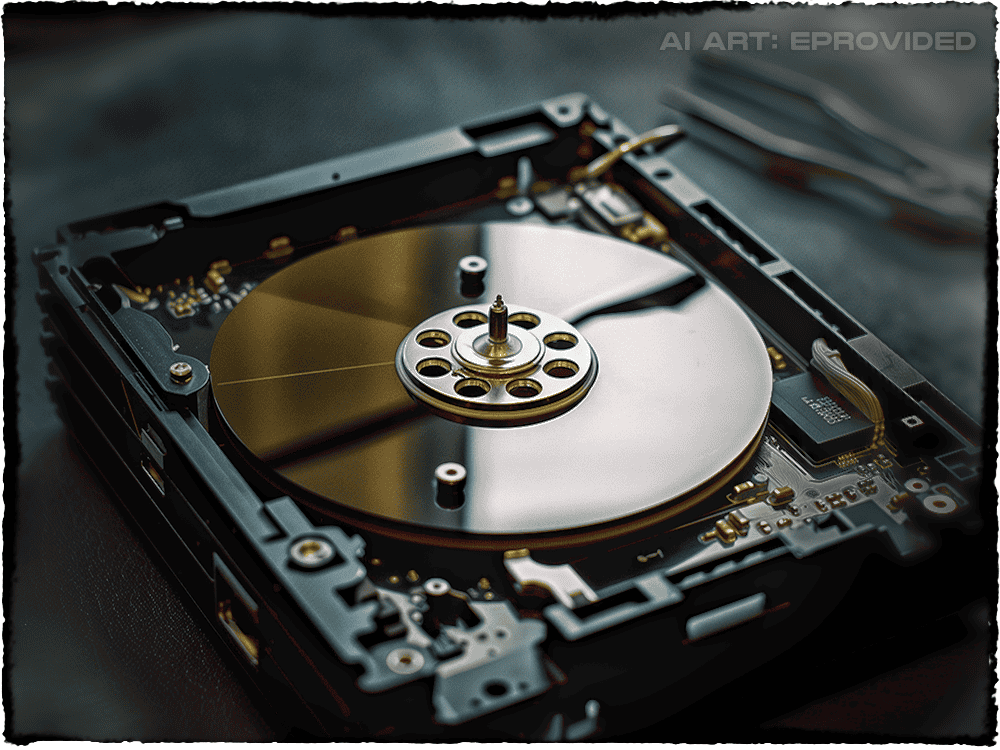
The practical difference matters when a drive dies. An HDD that clicks is telling you its heads can no longer read the platters — but the platters, and your data, are usually untouched; recovery means opening the drive in a controlled environment and replacing the heads to read the surface again. An SSD that vanishes from the BIOS has usually lost its controller or firmware, not its data; recovery means bypassing the dead controller and reading the raw NAND chips directly. Both are recoverable; they just take opposite toolsets. Because solid-state failure is its own discipline — controller bypass, chip-off NAND reads, encryption keys held in the controller — we treat it separately under dedicated SSD data recovery. For the rest of this guide, “hard drive” means the mechanical HDD most people picture, with notes where SSDs differ.
Signs Your Hard Drive Is Failing
Most hard drive failures announce themselves before the drive goes fully dark. The warning signs of hard drive failure matter for one reason: catching them early — and powering the drive down — is the difference between a routine recovery and a hard one. The table below maps the symptoms we see most often to what is failing underneath and whether the data typically survives. If your drive is doing any of these, stop using it; every further minute of spinning on a failing drive can turn recoverable data into scored platters.
| Hard Drive Failure Symptoms — What’s Failing & Whether Files Survive | |||
|---|---|---|---|
| Symptom you notice | Usual cause | Failure type | Files recoverable? |
| Clicking, grinding or beeping | Head crash or seized spindle motor — heads can’t read the platter | ⚠ Mechanical | ✓ Yes, via head swap |
| Drive not detected in BIOS | PCB (circuit board) failure, or firmware corruption on the drive | ⚠ Electronic / firmware | ✓ Yes, via lab access |
| Freezes, slow reads, files vanishing | Bad sectors, or a corrupted file system on healthy hardware | ⚠ Logical | ✓ Yes, forensic image |
| Won’t spin up at all | Power surge, dead PCB, or stuck heads holding the platters | ⚠ Electronic / mechanical | ✓ Usually, in lab |
| “Disk read error” on boot | Corrupt boot records or early logical corruption; sometimes bad sectors | ⚠ Logical | ✓ Almost always |
The Four Types of Hard Drive Damage
Every hard drive failure we recover falls into one of four damage categories, and each demands a different approach. Mechanical failure — head crashes, seized spindle motors, scored platters — is the most common cause of sudden data loss and the reason a drive clicks; it requires opening the drive in a controlled, particle-free environment to replace the heads and image the platters despite the platter damage. Electronic failure happens when a power surge or a faulty circuit-board component stops the drive spinning up; the platters are fine, and a matched board or ROM transplant brings the data back. Logical failure leaves the hardware perfectly healthy but the file system corrupted — accidental formatting, deleted partitions, malware — and is treated by imaging the drive read-only and rebuilding the file structure from the image. Firmware corruption, less common but fully recoverable, is when the drive’s own internal operating code is damaged and the drive won’t initialize.

A common cause worth calling out on its own is the electrical spike. A brownout, lightning strike, or failing power supply can kill a drive’s circuit board instantly while leaving the platters pristine — which is exactly why power surge data loss is one of the more recoverable failures we see. eProvided recovers all four damage types across every major manufacturer — Seagate, Western Digital, Toshiba, HGST, Hitachi, Samsung, and Maxtor — because the recovery technique follows the failure mode, not the brand on the label. Whatever the cause, failed hard drive recovery starts the same way — identify what broke, then read the data around it.
Is Your Hard Drive Data Really Gone?
This is the question that actually keeps people up at night, so here is the direct answer: in the overwhelming majority of hard drive failures, the data is completely intact and waiting. Magnetic platters hold their contents with no power at all — a drive can sit dead in a drawer for years and every file is still written on the surface. The heads that read those platters, the motor that spins them, and the board that powers them can all fail without touching a single byte of your data. That gap between “the drive failed” and “the data is gone” is the entire reason professional recovery exists — and why even the extremes come back: eProvided recovered NASA Helios mission data from a module pulled out of the Pacific Ocean after roughly sixty days submerged in saltwater.
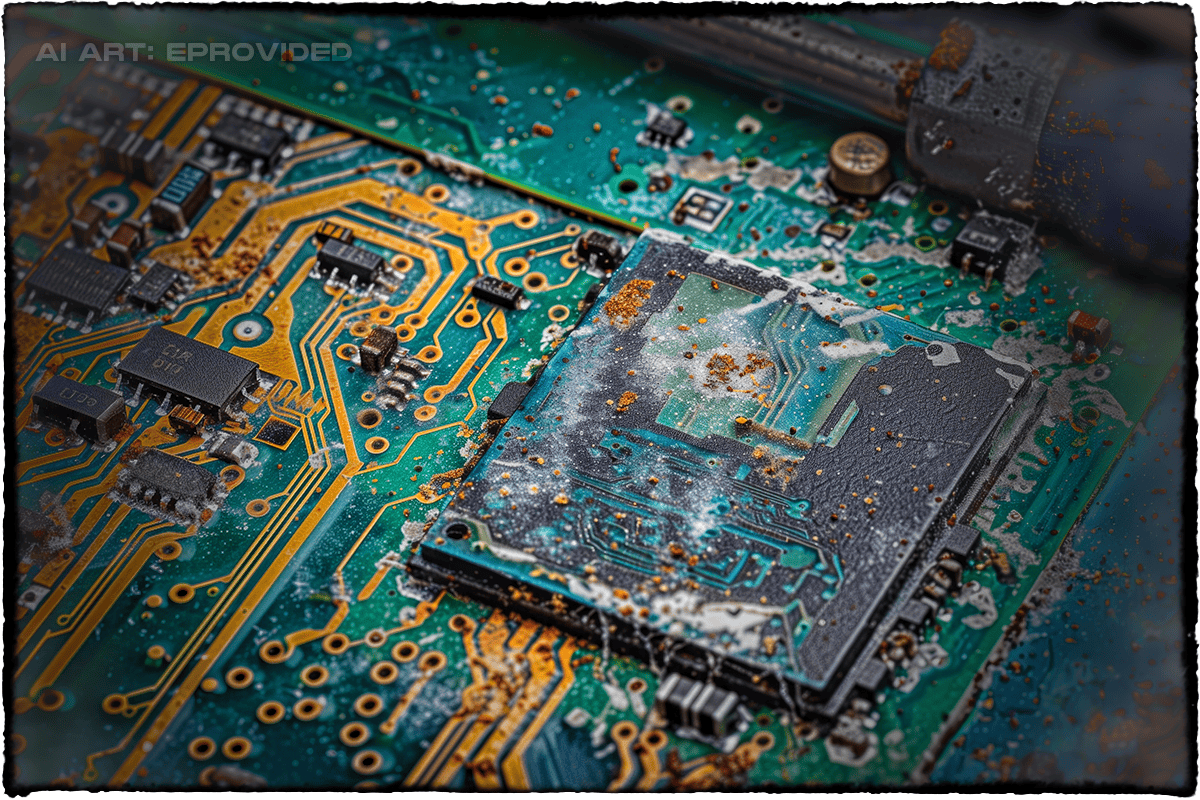
What genuinely does lower your odds is almost never the original failure — it is what happens afterward. Powering a clicking drive again and again lets crashed heads gouge the platters. Running recovery software against physically failing hardware keeps a dying drive spinning while it degrades. And the internet’s favorite home remedies actively destroy data: the freezer trick introduces condensation onto the platters, and swapping circuit boards between drives corrupts the firmware calibration unique to each unit. The single best thing you can do to keep your data recoverable is counterintuitive but simple: once a drive shows signs of real failure, stop — leave it powered off and let a lab open it once, correctly.
How Hard Drive Data Recovery Works
Professional recovery works by diagnosing the hard drive failure mode first, then bypassing the failed part rather than repairing it. A mechanically failed HDD is opened in a controlled environment, its heads replaced with a matched donor set, and the platters imaged sector by sector before any file reconstruction begins. An electronically failed drive gets a board repair or ROM transplant; a logically failed one is imaged read-only and its file system rebuilt from the copy, never the original. The guiding rule throughout is that the original drive is preserved and never written to. Most cases finish in a few business days under the “No Data, No Data Recovery Fee” guarantee — if your files don’t come back, you don’t pay for the recovery.
This article’s job is to explain what failed and why; if your drive has already failed and you need it fixed, that is a different task with its own page. If you need to get your failed drive repaired, that team handles the quote, the turnaround, and the physical work of getting your files back — start there when you are ready to send a drive in.
Preventing Hard Drive Failure and Data Loss
Recovery is the safety net, not the plan. Every recovery case that comes through our lab is a reminder that the cheapest data recovery is the one you never need — and the habits that prevent hard drive failure and data loss take an afternoon to set up. The cornerstone is the 3-2-1 backup rule: keep 3 copies of anything you can’t afford to lose, on 2 different types of media (say, an internal drive and an external one), with 1 copy kept offsite — a cloud service or a drive stored somewhere else entirely. The logic is that no single event — a failed drive, a stolen laptop, a house fire, a ransomware hit — can take out all three at once. If you do nothing else, do this.
Beyond backups, a few habits meaningfully extend a drive’s life. Keep drives cool: heat is a hard drive’s enemy, so give a desktop room to breathe, keep vents clear of dust, and never run a drive in an enclosed, unventilated space. Protect against power spikes: put desktops and external drives on a surge protector or, better, a UPS — the same electrical faults that kill circuit boards are the easiest damage to prevent. Watch the drive’s health: run periodic disk checks (chkdsk on Windows, Disk Utility on Mac) and pay attention to S.M.A.R.T. warnings your operating system surfaces — a drive that reports reallocated sectors is telling you to replace it before hard drive failure strikes. Retire aging drives on schedule: mechanical drives wear out, and annual failure rates climb sharply after the three-to-five-year mark, so migrate data off old drives before they earn a spot on a recovery bench. Do these, and hard drive data recovery stays a thing that happens to other people.
What Our Customers Say
Frequently Asked Questions About Hard Drive Data Recovery
Prevention beats recovery every time. Once your files are safe, our hard drive care tips lay out the simple habits that keep a healthy drive off our bench and head off the next hard drive failure before it starts.
Recover Files from a Failed Hard Drive
Clicking, dead, water-damaged or simply not detected — our engineers will tell you exactly what’s recoverable from your hard drive. Free, no obligation, confidential.
Start My Free Hard Drive Evaluationor call (866) 857-5950 now
Related Recovery Services
Failed drive is not the only device at risk? eProvided recovers every storage class from one lab — these recovery services get the data back: