Used by NASA · the FBI · the U.S. Navy · Since 1999
Understanding Computer Storage: Types, Devices, Future Trends 2026
- No Data, No Data Recovery Fee
- Every storage type on this page
- Free evaluation, no obligation
What Are the Main Types of Computer Storage?
Computer storage has two main types: primary storage (memory, which is temporary) and secondary storage (permanent). Secondary storage covers 11 common devices, from hard drives and SSDs to memory cards, NAS, tape and cloud. Hard drives and SSDs hold most personal data, and both eventually fail.
“Storage keeps changing shape every few years. Every new kind brings its own new way to fail.” — Bruce Cullen, founder, eProvided
Computer storage is an essential component of modern computing. It lets users store and reach large amounts of digital data. With files and applications growing and the need for faster access rising, demand for storage keeps climbing. In this article, we explore the types of computer storage, the most common storage methods, popular storage devices, new trends, the latest storage technology, and future types of data storage. As data recovery professionals, our advice is simple: take care of your storage devices and always back up your work. Then, if your computer breaks or gets stolen, you can still reach your files from another PC, laptop, or tablet, and professional HDD data recovery remains an option for anything that was never backed up.
Memory (RAM) is primary storage and forgets everything at power-off. Hard drives, SSDs, flash drives, memory cards, optical discs, NAS, tape and cloud are secondary storage. NVMe SSDs are the current speed standard, QLC flash trades endurance for capacity, Intel Optane is discontinued, and DNA and holographic storage are still in the lab. Whatever you use, keep a second copy.
- Types of Computer Storage
- Common Types of Storage
- 11 Examples of Storage Devices
- How Each Storage Type Usually Fails
- New Trends for Storage
- Latest and Newest Storage Technology
- Future Types of Data Storage
- Popular and Longest-Lasting Memory Cards
- Is One of These Already Failing?
- Future of SSD Drives
- MLC, TLC and QLC Cells
- What Not to Do When Storage Fails
- Real Storage Failures From Our Records
- What Our Customers Say
- Frequently Asked Questions
- Get a Free Evaluation
- Related Recovery Services
Types of Computer Storage
There are two primary types of computer storage: primary and secondary. Primary storage, also known as memory, is the temporary space a computer uses to hold and manipulate data while it works. It is fast, and it forgets everything when the power goes off. Secondary storage is the permanent home for your data: the drive, card or server that still has your files the next morning. When secondary storage fails through a hardware fault, that is when data recovery is needed.
Common Types of Storage
 Enlarge
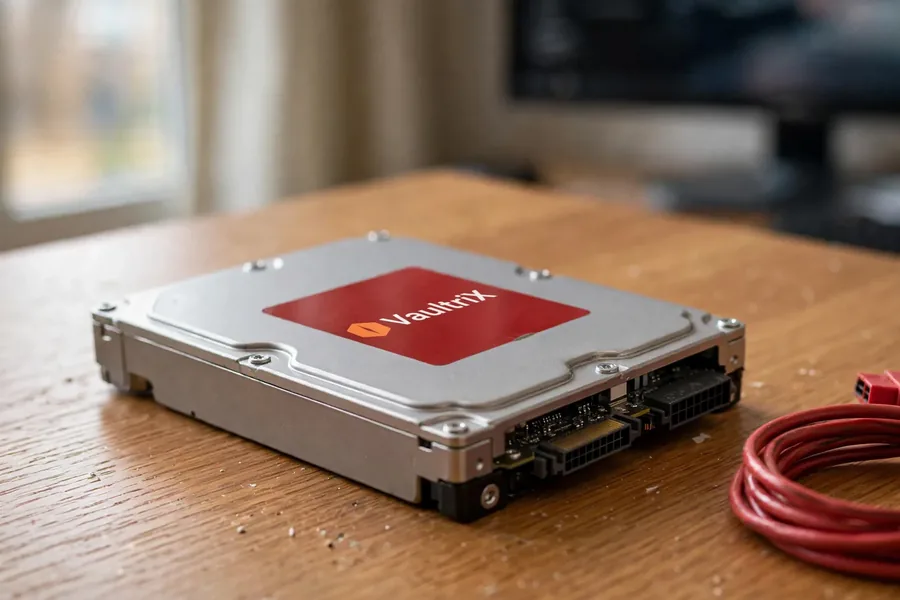
The most common type of secondary storage for computers is the hard disk drive (HDD), which has been in use for decades. A hard drive stores data magnetically on spinning platters, and tiny heads read and write them a hair above the surface. Because HDDs hold so much data for the price, a failed one is also the most common recovery job. The moving parts explain the classic warning signs: clicking, beeping or a drive that spins up and then disappears. Capacity is the other reason HDDs stay in service: for archives, camera footage and family photo libraries a large hard drive is usually the cheapest place per terabyte to keep data, which is why so many sit in desktops and drawers long after their warranty ends.
Solid-state drives (SSDs) keep gaining ground thanks to faster data access and lower power use. An SSD has no moving parts, so it shrugs off a bump, but it fails in its own way: a drive that worked at lunch can vanish from the system at dinner. External hard drives offer a convenient way to add capacity to desktops and laptops, and they are a great choice for backing up considerable amounts of data. If an external drive fails, the data on it can usually be recovered the same way as from an internal one, because inside the case it is the same kind of drive. Many portable externals are now SSDs inside, so find out which kind you own before you decide what to do next.
11 Examples of Storage Devices
- Hard disk drives (HDDs), the long-standing workhorse and the most common recovery case.
- Solid-state drives (SSDs)
- External hard drives, often used for backups.
- USB flash drives
- Memory cards
- SxS memory cards, a professional video format about the size of a PC card.
- CD/DVD drives
- Blu-ray drives
- Network-attached storage (NAS)
- Tape drives
- Cloud storage services
How Each Storage Type Usually Fails
Every device on the list fails in its own way, and the right first move depends on the device. The table pairs each type with its usual warning sign and the safest first step. The last column shows how a recovery lab approaches it, because the parts inside decide the method.
| Storage Types: Warning Signs and First Moves | |||
|---|---|---|---|
| Storage type | Usual warning sign | Safest first move | How a lab approaches it |
| Hard disk drive | Clicking, beeping or grinding; drive not detected | Power it off and stop running repair tools | Board repair, then head and donor-part work if the mechanics are damaged |
| SSD (SATA or NVMe) | Vanishes from the BIOS, shows 0 MB, or the PC will not boot | Stop power-cycling it and do not flash firmware | We identify the controller first, then repair the board or revive the original controller; chips are read directly only when the controller allows it |
| External drive | Light on, not recognized by any computer, or clicking | Try one other cable, then stop | Same as the drive inside the case, once we know whether it is a hard drive or an SSD |
| USB flash drive | Asks to be formatted, shows 0 bytes, or the plug snapped | Do not format it | Often a direct read of the memory chip, after repairing the board if needed |
| SD or microSD card | Unreadable in camera and PC, or physically cracked | Take it out of the camera and stop shooting | Often a direct read of the memory chip, which is why a card broken in half can still give photos back |
| CD, DVD or Blu-ray disc | Skips, errors or will not read | Do not polish it with household cleaners | Surface cleaning and a specialist re-read (see disc recovery) |
| NAS or RAID array | Degraded array, repeated beeps, or the volume is missing | Do not rebuild or re-initialize it, and note the drive order | Each drive is copied first, then the array is rebuilt from the copies |
These are general patterns, not a promise for any single device. Whether files come back depends on the damage, which nobody can judge before the device is on the bench.
New Trends for Storage
 Enlarge
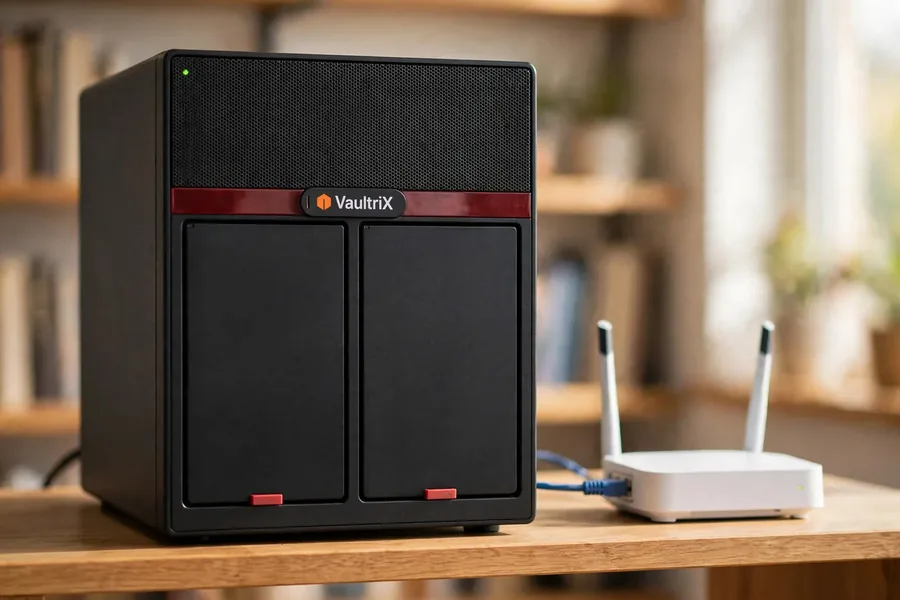
One of the biggest trends is non-volatile memory express (NVMe), which delivers much faster data access than traditional SATA storage. SATA 3.0 tops out at 600 MB/s (Wikipedia: Serial ATA). NVMe was first released in March 2011 and was built for flash, with multiple long command queues and lower latency, where the older AHCI protocol was written for far slower hard drives (Wikipedia: NVM Express). Over a PCIe 4.0 x4 link an NVMe drive has about 7.9 GB/s of usable bandwidth, and PCIe 5.0 doubles that to about 15.8 GB/s (Wikipedia: PCI Express).
Makers now use that headroom. Samsung lists up to 14,800 MB/s sequential read for its 9100 PRO PCIe 5.0 SSD, a best-case lab figure, not what an ordinary file copy feels like. Cloud and hybrid cloud storage keep growing as more organizations embrace cloud-based services, and many now pair a local drive or a home NAS with a cloud copy for fuller data protection. A NAS keeps one copy on your own network, while the cloud holds a second copy somewhere else. Treat a NAS as a convenience copy, not a backup of itself: if the box and your only other copy sit in the same room, a theft, a fire or a power surge can take both.
The same speed that makes NVMe attractive also makes a failure abrupt: the drive usually vanishes from the system rather than slowing down first. That is why a fast drive still needs a backup, and why the trend toward faster storage has not removed the need for recovery.
Latest and Newest Storage Technology
 Enlarge
For several years the headline technology was 3D XPoint, developed by Intel and Micron and sold by Intel under the Optane brand from April 2017 to July 2022. It sat between RAM and flash: faster than an ordinary SSD, usable as memory or as storage. The story ended quickly. Intel discontinued its consumer Optane line in January 2021, Micron announced in March 2021 that it would stop developing 3D XPoint, and Intel announced in July 2022 that it was winding down the Optane business (Wikipedia: 3D XPoint). Optane drives still in service keep working, but no new generations are coming.
Optane also came in more than one form: standalone Optane SSDs, small Optane Memory modules that cached a slower drive, and combined devices that put Optane and ordinary flash on one stick. So the word Optane alone does not tell you what is inside the box. Today the mainstream is PCIe NVMe flash with ever more layers per chip. Hard drives keep growing too: Wikipedia lists commercial hard drives of up to 36 TB as of 2025 (Wikipedia: Hard disk drive), and an LTO-9 tape cartridge holds 18 TB uncompressed (Wikipedia: Linear Tape-Open). Older hard drives still sit in millions of systems, and recovering data from them remains a vital service.
For everyday buyers the practical choice is simple. SATA SSDs are inexpensive and fast enough for office work, while NVMe drives matter most for large video files, games and databases. Either way an SSD is a wearing part with a finite number of writes, so plan its replacement and its backup before it fails, not after.
The table collects the key numbers in one place. Capacities and speeds change quickly, so check the maker’s own sheet before you buy.
| Storage Technology Facts, With Sources | ||
|---|---|---|
| Technology | Key fact | Source |
| 3D XPoint (Optane) | On the market April 2017 to July 2022; consumer line ended January 2021 | 3D XPoint |
| TLC NAND | 3 bits per cell | Multi-level cell |
| QLC NAND | 4 bits per cell; may need up to 8 reads to get data the error-correction code can fix | Multi-level cell |
| PLC NAND | 5 bits per cell, in development | Multi-level cell |
| SATA 3.0 | 600 MB/s | Serial ATA |
| NVMe on PCIe 4.0 x4 | About 7.9 GB/s usable | PCI Express |
| NVMe on PCIe 5.0 x4 | About 15.8 GB/s usable | PCI Express |
| Hard disk drive | Up to 36 TB commercially, as of 2025 | Hard disk drive |
| LTO-9 tape | 18 TB per cartridge, uncompressed | Linear Tape-Open |
Future Types of Data Storage
The future of computer storage is likely to include holographic storage, which uses three-dimensional light patterns to store and retrieve data, and DNA-based storage, which encodes digital data in synthetic DNA. Holographic storage has been described as near-term since 2001 and DNA storage has been shown in research labs, but neither is something you can buy for your PC. Closer to market, penta-level cell (PLC) flash would store five bits per cell and is listed as in development. Advances in quantum computing may also lead to new types of storage. None of these replace the drives in your house yet, which is why the legacy systems you own today will still need looking after for years.
Popular and Longest-Lasting Memory Cards
 Enlarge
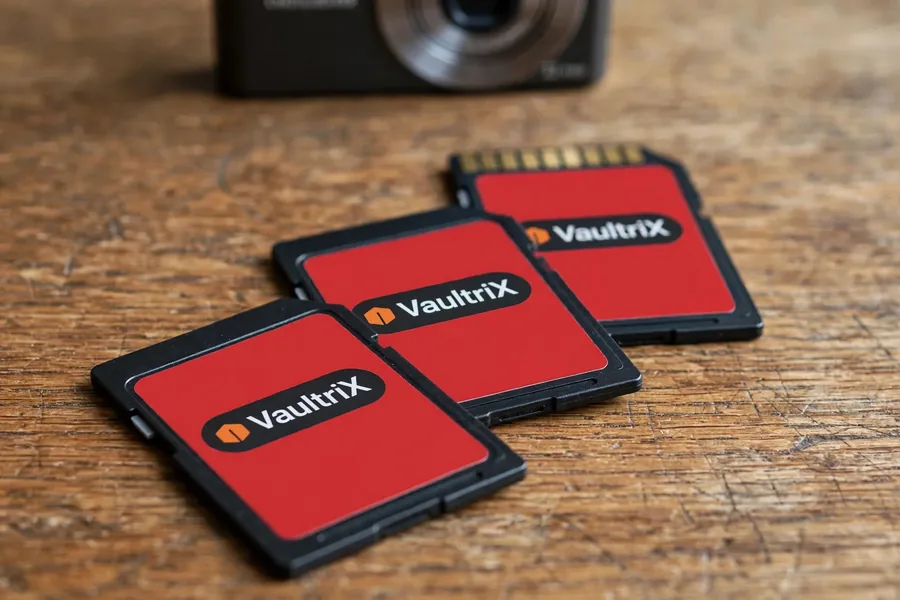
The most popular memory card is the Secure Digital (SD) card, used in digital cameras, drones and other portable devices; smartphones that take a card use its smaller microSD form. A corrupted SD or microSD card is often recoverable, since the photos sit on a flash chip that can be read directly. Results still depend on the damage, and a card whose chip is cracked can be lost for good. Habits matter as well: pulling a card out while the camera is still writing, shooting until the card is completely full, and moving one card between several cameras without formatting it in the camera all make corruption more likely.
How to Pick a Card That Lasts
No card lasts forever, and a brand name does not make one immune, so judge a card by its rating and by how you use it. Buy from a known maker through a trusted seller, because counterfeit cards report a larger size than they really hold and fail when the real space runs out. Our guide to microSD class and speed ratings explains the symbols printed on the card. Cameras that record around the clock, such as security cameras and dash cams, rewrite a card constantly, so choose a card the maker sells as high-endurance and check its stated rating. Read the maker’s sheet for the temperature range too: SanDisk, for example, lists its Extreme microSD card for use from −25 to 85°C. For everyday cards, tips for extending flash card life covers the habits that matter most, from ejecting properly to never filling a card to the last megabyte. Whatever you buy, copy the photos off soon and keep a second copy.
Is One of These Already Failing?
Clicking drive, SSD that vanished, card that asks to be formatted: stop using it and get it looked at before the next power-on makes it worse.
Start My Free Storage Evaluationor call (866) 857-5950
Future of SSD Drives in the Computer Storage Sector
Solid-state drives have become far more popular in recent years thanks to faster data access and lower power consumption. Today’s SSDs already improve a great deal on hard disk drives, and future generations will push further. If you experience SSD drive failure, eProvided is your data recovery solution. SSDs keep improving in speed, size and energy use. Memory cards are separate from SSDs: an SSD is built to run a PC, while a memory card is extra storage for cameras and other portable devices and is not as fast.
One of the most significant advances is QLC (quad-level cell) NAND flash. QLC offers higher capacities at lower cost, making big drives more affordable for everyday buyers. The downside is lower endurance than TLC, which stores three bits per cell: QLC and TLC drives may need to read the same data several times before error correction can use it (Wikipedia: Multi-level cell). SSD makers answer that with better error-correction algorithms and wear-leveling to stretch drive life. QLC suits big, read-heavy storage better than constant heavy writing. If you need to recover data from a failed NVMe SSD, our NVMe data recovery service can help. Keeping up with these developments shapes how you should buy storage and plan backups.
Multi-Level Cells (MLC), Triple-Level Cells (TLC) and QLC

Another area of development is multi-level cells (MLC) and triple-level cells (TLC). They store more bits per cell than single-level cells (SLC) while keeping performance high. The drawback is lower endurance than SLC. Advanced wear-leveling and error correction help manufacturers offset that weakness.
The future of SSDs also brings stronger data security. Manufacturers build hardware-based encryption into the drive controller and adopt new security protocols, which protects your data from anyone who steals the drive. It also changes recovery: when a drive whose controller encrypts its data fails, the fix is usually to repair the board or revive that original controller. Which case applies depends on the controller, so we identify it first. Many portable external drives are now SSDs inside, too, so the same rule applies to them.
As we have seen, the future of SSDs is bright, with advances in QLC NAND, MLC and TLC, and data security on the way. These developments will give SSDs even more performance, capacity and protection, making them an even more attractive choice. Alongside the hard drives already in service, SSDs will keep playing a major role in computer storage.
What Not to Do When Storage Fails
Most lost files are lost by the reaction, not the failure. These five mistakes cover every storage type on this page, and a good backup habit prevents most of them. Our guide to data storage devices 101 goes through the basics.
- Do not keep your only copy on one device. Every storage type on the list can fail without warning.
- Do not buy QLC for heavy, constant writing. Its endurance is lower than TLC, so it suits large, read-heavy storage.
- Do not plan a new build around Optane. Intel wound the line down in 2022 and no new generations are coming.
- Do not open a failed SSD or pull its chips. Whether the chips alone can be read depends on the controller, and pulling them yourself can end that option.
- Do not run repair utilities on a clicking hard drive. Every extra minute of spinning can scratch the platters.
Real Storage Failures From Our Records
 Enlarge
The cases below come from our own records and cover an SSD, a portable hard drive and a memory card. Each quote is the owner’s own wording from the intake form, shortened and stripped of names and contact details. Some ended in recovered files and some did not, and we say which. Nobody can know the outcome before the device is on the bench, so treat each one as an example, not a prediction.
NVMe SSD that failed inside the PC, February 2025
Case 7A6XUV. The owner wrote:
“M.2 Device failed while in computer, preventing booting. Tried external reader, device was not accessible.”
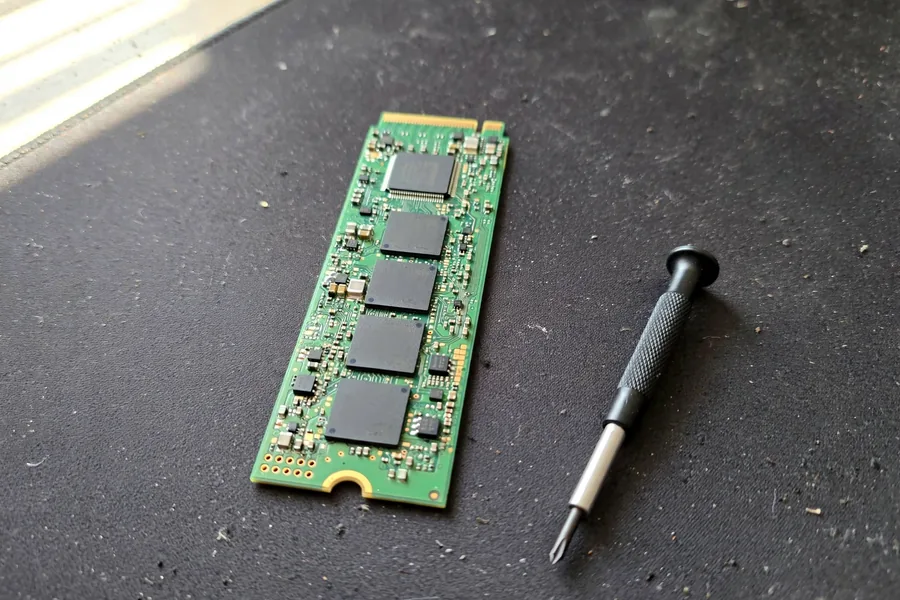
Trying an external reader is a natural step, and it cannot help when the drive’s own controller is the problem. The first read failed and the lab needed an advanced attempt. The owner approved it, and in March 2025 the record reads that we had a success, with a list of the recovered files sent so the owner could check them. Our guide to why SSDs fail covers the warning signs.
NVMe boot drive that stopped being recognized, May 2026
Case 6EC5GN. The owner described a drive that was “no longer recognized” when the PC tried to boot from it, holding Windows, email and a second partition of files. After the evaluation in June 2026 the lab wrote that the drive’s NAND chips were degrading and had corrupted the firmware, the drive’s internal operating system that is needed to reach user data. That case did not end in recovered files. It shows why a drive that fails slowly can still look sudden to its owner.
Portable drive that quit on a desk, June 2024
Case E7JDH3. The owner wrote that the drive was:
“not recognized when plugged into any of my computers.”
The files were family pictures and embroidery files, and the form added that the drive had not been dropped. It had simply stopped working while sitting on top of a desktop case. The owner approved the advanced quote and in July 2024 the record shows that the files were recovered and a directory of them was sent. If a portable drive of yours does the same, our portable hard drive recovery guide shows what to try and what to avoid.
SD card broken in half, September 2019
Case 5WHFB9. The owner wrote:
“Sd card cracked and broke in half. I think circuitry is ok. Can’t read files on my computer or camera.”
A card in two pieces looks hopeless, yet the record shows that within a few days of the quote we had a success and shipped the card back. Memory cards are the one family on this page where the chip can often be read directly, which is why we ask people not to throw a broken one away.
What Our Customers Say
Frequently Asked Questions
Lost Files on Any of These? Get a Free Evaluation
Hard drive, SSD, flash drive, card or NAS: tell us what failed and our engineers will confirm what’s recoverable at no charge.
Start My Free Evaluationor call (866) 857-5950 now
Recovery for Each Storage Class
Our SSD work covers Samsung, WD and Crucial NVMe and SATA drives, and hard drive work handles Seagate, Western Digital, Toshiba and HGST drives. For raw flash chips, see NAND flash chip-off recovery. Browse all data recovery services.
Related Recovery Services
When one of these storage devices fails, this is where to start: