
Used by NASA · the FBI · the U.S. Navy · Since 1999
Repair a Corrupted MOV or MP4 Video File From an SD Card
- No Data, No Data Recovery Fee
- File repair & chip-off — one lab
- 27+ years of recovery experience
- Every brand, every capacity
Can You Repair a Corrupted MOV or MP4 Video File From an SD Card?
Yes, in most cases — a corrupted MOV or MP4 file is usually a missing index, not lost footage, and file-repair software can rebuild it when the SD card itself is healthy. When the card is cracked, corroded or not detected at all, the fix is different: chip-off recovery reads the NAND chip directly.
“Repair software cannot read what the card will not hand over. Fix the card first and the file usually fixes itself.” — Bruce Cullen, founder, eProvided
A corrupted MOV or MP4 file on an SD card is actually two different problems wearing the same symptom — a video that won’t play. Sometimes the footage is intact and only the file’s index is broken, a software problem that repair tools fix in minutes. Other times the SD card underneath the file has failed, which is a hardware problem. After 27+ years diagnosing both sides of this problem — including how to protect SD and microSD cards from the physical damage that causes hardware failure, covered in our SD and microSD card protection guide — we can tell you exactly how to tell these two problems apart, what fixes each one, and the honest path when your card itself is the thing that broke.
A corrupted MOV or MP4 file usually means the video’s index (the “moov atom”) is missing or damaged while the actual footage data is still sitting on the card — software like Stellar, Wondershare Repairit or the free tool Untrunc can often rebuild that index and restore playback. That only works if the SD card itself is healthy enough for a computer to read it. If the card is cracked, corroded, shows “needs to be formatted,” or isn’t detected at all, no repair software has anything to read — that’s a card-hardware problem, and the fix is chip-off recovery: reading the NAND memory chip directly.
Do RIGHT NOW
- Stop recording to or reformatting the card — new writes can overwrite the exact data a repair needs
- Copy the corrupted video file itself to your computer before attempting any repair software, so the original on the card stays untouched
- Note what happened right before the file broke (camera battery died mid-recording, card pulled out early, camera crashed or froze)
- Check whether an identical, uncorrupted video from the same camera and settings exists — some repair tools use one as a reference
DON’T Do
- Don’t run chkdsk, a repair utility, or reformat a card that won’t mount — that writes to the card and can overwrite recoverable footage
- Don’t try five different repair programs back to back on a card that isn’t even detected — the tools aren’t failing, the card never gave them anything to scan
- Don’t assume a video that “won’t play” means the footage is gone — a broken file index looks identical to lost data until someone checks which one it actually is
- Don’t keep re-inserting a card that shows physical damage or isn’t recognized — repeated attempts risk pushing a marginal card past the point of recovery
Already dealing with a corrupted video file or a card that won’t read at all? Start a free evaluation and we'll tell you what's recoverable, or call (866) 857-5950 to talk it through.
- Can a Corrupted Video File Be Repaired?
- A Broken File vs. a Failed Card: Two Different Problems
- Why DIY Repair Tools Fix Some Corrupted Videos and Not Others
- When the SD Card Itself Has Failed
- Common Causes of Video File Corruption
- Protect Your Video Files Before You Need To
- Real video cards
- What Our Customers Say
- Frequently Asked Questions
- Fix a Corrupted Video File or Failed SD Card
- Related Recovery Services
Can a Corrupted Video File Be Repaired?
 Enlarge
A video file that suddenly won’t play, freezes partway through, or shows a black screen with audio is very often a file-format problem, not a data-loss problem. Every MOV and MP4 file stores its actual video and audio data (the “mdat” payload) separately from a small index (the “moov atom”) that tells a media player where each frame sits inside that payload. If the camera crashes mid-write, the battery dies during recording, or the card is pulled out before the file finishes saving, the index often never gets written — the footage itself is sitting on the card intact, but no player can find its way through it without the map. This is exactly the failure mode that repair software is built for, and it’s the reason a corrupted-looking video is frequently a fast, complete fix rather than a lost one.
The distinction matters because it changes what actually helps. A missing or damaged index is a file-level problem that lives entirely inside the file itself, solvable on a healthy card with the right repair tool. A card that won’t mount, shows physical damage, or reports errors at the hardware level is a different problem entirely, and it needs the hardware route described further down this page.
A Broken File vs. a Failed Card: Two Different Problems
It helps to separate “my video is corrupted” into the two categories it actually represents, because each one calls for a different fix. File-level corruption means the SD card is detected normally by a computer, you can browse its files, and the video file exists at its expected size — it simply won’t play, or plays with glitches, stutters, or no picture. Card-level failure means the card itself won’t mount, shows “needs to be formatted,” reports 0 bytes, or doesn’t appear as a drive at all — in this case the video file, corrupted or not, is unreachable until the card problem is solved first. A card that’s snapped, cracked, water-damaged, or simply worn out from years of use falls into the second category regardless of what condition the video files on it were in before it failed. Sorting a case into the correct category before doing anything else is the single most useful step, because running repair tools against a card-level failure wastes time.
Why DIY Repair Tools Fix Some Corrupted Videos and Not Others
 Enlarge
Software tools like Stellar, Wondershare Repairit, and the free utility Untrunc work for one specific failure mode: a missing or truncated moov atom. These tools rebuild the index by referencing a known-good MP4 recorded on the same camera, at the same settings, then reattaching that structure to the intact footage data. When that’s genuinely the whole problem, these tools are often successful and fast — there’s a real reason they’re worth trying first on a card that still mounts normally.
What these tools can’t do is read a card the operating system never sees in the first place. A repair program interacts with a file through the computer’s file system — if the SD card itself won’t mount because of a cracked shell, corroded contacts, or a dead controller chip, there is no file for the software to open, repair or even detect. That’s the exact point where people who’ve already tried two or three repair programs in a row start getting nothing but error messages: the software was never wrong about being unable to help, the card simply never handed over a file to work with. That’s also the point where the problem stops being a file-repair job and becomes a card-hardware recovery job. For working photographers and videographers who can’t afford downtime while sorting that out themselves, our dedicated photo & video recovery service handles exactly this handoff between file-level repair and card-level recovery in one evaluation.
When the SD Card Itself Has Failed
 Enlarge
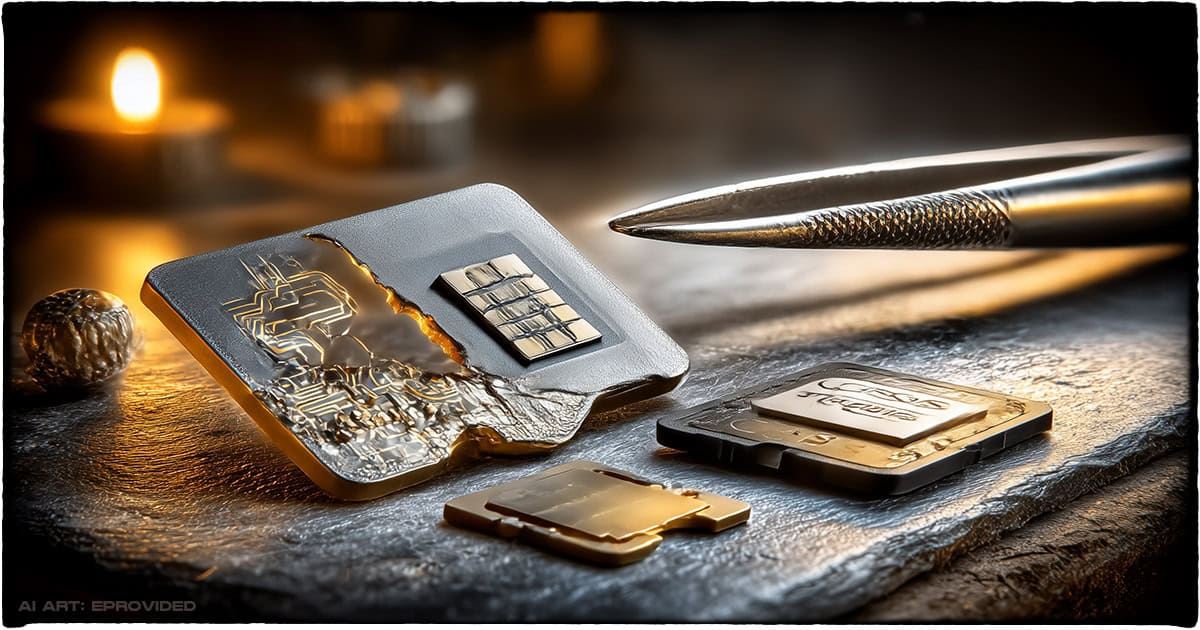
A standard SD or SDHC card carries no processor-bound encryption key tying its NAND memory chip to a separate piece of silicon — the chip and the data on it are the same physical component. That means when the card itself has failed — a cracked shell, bent or corroded contact pins, a dead controller, or a card that’s simply not detected — the honest recovery path is chip-off recovery: desoldering the NAND chip from the card’s circuit board, reading it directly on specialized hardware, and rebuilding the file system from the raw data. From there, the same MP4 atom-repair principles described above often still apply to individual video files recovered from that raw data, but the first step has to be getting the chip’s contents out through hardware, not software. Handling a card carefully from the moment it starts acting up is what keeps a marginal card from crossing into full chip-off territory in the first place.
We saw this combination directly on a recent case: a drone crashed into salt water, and the pilot recovered the drone but not a working card. The water had destroyed the card’s controller and contacts, but the NAND chip itself survived the impact and the water. Chip-off recovery pulled the raw data off that chip, and from there we rebuilt the FAT/exFAT file system, identified the MP4 fragments by their atom signatures, and reassembled an 18-minute flight recording that would have been unreachable by any repair program, because the card had never given the computer a file to work with in the first place. This is the deeper hardware side of card recovery, and our memory card recovery service (linked below) covers it in full for cards of every brand and capacity, including ones broken cleanly in half.
Common Causes of Video File Corruption
 Enlarge
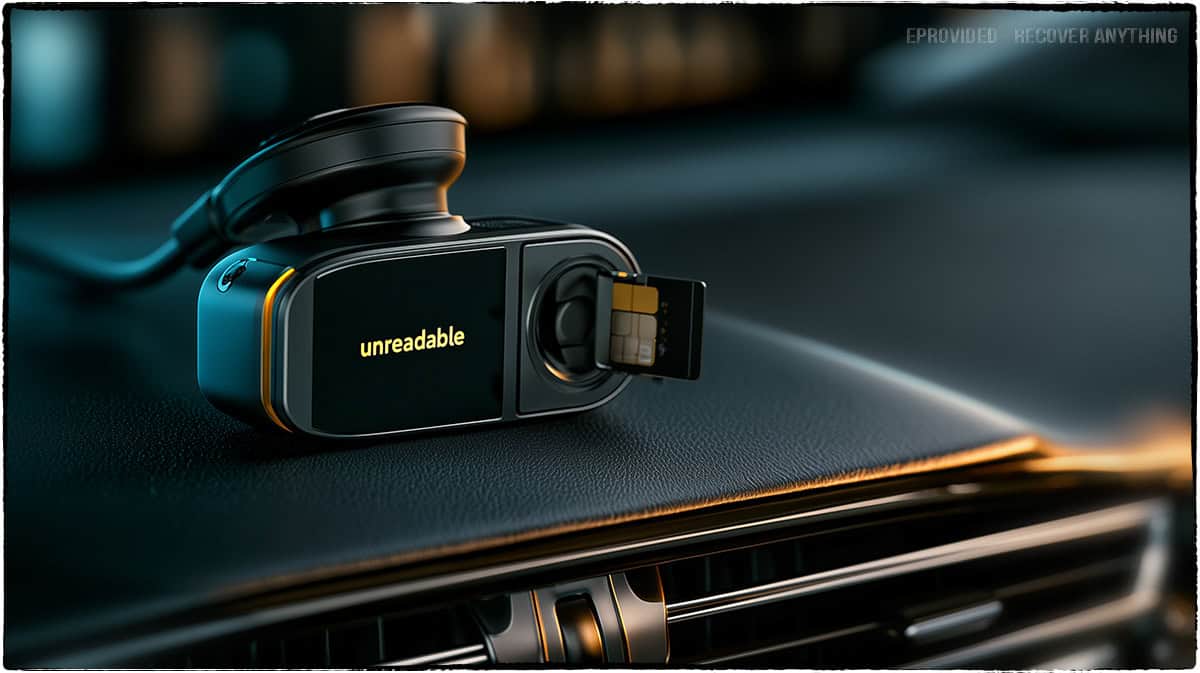
Most video file corruption traces back to how the recording ended, not to the SD card’s quality. Pulling a card out while the camera is still writing, a battery dying mid-recording, a camera crashing or freezing, and power interruptions all leave a video file without its finishing index — the classic missing-moov-atom pattern repair software targets. Dashcams and security cameras that record continuously in a loop are especially prone to this, because a sudden power loss (a car battery disconnect, a dead backup battery) can interrupt a write at any moment, with no warning. Static electricity, using the card across incompatible devices, and bad sectors developing on an aging card are common secondary causes, and they can affect either the file or the card’s underlying health depending on severity.
Physical and environmental damage to the card itself — drops, cracks, water exposure, or a controller simply wearing out after years of write cycles — is the other major cause, and it lands in the card-failure category above rather than the file-repair one. Either way, the underlying cause rarely determines whether the data is recoverable; what determines that is whether the card is still readable at all, which is the first thing worth checking before choosing between a repair tool and a recovery evaluation.
| Corrupted Video Scenarios & What Actually Fixes Them | ||
|---|---|---|
| What happened | What it usually affects | Fix |
| Video won’t play, card reads fine | Missing or damaged file index (moov atom) | ✓ Repair software |
| Video is short/truncated | Recording interrupted mid-write | ✓ Repair software, often partial |
| Card shows RAW or “needs formatting” | File-system corruption; NAND cells usually intact | ✓ Raw NAND read + rebuild |
| Card not detected at all | Dead controller or cracked/corroded shell | ✓ Chip-off recovery |
| Card physically cracked or water-damaged | Shell/contacts/controller damaged, NAND usually intact | ✓ Chip-off recovery |
Protect Your Video Files Before You Need To
 Enlarge
The fastest fix for corrupted video is never needing one. Because both file-level corruption and card-level failure can happen without warning, the safest habit for anyone recording video — on a drone, a dashcam, a camera, or a phone — is copying footage to a second location the same day it’s captured, rather than leaving a single card as the only copy. Letting a camera or drone finish writing completely before removing the card, keeping batteries charged during long recordings, and avoiding removing a card mid-write are the specific habits that prevent the moov-atom corruption described above. For continuous-recording devices like dashcams, choosing a card rated for constant read/write cycles (rather than a standard consumer card) reduces both file corruption and premature card wear. If a video is already corrupted or a card has already failed and no second copy exists, that’s exactly the case a free evaluation is for — it works whether the problem turns out to be the file or the card underneath it. If your SDHC camera card is showing other symptoms beyond a corrupted video — not being recognized, formatting errors, or slow performance — our SDHC camera card troubleshooting guide covers those separately.
Real Video Cards From Our Records
Four cards that came in with video on them, in the customers’ own words from the evaluation form, with what the lab’s notes record. One came back, one did not, and two customers declined the quote. Each ID and date below is copied from the lab record; customers’ names are left out and prices are not shown.
GoPro video that would not copy or play, April 2024
“Recorded 20 min video on GoPro Hero. There is 1GB of data on the SD card but it can’t be transferred to a computer or played on the GoPro. Tried free online repair tools and didn’t work.”
Case Z8AEGR, April 2024. Recovered. This is the page’s point in one case: the free repair tools had nothing to work on. The lab’s note on May 7, 2024 records a success, and the files went out as a download.
A drone card forced out after a crash, July 2026
“I crashed my DJI Mavic 4 Pro. When recovering the drone, I took the micro SD out of the drone. It was stuck in there so I kind of hard to force it out. There isn’t any noticeable damage but the SD card will not show up on any of my Macs.”
Case 7WXMPN, July 2026. Not recovered. The lab’s note on July 28, 2026 says the card was a sealed monolithic package with a dead controller, and its error-correction and scrambling settings were not supported, so the raw data could not be rebuilt. A card with no visible damage can still be lost, and we say so plainly.
A dashcam clip that would not open, April 2024
“I can find a video from dash cam memory card. I have the file I send to my phone but it doesn’t open. The video was from 12/24/2023.”
Case 6A3C4B, April 2024. No repair done. This one was a single file, not a failed card, so the lab asked for the file by upload and quoted a flat repair price. The customer declined it on April 29, 2024 and collected the drive in person.
GoPro footage that would not play, July 2025
“The micro sd has GoPro footage that cannot be played. I need all footage back.”
Case TFA5WN, July 2025. No recovery attempted. The customer declined the quote on August 10, 2025 and the card went back.
What Our Customers Say
Frequently Asked Questions
Recovery Services for Every Storage Device Class
A corrupted video file or a failed SD card isn’t the only problem eProvided solves — we cover every storage class from one lab: memory card recovery (SD, microSD, CompactFlash, all formats and brands), NAND flash chip-off recovery (BGA, TSOP and monolith package extraction), USB flash drive recovery (broken connectors, dead controllers, monolith chip-off), professional hard drive data recovery (Seagate, Western Digital, Toshiba, HGST, mechanical and logical failures), SSD data recovery (Samsung, ADATA, Crucial and WD, NVMe and SATA, firmware repair and original-controller revival), and photo & video recovery for photographers and videographers. See all our data recovery services →
More Photo & Video Recovery Guides
- Recovering deleted 4K video — what to do when footage was deleted, not corrupted.
- First checks when a card won't mount.
- Memory card recovery services — when a card still fails after the software fixes above.
Once your footage is safe, copying it to a second location the same day it’s recorded is the single best way to make sure the next corrupted file is a two-minute software fix, not a recovery case.
Fix a Corrupted Video File or Failed SD Card
Whether the file won’t play or the card won’t mount at all, our engineers will confirm what’s recoverable during a free evaluation. No obligation, confidential.
Start My Free Evaluationor call (866) 857-5950 now
Related Recovery Services
A corrupted video file isn’t the only problem eProvided solves — these recovery services cover every storage class and media type in one lab: