
Used by NASA · the FBI · the U.S. Navy · Since 1999
How to Protect SD Cards and MicroSD Cards From Damage
- Written by a 27-year data recovery engineer
- Every real prevention step, no filler
- What to do the moment a card starts acting up
- If it’s already damaged, we recover it — no data, no fee
How Do You Protect SD Cards and MicroSD Cards From Damage?
Keep cards in a hard case away from heat and liquid, always eject them safely before removing, never force one into a slot it doesn’t fit, avoid filling a card completely, and reformat it periodically. The moment a card throws an error, stop using it, copy what you can, and retire it.
“Most dead cards we see were never dropped. They were pulled out mid-write, once.” — Bruce Cullen, founder, eProvided
SD and microSD cards are the storage most people trust with the photos and videos they’d hate to lose — and most of the failures that bring a card into eProvided’s lab were avoidable. Not every failure can be prevented; controller wear and manufacturing defects happen regardless of how carefully a card is handled. But the majority of the damage we see traces back to a small handful of habits: pulling a card mid-write, forcing it into the wrong slot, leaving it somewhere hot, or ignoring the first error message instead of stopping. After 27+ years watching which SD card failures were preventable and which weren’t, this guide covers the habits that actually protect a card, the warning signs worth stopping for, and what to do if the damage has already happened — including the specific case of a microSD card broken in half, one of the most common ways careless handling turns into a support call.
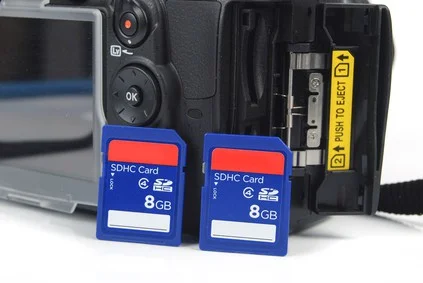
Every SD and microSD card is built the same way underneath the shell: a storage die, a small controller chip, and a set of metal contacts that carry both power and data. None of that hardware is fragile by design — the failures eProvided sees almost always trace back to how the card was handled in the moment before it stopped working, not a weak point in the card itself. That distinction matters, because it means most of the damage below is genuinely preventable with a small change in routine, not something you have to accept as the cost of using removable storage. The contacts are the part most exposed to everyday handling. They sit bare on the underside of the card, and skin oil, pocket lint, and a light film of corrosion build up on them over months of swapping between devices. The controller is the part most exposed to power problems: it keeps a mapping table of where every file actually lives on the storage die, and that table is what gets damaged when power drops in the middle of an update to it. Most of the habits below protect one of those two parts.
Eject cards safely instead of pulling them, never force one into a slot or adapter it doesn’t fit, keep cards away from heat and liquid, avoid running a card completely full, and reformat it periodically rather than only deleting files. The single biggest habit that causes damage: removing a card while a device is still actively writing to it. Stop using a card the moment it shows an error — continuing to use it is what turns a recoverable problem into a permanent one.
Already past the prevention stage and looking at a card that won’t mount at all? You can find out free what’s recoverable » or call (866) 857-5950 to talk through what happened before trying anything else.
Every device that uses these cards — digital cameras, phones, laptops, and dedicated card readers — treats the card the same way at the physical level, so the same handling rules protect all of them. Cameras shooting in burst mode put the most stress on a card, because the device keeps writing rapidly-taken photos to storage for several seconds after the shutter fires; switching the camera off during that window is one of the most common causes of corruption eProvided sees. Beyond cameras, microSD cards live inside phones, tablets, dash cams, drones, action cams, and handheld game consoles, while full-size SD cards remain the standard in DSLR and mirrorless cameras and many camcorders — every one of them writes to the card the same way, so a habit that protects one protects all of them.

That shared electrical design is also why the same warning signs mean the same thing no matter which device threw them: a card that suddenly won’t mount, a write that silently fails, or a folder that shows files it can’t actually open all point to the same handful of causes underneath. It’s also why a card that misbehaves in one device is worth trying in another before assuming the worst — a flaky card reader, a loose adapter, or a phone’s own storage bug can look exactly like a failing card until it’s tested somewhere else. The list below covers the specific habits that cause the damage eProvided actually sees, in order of how often each one shows up in a case. One practical test before you blame the card: copy a large file onto it in a second device and read it back. If the copy fails there too, the problem travels with the card; if it works, look at the first device or its reader instead.
- Daily Habits That Actually Protect a Card
- Safe Removal & Ejection, Done Right
- Storage, Heat & Handling
- Reformatting & Card Lifespan
- Warning Signs — Stop Using It Immediately
- If a Card Is Already Damaged
- Why Choose eProvided
- What Our Customers Say
- Frequently Asked Questions
- Related Articles
- Get a Free Evaluation
- Related Recovery Services
Daily Habits That Actually Protect a Card
Most SD and microSD card damage comes from a small set of repeated habits rather than one-off accidents. Fixing these is the highest-value thing anyone can do to make a card last. Corruption in particular almost always traces back to one of the habits below rather than a defective card — which is good news, because every one of them is preventable with a small change in routine.

Visible corrosion or wear like this almost always shows up on the metal contacts first, not the storage die itself — a card can look rough on the outside and still read perfectly, or look clean and still be failing internally, which is why the table below focuses on habits rather than appearance. The contacts are also the first thing to check when a card starts acting up: a quick wipe with a dry cloth clears up more false alarms than any troubleshooting step that follows it. A quick visual check is worth doing any time a card starts a new device or comes out of long-term storage — look for a greenish or dark discoloration on the metal pins, any pin that looks bent or flattened, and grit lodged in the notch where the card seats. None of those guarantee failure on their own, but any one of them is reason enough to test the card in a second reader before trusting it with anything that matters, and to retire it outright if the discoloration comes back after cleaning.
| Habits That Protect SD & MicroSD Cards | ||
|---|---|---|
| Habit | Why it matters | What to do instead |
| Pulling the card mid-write | Interrupts the file system update in progress — the single most common cause of corruption eProvided sees | Always use the safe-eject / safely-remove-hardware command first, or power the device off before removing the card |
| Forcing it into the wrong slot | Bends contact pins or cracks the shell around the die | Check the card orientation and slot size before inserting — never push past resistance |
| Running it completely full | Full cards see heavier write-cycle wear on the same storage cells | Copy files off and clear space well before a card fills up |
| Only ever deleting, never reformatting | Deleted-but-not-reformatted cards accumulate file-system fragmentation over time | Reformat periodically after backing up — a full format, not just deleting files one by one |
| Ignoring the first error message | Continued use after an error is what turns a recoverable card into an unrecoverable one | Stop, copy what’s accessible, and get an evaluation before using the card again |
Safe Removal & Ejection, Done Right
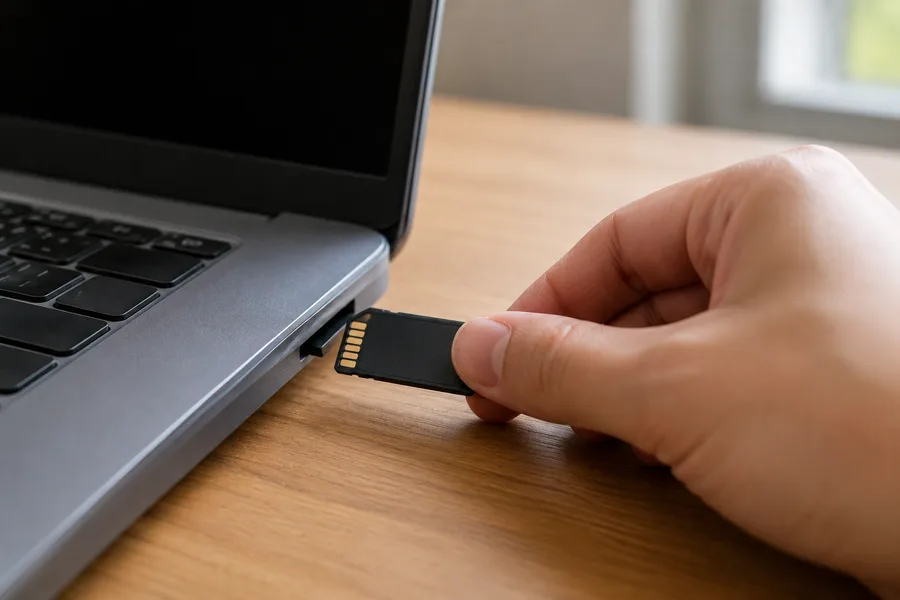
Safe ejection exists because the card’s controller may still be finishing a write operation even after a file transfer looks complete on screen. Pulling the card during that window is the single most preventable cause of the corruption eProvided sees on cards that were otherwise never dropped or damaged.
On a Mac, use the eject command before physically removing the card. On Windows, use “Safely Remove Hardware” from the system tray. On a digital camera, always power the camera off before opening the card door — this matters even more in burst or continuous shooting mode, where the camera keeps writing rapidly captured photos to the card for several seconds after the last shot. Switching the camera off mid-write during that window is a common, avoidable cause of lost images.
The same rule applies to a laptop’s built-in card reader slot, shown above: wait for the operating system to confirm the card is safe to remove before pulling it, even if the file copy appears finished on screen.
Storage, Heat & Handling, and How to Clean SD Card Contacts

Heat is one of the more overlooked risk factors. A DSLR or phone can build up real heat around the card slot during extended continuous shooting or video recording, and SD card overheating like this is more likely to cause write errors over time; if a card feels noticeably warm after normal use, it’s worth switching to one with a faster transfer speed rated for the workload (see our microSD card speed classes guide for how those ratings work). Cold and humidity matter too — avoid leaving cards in a hot car, direct sunlight for extended periods, or anywhere damp.
A card that overheats repeatedly is under more write-cycle stress than one that stays cool, which shortens its useful life even before any single error appears — treating a consistently warm card as an early warning, not just an inconvenience, catches the problem before it becomes data loss.
Physical handling is just as important as temperature. Keep cards in a proper hard case rather than loose in a pocket or bag, where they can bend under pressure or pick up dust and grit on the contacts. To clean SD card contacts, wipe them occasionally with a dry cloth or a small amount of isopropyl alcohol on a cotton swab, never a liquid cleaner applied directly. Keep cards away from strong magnets, and never bend, drop, or step on one — a card that’s been visibly cracked or bent needs a different kind of help entirely, covered further down this page.
MicroSD-to-SD adapters deserve their own caution: a worn or cheap adapter is a common, overlooked source of connection problems, since the adapter’s own contacts can wear out long before the card inside it does. A microSD card that reads fine in a phone but throws errors in a laptop’s SD slot is often the adapter at fault, not the card — try the card directly in a dedicated microSD reader before assuming the card itself has failed. Keep a spare adapter on hand if you rely on one regularly, and retire it at the first sign of a loose or intermittent connection rather than continuing to use it.
Reformatting & Card Lifespan
Deleting files one at a time from a camera or phone is convenient, but it isn’t the same as reformatting. Over time, repeated delete-and-reshoot cycles fragment the card’s file system in ways that a full reformat clears out in one step. The safest routine: copy everything off to a computer first, then reformat the card completely in the device it will be used in (a camera-formatted card and a computer-formatted card aren’t always interchangeable in how the file system is laid out). Wondering when to retire a card for good? See how long SD cards last, by card type and workload.
One format matters more than the rest: a low-level format is far more destructive than a standard quick format, and dramatically reduces the odds that anything can be recovered afterward if it turns out to have been triggered by accident. Formatted SD card by accident and not sure whether it was a quick format or a low-level one? Stop using the card immediately and get an evaluation before writing anything new to it — every new write reduces what a professional evaluation can still find.
Warning Signs — Stop Using It Immediately
Do RIGHT NOW if you see these
- Stop using the card the moment any error message appears
- Copy off whatever files are still visible and accessible
- Note what the error said and what the device was doing when it appeared
- Get a free evaluation before writing anything new to the card
DON’T Do
- Don’t keep shooting or saving new files to a card throwing errors
- Don’t reformat a card that’s already showing warning signs
- Don’t run recovery software repeatedly on the same card
- Don’t assume an error will “go away” if you keep using it
A card that suddenly isn’t recognized, that throws a corruption warning, or that a device flags with an error message is telling you something specific has already gone wrong. Continuing to use it — especially writing new photos or files — is the single biggest factor that turns an easily recoverable card into one that isn’t. Remove it, connect it to a computer to check whether the error persists there too, and if it does, stop and get it evaluated before doing anything else.
If a Card Is Already Damaged
Prevention doesn’t help a card that’s already bent, cracked, snapped, or throwing errors it won’t clear. On the overwhelming majority of consumer SD and microSD cards, the storage die has no separate silicon holding an encryption key, so reading the die directly recovers real, usable data regardless of what happened to the shell or connector around it — that’s the same chip-level approach eProvided has run on broken memory card recovery since 1999. (A small number of security-hardened enterprise or government microSD variants bind their key to a host device instead of the card itself; for nearly every consumer card, that caveat doesn’t apply.) If the card is visibly bent or cracked, our damaged or bent microSD card guide walks through exactly what happens next; for a full-service evaluation on any brand or pinout, see the micro SD card data recovery option in the related services below.
Why Choose eProvided
eProvided SD & microSD card recovery, in one sentence: prevention advice from the same lab that recovers the cards when prevention wasn’t enough.
eProvided has recovered SD and microSD cards since the format first appeared, which is exactly why this guide focuses on the habits that actually matter rather than generic advice. The same in-house lab that wrote this page runs the recovery when a card is already damaged — part of the full range of data recovery services eProvided offers — backed by the same “No Data, No Data Recovery Fee” guarantee on every case, whether it’s a family photo card or a device tied to NASA, the FBI, or the U.S. Navy.
What Our Customers Say
Frequently Asked Questions
Related Articles
If a card is already bent, cracked, or snapped rather than just at risk, our damaged or bent microSD card recovery guide (linked above) covers what actually happens to the storage die and how it’s read back. For the speed-rating question that comes up around overheating, our microSD card speed classes guide (linked above) covers a different angle from this prevention-focused page. And if a card was recently formatted rather than physically damaged, our SD card recovery service guide walks through what a professional evaluation actually looks for before anything new gets written to the card.
Card Already Damaged, Not Just at Risk
Bent, cracked, corrupted, or throwing errors — our engineers will tell you exactly what's recoverable. Free, no obligation, confidential.
Start My Free Evaluationor call (866) 857-5950 now
Recovery Services for Every Memory Card & Storage Device
If a card is already damaged, eProvided recovers it from one lab: