
Used by NASA · the FBI · the U.S. Navy · Since 1999
How Much Storage Capacity Do You Actually Need?
- No Data, No Data Recovery Fee
- Every capacity, every brand
- Mechanical & logical HDD failures
What Size Hard Drive Do You Really Need?
500GB covers basic everyday use, 1–2TB fits a working professional with photo or video files, and 4TB or more suits media servers and long-term archives. Capacity keeps getting cheaper per gigabyte — but no amount of it protects data once the drive itself fails.
“A bigger drive just means more of your life sitting on one point of failure. Capacity and backup are two different questions.” — Bruce Cullen, founder, eProvided
Choosing a hard drive today usually comes down to one question: how much storage capacity do you actually need? The honest answer depends entirely on what you plan to store on it, not on chasing the biggest number on the shelf. As drives have gotten bigger and cheaper per gigabyte, the amount of data sitting on any single drive has grown right along with it — which also means the cost of that one drive failing has grown too. After 27+ years running the data recovery process on hard drives of every capacity, here’s a practical guide to sizing your storage, how the technology behind it actually works, and what to do the moment a drive stops cooperating.
500GB suits basic everyday use (documents, browsing, a modest photo library). 1–2TB suits most working professionals with photo or video libraries and installed software. 4TB or more suits media collections, backups, or small business archives. Capacity keeps rising because manufacturers keep finding ways to pack more data density onto the same physical platter — but a bigger drive is still one drive, and it fails the same way a small one does. Capacity planning and backup planning are two separate decisions; treat them that way.
Do RIGHT NOW
- Match capacity to actual use — count your current data, then double it for headroom, rather than guessing
- If a drive is making a clicking, grinding, or beeping noise, power it off immediately — continued spinning risks head-to-platter contact
- Keep a real backup on a second physical device or cloud service — capacity is not the same thing as protection
- If a drive suddenly disappears from the computer or won’t mount, stop using it and get it evaluated before trying more fixes
DON’T Do
- Don’t run repeated chkdsk, disk-repair, or recovery-software scans on a drive that's making unusual noise — each pass risks more damage to a failing mechanism
- Don’t assume a bigger drive is inherently safer — capacity has nothing to do with reliability, and a larger drive can mean more data at risk in one failure
- Don’t keep your only backup on the same drive, same desk, or same building as the original — that defeats the purpose of a backup
- Don’t open a failed drive yourself or attempt a DIY "freezer trick" — both introduce contamination or shock risk that can turn a recoverable failure into a permanent one
Already dealing with a drive that failed before you got the backup sorted? Start a free evaluation and we'll tell you what's still there, or call (866) 857-5950 to ask first.
- How Much Storage Capacity Do You Actually Need?
- Why Storage Capacity Keeps Growing
- How Internal Hard Drives Work
- Bigger Drives, Bigger Risk — What Capacity Doesn’t Protect You From
- What to Do the Moment a Drive Fails
- Every Brand, Every Capacity
- What Our Customers Say
- Frequently Asked Questions
- Recover Data from a Failed Hard Drive
- Related Recovery Services
How Much Storage Capacity Do You Actually Need?

There’s no single right answer, because the right capacity depends entirely on what you actually put on the drive. A 500GB drive comfortably holds an operating system, everyday applications, and thousands of photos — plenty for basic home or office use. Working professionals dealing with large video files, design work, or extensive photo libraries typically find 1–2TB is the practical minimum before they start running into space pressure mid-project. Media servers, long-term archives, and small businesses storing years of records tend to need 4TB or more, and it’s common for that number to keep climbing as the archive grows. The simplest rule of thumb: total up what you actually have today, then buy roughly double that in capacity — enough headroom that you’re not shopping for another drive again in six months, without paying for terabytes you’ll never touch.
Why Storage Capacity Keeps Growing

The price per gigabyte of hard drive storage has been falling for years, and the physical capacity manufacturers can fit on a drive keeps rising right alongside it. Most of that gain comes from packing data more densely onto the same physical platter, rather than from making the drive itself bigger. One example from the drive-electronics side: a small pre-amplifier component — often costing manufacturers well under a dollar per unit — can improve the signal-to-noise ratio read off the platter, which lets a drive store more data on the exact same physical media without any other hardware changes. Gains like this vary drive to drive and manufacturer to manufacturer, and even two drives from the same production line can see different improvements, but the overall trend has been consistent: more capacity, in the same physical footprint, at a lower cost per gigabyte, year after year.
How Internal Hard Drives Work

An internal hard drive is the primary storage device inside most laptops, desktops, and servers — the component that holds the operating system, installed programs, and personal files. It connects to the rest of the computer through two separate ports: one for power, and one for data, almost always using a SATA interface on modern systems. It’s common for desktop towers and servers to house multiple internal drives working together, either to add capacity or to mirror data for redundancy. Inside the sealed housing, one or more spinning platters store data magnetically, read and written by a moving head that never physically touches the platter surface during normal operation — the same moving parts that make a mechanical hard drive different from a solid-state drive, and the reason physical shock, not just capacity, is the real reliability variable to watch.
Bigger Drives, Bigger Risk — What Capacity Doesn’t Protect You From

It’s worth being direct about something capacity marketing glosses over: a bigger drive is not a safer drive. Capacity and reliability are unrelated engineering questions — a 4TB drive fails from the same causes as a 500GB drive (a worn motor bearing, a head that contacts the platter, a controller board that shorts, logical corruption from a bad shutdown), and when it does, there’s simply more data riding on that single point of failure. This is the real cost of rising storage capacity: users and businesses now routinely keep years of irreplaceable photos, financial records, or business files on one drive, because the capacity made it convenient to do so. That convenience only pays off if it’s paired with an actual backup plan — a second physical drive, an offsite copy, or a cloud backup service — kept separate from the original. Capacity buys you room to store more; it does nothing to protect what you’ve stored.
What to Do the Moment a Drive Fails
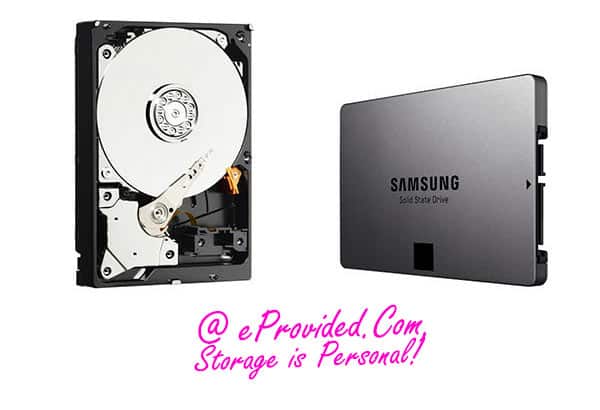
The moment you notice symptoms of failure — unusual clicking, grinding, or beeping noises, files that suddenly won’t open, the drive disappearing from the computer, or the system refusing to boot — the single most important action is to power the drive off and stop using it. Continuing to run a mechanical drive that’s making noise risks the read/write head contacting the platter, which can turn a recoverable logical or electronic failure into physical platter damage. Running data recovery software repeatedly on a struggling drive carries the same risk, since each read attempt stresses a mechanism that’s already failing. Professional hard drive data recovery exists precisely because a failed drive’s data usually survives the failure that disabled it — a seized motor, a burnt controller board, or corrupted file system doesn’t necessarily touch the platters themselves, which is a very different situation from a NAND flash device like a solid-state drive, where recovery depends on reviving the drive’s original controller, which holds the encryption key, rather than repairing physical platters.
Every Brand, Every Capacity
Hard drive manufacturers — Seagate, Western Digital, Toshiba, and others — all build drives around the same core mechanism, so capacity and brand don’t change the fundamental recovery approach. A 500GB laptop drive and a 16TB NAS drive fail from the same handful of causes, and the recovery lab work is the same careful process either way: diagnose what actually failed, address that specific failure (whether that means a controller-board swap, a read/write head issue, or a corrupted file system), and image the data off before it’s touched further. This applies to external hard drives in an enclosure just as much as internal drives, since the drive mechanism inside is frequently identical to an internal model — only the enclosure and connection method differ.
| Storage Capacity & What Actually Happens When It Fails | ||
|---|---|---|
| What you see | What it usually means | Data recoverable? |
| Drive clicking, grinding or beeping | Mechanical issue — motor, head, or bearing failure | ✓ Often, stop use immediately |
| Drive not detected at all | Controller board or connector failure — platters often untouched | ✓ Often recoverable |
| Files corrupted or missing after a crash | File system or logical damage — physical media usually intact | ✓ Usually recoverable |
| Drive dropped or knocked while running | Possible head-to-platter contact — severity varies | Depends — evaluate before further use |
| Larger-capacity drive, same symptoms | Same failure causes as any capacity — more data at stake | ✓ Same recovery approach applies |
What Our Customers Say
Frequently Asked Questions
Recovery Services for Every Storage Device Class
Whatever the capacity, a drive failure doesn’t have to mean the data is gone — eProvided covers every storage class from one lab: professional hard drive data recovery (Seagate, Western Digital, Toshiba, mechanical and logical failures), SSD data recovery (Samsung, WD, Crucial, NVMe and SATA), external hard drive recovery (dropped, clicking, or not-recognized), and NAND flash chip-off recovery for USB drives and memory cards (SD, microSD, CompactFlash, all formats) — see the related services below. See all our data recovery services →
More Hard Drive Recovery Guides
- Why hard drives fail — the informational deep dive on hard drive failure causes.
Buying the right capacity is one decision; protecting what you put on it is another. A drive of any size can fail, and when it does, the data usually isn’t gone — a free evaluation is the fastest way to find out.
Recover Data from a Failed Hard Drive
Clicking, not detected, or won’t boot — our engineers will confirm what’s recoverable during a free evaluation. No obligation, confidential.
Start My Free Evaluationor call (866) 857-5950 now
Related Recovery Services
Whatever capacity your drive is, a failure doesn’t have to mean the data is gone — these recovery services cover every storage class from one lab: