
USB Device Not Recognized — Data Recovery
USB Device Not Recognized: Fix the Error & Recover Your Data
Why does Windows say a USB device is not recognized, and is the data still there?
Yes — in almost every case the NAND flash memory inside the drive is intact even when Windows can’t communicate with it. The error means the controller failed or lost communication, not that the data is gone. eProvided reads the memory chip directly, bypassing the failed controller entirely, at an average 98% success rate with a free evaluation first.
“‘Not recognized’ is a controller talking, not the memory chip — and the memory chip is where your files actually live.” — Bruce Cullen, founder, eProvided

Your drive was fine yesterday. Today, Windows throws up a yellow warning triangle: “USB device not recognized — one of the USB devices attached to this computer has malfunctioned, and Windows does not recognize it.” Or the drive simply vanishes — no notification, no error, nothing in File Explorer. The photos, the project files, the backup you can’t re-create are sitting on a circuit board your computer refuses to acknowledge. This error is not limited to small flash drives — a portable external hard drive not recognized fails for the identical reason.
The single most important thing to know first: when a USB drive isn’t recognized, the data is almost always still intact on the memory chips — what failed is the part that lets your computer talk to those chips. The danger isn’t the failure itself. The danger is what people do next. The repair steps all over the internet — reformatting, reinstalling drivers, “repair” utilities, Disk Management — are written to make the drive work again, not to protect your files, and several of them quietly overwrite the very data you’re trying to save. This page explains what the error really means, the few things that are genuinely safe to try, and why — when the data matters — the right move is to let a recovery lab read the chips directly rather than gamble with your only copy.
- What “USB Device Not Recognized” Actually Means
- Why Your USB Drive Stopped Working
- The Only Safe Things to Try Yourself
- Fixes That Destroy Your Data — Never Do These
- When Software Can’t Help
- DIY vs. Professional Recovery
- How eProvided Recovers Unrecognized Drives
- Used by NASA & the DoD
- Brands We Recover
- What Our Customers Say
- Frequently Asked Questions
- Related Recovery Services
What “USB Device Not Recognized” Actually Means
“USB device not recognized” means your computer can no longer communicate with the controller chip on the drive — the small processor that translates between your computer and the flash memory. In the large majority of cases the NAND memory chips holding your actual files are undamaged; only the translator has failed. That is why the data is usually recoverable even when the drive is completely dead to Windows — and why the worst thing you can do is run “repair” tools that try to rewrite a drive that needs to be read, not rebuilt.
The same root fault wears different labels. On both Windows 10 and Windows 11, the “USB device not recognized” pop-up, the “USB device descriptor request failed” message, the yellow error code 43 — Windows’ “This device cannot start. (Code 43)” message — in Device Manager, “Unknown USB Device,” and the blunt “USB device has malfunctioned” warning are all the same controller breakdown reported several different ways: the moment Windows’ plug and play system fails to enumerate the drive. You’ll also see it phrased as a USB storage device not recognized error when the drive carries files rather than acting as a peripheral, or simply as your USB drive not working or an unknown USB drive in File Explorer. Older systems still in service report it differently — a USB device not recognized Windows XP machine typically shows the same “unknown device” dialog with older driver text, and it's the identical controller fault whether you're troubleshooting USB not recognized on Windows 7, XP, 10, or 11. In 27+ years of recovery work, our engineers have traced the USB device not recognized error to at least a dozen distinct failure types. Three patterns account for the overwhelming majority.
Type 1 — The Drive Shows in Device Manager as “Unknown Device”
This is the most common pattern and, counterintuitively, often the most recoverable. On Windows 10 and Windows 11 alike, when Device Manager lists your USB drive as “Unknown Device” with a yellow exclamation mark — often alongside a code 43 entry — the controller chip has failed or locked into a state it can’t recover from. The NAND chips holding your data are, in the majority of these cases, physically intact. Windows can’t see your files not because the data is gone, but because the translator between your computer and that data has stopped working.
In eProvided’s lab this is among the most common cases we receive. Controller failures aren’t random: specific controller models from SanDisk, Lexar, Kingston, and other brands fail in recognizable patterns, and identifying the model is often the first step in choosing the recovery approach — the same is true whether the device in your hand is a full-size flash drive or a compact keychain-style thumb drive.
Type 2 — The Drive Shows Nothing at All
No Device Manager entry. No notification. No activity light. The drive behaves as if it were never plugged in. This points to either a complete power-delivery failure (the drive can’t draw enough current to respond) or a physical connector failure so severe that no signal reaches the electronics. Mac users sometimes see “This disk is not readable by this computer,” and Windows may simply report the volume as unreadable — though that message more often indicates a filesystem issue than total hardware failure.
Type 3 — The Drive Appears Briefly, Then Disappears
Windows briefly recognizes the drive — you might see the drive letter flash in File Explorer — then it vanishes. This intermittent pattern usually means a failing connector that loses contact, a drive drawing more power than the port can supply, or firmware that initializes partway before crashing. Connectors are the single most common physical failure point on USB flash drives, especially on drives that have been inserted and removed many times or stressed at the connector. Windows often flags this stage with an intermittent code 43 or “device descriptor request failed” error just before the drive goes dark for good. This is the most dangerous state to keep testing — every reconnect on a drive that’s already intermittent can be the one that ends it.
Why Your USB Drive Stopped Working — The Real Causes
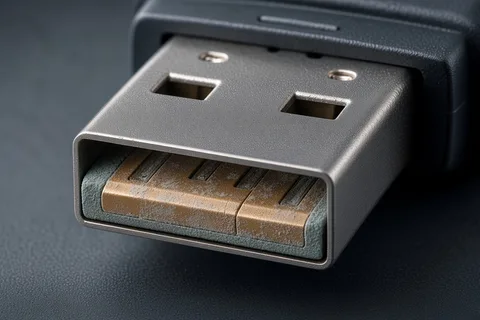
When a drive goes from “working perfectly” to “not recognized” with no obvious incident, the failure usually has a root cause that predates the moment you noticed. Here are the hardware and firmware failures our engineers diagnose most often — and notice that not one of them is something a software download can reverse.
Physical Damage
- Connector stress fractures. Every USB connector is rated for a finite number of insertion cycles. Repeated use — or a single moment of lateral stress from a drive bumped while plugged in — creates micro-fractures in the solder joints holding the connector to the PCB. The failure is gradual until it’s sudden.
- Liquid exposure. Water doesn’t instantly destroy the NAND chips, but corrosion on the PCB traces around the controller can kill it within hours or days. Drives that “worked fine after drying” often fail permanently a week later as oxidation completes.
- ESD and power surges. A static discharge during insertion, or a power surge on the USB port from a faulty hub or power supply, can destroy the controller instantly. The NAND chips are usually unaffected — they’re more ESD-tolerant than the controller.
- Physical impact. A drive dropped or struck while writing can cause NAND delamination or controller cracking. Visible cracks don’t always mean internal damage, and an intact housing doesn’t rule it out.
Firmware and Controller Failures
- Controller chip failure (SMI, Phison, Alcor). Three controller families dominate the consumer USB market: Silicon Motion (SMI), found heavily in SanDisk and generic drives; Phison, found in Kingston, PNY, and Corsair drives; and Alcor, used across budget brands. SMI SM3251 and SM3267 controllers are prone to a “boot loop” that produces the “Unknown Device” error. Phison PS2251 controllers develop firmware corruption that blocks enumeration. Alcor AU6989 controllers fail in a way that makes the drive appear as an unformatted, zero-capacity device.
- Firmware corruption. USB drives store firmware in a reserved NAND partition. If a drive loses power mid-write — pulled out without safe removal, an improper ejection while files are still being written — or that partition degrades over time, the controller can’t boot. This is common in Lexar drives and any drive interrupted during a firmware update.
- Bad-block accumulation beyond the controller’s tolerance. NAND cells have finite write endurance. When bad blocks exceed the controller’s error-correction capacity, it refuses to mount the drive rather than serve corrupted data. The good blocks — holding most or all of your files — are still readable via direct NAND access.
Brand-Specific Failure Patterns We See Most Often
After tens of thousands of recoveries, patterns emerge. SanDisk Cruzer and Ultra drives most commonly fail via SMI controller failure — the “Unknown Device” error with a VID/PID our engineers recognize on sight. Lexar drives frequently present firmware corruption that prevents recognition or shows the right capacity but refuses to mount. PNY drives have a high rate of connector failure at the PCB solder points. Kingston DataTraveler drives on Phison controllers develop a characteristic firmware crash. Samsung flash drives (distinct from Samsung SSDs) show recognition failures tied to proprietary controller firmware that needs a different approach than standard Phison or SMI recovery.
The Only Safe Things to Try Yourself
When you hit the “USB device not recognized” error, there are exactly two checks that cannot harm your data, because neither one writes anything to the drive. Do these — and nothing more — before you decide your next step.
- Try a different port, directly on the computer. Use a rear port on a desktop (wired straight to the motherboard), not a hub or monitor port, which can underprovide power. If the drive suddenly appears, the problem was the port, not the drive — copy your files off immediately and don’t trust that drive again.
- Try a different computer. This isolates the fault. If the drive works on another machine, the issue was your first computer’s USB subsystem. If it fails on every machine, the fault is inside the drive — and that’s the moment to stop.
That’s it. If two ports and two computers don’t bring the drive back, more tinkering won’t either — it will only add risk. Set the drive aside and let someone read it the safe way.
Fixes That Destroy Your Data — Never Do These
The “solutions” ranked highest in search results are written to restore a working drive, not to rescue your files. On a drive that’s failing, each one can turn a routine recovery into permanent loss. If your data matters, do not:
- Format the drive — even when Windows pops up “You need to format the disk before you can use it.” Formatting builds a new, empty filesystem over your data.
- Run “USB repair” or recovery software on a drive that isn’t recognized. If Windows can’t see the drive, no tool — Recuva, R-Studio, DiskDrill, PhotoRec — can either. Tools that do manage to write to a struggling drive can finish off the failing NAND.
- Initialize or assign a new partition in Disk Management. “Initialize disk” wipes the partition table that tells recovery engineers where your files live.
- Run CHKDSK or “repair” commands. CHKDSK rewrites filesystem structures on the drive — on a damaged drive it can overwrite recoverable data with its “repairs.”
- Re-plug it over and over, or leave it powered in hoping it “warms up.” Every reconnect pushes power through a possibly-cracked drive. The most common preventable cause of unrecoverable USB cases we see is someone re-inserting a drive that was already failing.
Stop immediately and unplug the drive if you hear clicking or unusual sounds, the drive gets warm, you smell burned electronics, or the connector looks bent or damaged. Those are signs of physical failure, and continued attempts can destroy a component our engineers could otherwise have recovered.
When “Not Recognized” Means Your Data Needs Professional Recovery
Here is what no troubleshooting guide will tell you: when Windows can’t enumerate a USB drive, data recovery software is irrelevant. Every tool on the market — Recuva, R-Studio, PhotoRec, DiskDrill — needs the operating system to detect and mount the drive before it can read a single sector. An “Unknown Device” error means the OS can’t communicate with the drive at all. There is nothing for software to scan. This is not a software problem — it’s a hardware problem, and it requires hardware-level intervention.
Signs Your Drive Needs Professional Recovery
- Two ports and two computers were tried and the drive still doesn’t appear
- The drive shows as “Unknown Device,” throws a “USB device descriptor request failed” error, or carries a VID/PID that doesn’t match the drive’s brand
- Disk Management shows it as 0 bytes or the wrong capacity
- There’s visible physical damage — broken connector, cracked housing, liquid exposure
- Software reports “no media found” or can’t detect the drive
The NAND Chip-Off Recovery Option
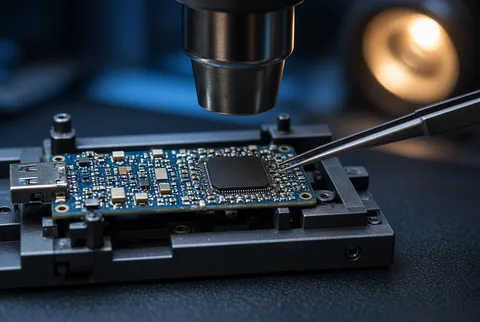
This is the technique that separates a genuine recovery lab from a shop running off-the-shelf software. When a USB drive’s controller has failed completely — when no software, no controller reset, no firmware repair can make it communicate — the data still exists on the NAND flash chips soldered to the board. Those chips are physically separate from the controller, and in the majority of controller failures they’re undamaged.
eProvided performs NAND chip-off recovery: we physically remove the memory chips, place them in purpose-built reading hardware, and extract the raw data directly — bypassing the dead controller entirely. The raw NAND data doesn’t come off organized the way your files were; it arrives in pages and blocks that must be reassembled algorithmically, accounting for the drive’s specific NAND architecture and the way the controller interleaved writes. This is not automated — it takes experienced engineers who understand the exact controller and NAND combination in the drive being recovered. Very few services nationally perform chip-off recovery on USB drives. It’s the method of last resort, and the one that works when everything else has failed.
USB DIY “Fixes” vs. eProvided Professional Recovery
Here is the honest trade-off between chasing an online fix and sending the drive to a lab, when the files actually matter:
| DIY “Repair” Attempt | eProvided Professional Recovery | |
|---|---|---|
| Works when the drive isn’t recognized? | No — software needs the drive to mount first | Yes — we read the NAND chips directly |
| Risk to your data | High — format, CHKDSK, and “repair” tools overwrite files | None — read-only chip-level extraction |
| Handles a dead controller | No | Yes — controller bypass & chip-off |
| Handles physical / liquid damage | No | Yes |
| Cost if it fails | Your data — often permanently | Nothing — No Data, No Data Recovery Fee |
| Success rate | Low on any drive that won’t mount | 98% average on cases reaching our lab |
If the only copy of your photos, work, or records is on that drive, the math is simple: a free evaluation risks nothing, while one wrong “fix” can cost you everything. The same logic holds if the not-recognized device turns out to be an external NVMe or M.2 solid-state drive rather than a flash drive — the controller-first diagnosis is identical.
How eProvided Diagnoses and Recovers Unrecognized USB Drives
When a USB device not recognized error — or a USB device descriptor request failed handshake that never completes — turns out to be a hardware failure, this is the exact process we use to recover data from an inoperable USB drive: the same one relied on by NASA and federal agencies, applied to your drive.
Step 1 — Free Diagnostic Evaluation
Ship your drive to eProvided at 9527 Knopfler Ln, Las Vegas, NV 89148. There is no evaluation fee. Within 24 hours of receiving it, our engineers assess what failed, whether recovery is possible, and what it will cost. You get a firm quote before any work begins. If we can’t recover your data, you pay nothing — that’s what No Data, No Data Recovery Fee means, with no asterisks.
Step 2 — Controller Bypass and Direct NAND Access
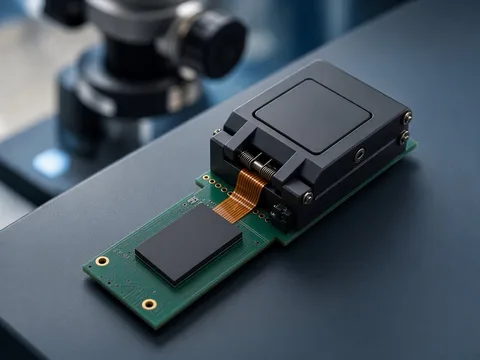
Based on the diagnosis, our engineers pick the recovery path. For firmware corruption we attempt firmware repair or reprogramming using the tools specific to the identified controller (SMI, Phison, Alcor, or others). For complete controller failure we go to chip-off: the NAND chips are removed under magnification, cleaned, and read in hardware that interfaces directly with the specific NAND type (SLC, MLC, TLC, or QLC) and geometry in the drive.
Step 3 — Data Reconstruction and Delivery
Raw NAND data must be reconstructed. The failed controller managed wear-leveling, bad-block mapping, and write sequencing — all of which must be rebuilt from the raw dump to reassemble your original files. Our engineers do this manually for complex cases. eProvided averages a 98% success rate on cases that reach the lab. Recovered data is returned on a new drive or via secure download. Rush turnaround — 24 hours for straightforward cases, 3–5 business days for chip-off — is available when you need it.
Used by NASA, the DoD & Federal Agencies Since 1999
eProvided’s flash-recovery work isn’t a marketing line — it’s documented operational fact. Our techniques have recovered data for NASA, the Department of Defense, the U.S. Air Force, and the White House. We recovered NASA Helios mission data that had been submerged in the Pacific Ocean, and we’ve supported federal law-enforcement evidence recovery. When organizations that cannot afford to lose data face a drive their own computers refuse to acknowledge, the chip-level process on this page is the one they turn to. The same lab, the same engineers, and the same 98% success rate handle your unrecognized USB drive. Read more about our NASA and government recovery history.
USB Drive Brands We Recover — Including “Device Not Recognized” Cases
The list of brands our engineers recover from is essentially every brand sold since 1999. The ones we see most often in “not recognized” cases, with their characteristic failure patterns:
- SanDisk (Cruzer, Ultra, Extreme) — SMI controller failures producing “Unknown Device.” A SanDisk USB drive not recognized after a controller fault is often recoverable without chip-off via controller reprogramming.
- Lexar — Firmware corruption causing recognition failure. A Lexar USB drive not recognized after a firmware glitch is frequently repairable before chip-off is required.
- PNY — Connector failures causing intermittent or complete recognition failure. A PNY USB drive not recognized usually traces to cracked connector solder joints; physical repair often precedes data extraction.
- Kingston (DataTraveler) — Phison PS2251 controller failures with a characteristic firmware crash our engineers recognize on first inspection.
- Samsung — A Samsung USB device not recognized error usually traces to proprietary controller firmware that needs brand-specific recovery procedures.
- Verbatim, Transcend, Corsair, Patriot, Silicon Power — Mix of Phison and SMI controllers; recovery paths similar to Kingston and SanDisk respectively.
- HP-branded drives, Toshiba, Sony — Various controller configurations, each assessed individually by drive model and identified controller.
If your brand isn’t listed, it’s not because we can’t recover it — this list just covers the most common cases. Tell us your drive model and we’ll share what we know before you ship. If the device you can’t recognize is actually a memory card rather than a USB drive, our micro SD card recovery page covers that — card readers add a hardware layer that changes the diagnosis. For general flash-drive cases, see our general flash drive recovery service.
What Our Customers Say
— Verified eProvided customer, Trustpilot
— Verified eProvided customer, Trustpilot
— Verified eProvided customer, Trustpilot
For more reviews, see verified customer experiences on Trustpilot and in the eProvided community on Reddit.
Frequently Asked Questions
Q: Why does Windows say “USB device not recognized” when my drive worked fine before?
A: The most common cause is a failed USB controller chip on the drive’s circuit board. The NAND flash chips holding your data are usually undamaged, but Windows can’t communicate with the drive because the controller — the translator between the chips and your computer — has failed. eProvided’s engineers bypass the controller entirely and read your data directly from the NAND. This is one of the most common — and most recoverable — presentations we see.
Q: Can data recovery software fix a “USB device not recognized” error?
A: No — and this is the critical distinction. Recovery software needs the operating system to detect and enumerate the drive before it can read anything. When Windows shows “unknown device” or “not recognized,” the drive isn’t mounted and isn’t accessible to any software. Recuva, DiskDrill, PhotoRec, and R-Studio have nothing to scan. Worse, a tool that does manage to write to a failing drive can finish off the NAND. This failure type needs hardware-level recovery, not a download.
Q: My USB drive shows up in Device Manager as “Unknown Device” — is my data gone?
A: In most cases, no. “Unknown Device” indicates controller failure, not NAND failure. Your data lives on the memory chips, which are physically separate from the controller. eProvided’s chip-off process removes and reads those chips directly, recovering your files even when the controller is permanently dead. This presentation is, paradoxically, one of the more recoverable states we handle — precisely because it tells us the NAND is likely intact.
Q: How long does recovery take for a USB drive showing “device not recognized”?
A: A free diagnostic evaluation typically completes within 24 hours of receiving your drive. Straightforward controller failures where firmware repair is possible recover in 1–3 business days. NAND chip-off cases — where we physically extract and read the chips — typically take 3–5 business days due to the reconstruction work. Rush service is available. You receive a firm quote before any work begins, and No Data, No Data Recovery Fee means if we don’t recover your data, you owe nothing.
Q: How do I fix USB error code 43?
A: Code 43 means Windows halted the device because it reported a problem. The only safe checks are to test the drive on a different computer and a different port. If code 43 keeps coming back across more than one PC, the fault is inside the drive’s controller, not your system — and at that point every extra re-plug risks your data. Avoid “repair” tools and reformatting; a lab that reads the NAND directly is the safe path to getting the files back.
Q: What is a “USB device descriptor request failed” error?
A: It means the drive couldn’t send its identity — its VID/PID hardware ID — to your computer’s USB root hub. The handshake never finishes, so Windows lists it as an unknown device. This is almost always a hardware fault in the controller or NAND, not a Windows setting, which is why driver tweaks rarely fix it. Getting the files back usually means reading the memory chips directly in a lab rather than coaxing a dead controller back to life.
Q: Why does my USB drive work on one computer but not another?
A: A drive that mounts on one machine and shows “not recognized” on another is degrading. Small differences in port power, USB controllers, and driver versions let a weak drive limp along on one PC while it fails on the next. Treat it as borrowed time — copy your data off the moment it mounts, and don’t keep using it. Drives at this stage usually fail completely soon after; acting early keeps the recovery simple.
Q: Is it safe to keep re-plugging a USB drive that isn’t recognized?
A: No. Every re-plug sends power through a drive that may have a physical fault, and repeated tries can turn a recoverable problem into permanent loss — especially if the connector or its solder joints are cracked. If the drive still isn’t recognized after a different port and a different computer, set it aside. The most common preventable cause of unrecoverable USB cases we see is someone re-inserting a drive that was already failing.