
Used by NASA · the FBI · the U.S. Navy · Since 1999
USB Device Not Recognized: What the Error Really Means — and Whether Your Files Are Gone
- No Data, No Data Recovery Fee
- Every Windows error message decoded
- Written by a 27-year recovery engineer
- Chip-off & monolith NAND recovery in-house
Why Does Windows Say “USB Device Not Recognized”?
"USB device not recognized" usually means a driver, port or power glitch you can fix at home — or a failed controller or connector inside the drive. Try another port and computer first. If it still fails, stop plugging it in; our chip-off recovery reads the memory directly, with a 98% success rate since 1999.
“Every extra plug-in on a dying drive is one more chance to finish it off.” — Bruce Cullen, founder, eProvided
You plug in a flash drive, Windows chimes, and instead of your files a balloon appears: “USB device not recognized.” That popup is one of the most misunderstood error messages on the planet. It does not mean your files are erased — it means Windows couldn’t complete a conversation with the drive’s controller. Sometimes a restart cures it; sometimes a failing controller is holding your only copy of ten years of photos. After 27+ years of USB device not recognized cases in our lab, this guide explains what the error really means, decodes each Windows message, and shows how to tell a software glitch from hardware failure — before anything makes it worse.
“USB device not recognized” means Windows can’t communicate with the drive’s controller — not that your data is gone. Your files almost always still sit intact on the NAND chip. Driver and power issues are fixable in software; a drive that fails on every computer is hardware, and needs a lab, not more replugging.
Do RIGHT NOW
- Note the exact error text Windows shows
- Try the drive once on a second computer, then stop
- Check Disk Management for the drive
- If the files matter, unplug and set it aside
DON’T Do
- Don’t keep replugging it “to check”
- Don’t blindly update drivers on a failing drive
- Don’t format when Windows prompts — it erases the file index
- Don’t run repair scans on a hot, disconnecting drive
Worried about specific files on the unrecognized drive? Before troubleshooting anything, you can check if your files are recoverable »
- Why Does Windows Show the USB Device Not Recognized Error?
- USB Device Not Recognized Error Messages, Decoded
- Is “USB Device Not Recognized” a Software Issue or Hardware Failure?
- Safe Software Checks — and When to Stop
- USB Device Not Recognized: What to Do Next
- What the Error Means for Your Data
- What Happens During Professional USB Data Recovery
- What Our Customers Say
- Frequently Asked Questions About USB Device Not Recognized Errors
- Recover Files from a USB That Won’t Recognize
- Related Recovery Services
Why Does Windows Show the USB Device Not Recognized Error?
Windows shows “USB device not recognized” when it detects a device on the port but cannot complete the USB handshake — the exchange where the drive identifies itself through its device descriptor. Common causes: outdated or corrupted drivers, power management cutting the port, firmware corruption, a damaged connector, or a failed USB controller chip.
This error is not limited to small flash drives — a portable external hard drive that's not being recognized fails the same USB handshake, for the same reasons.
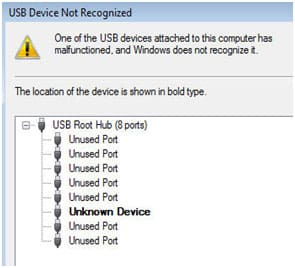
Every USB device introduces itself the instant it’s plugged in: the computer requests a device descriptor, and the drive’s controller answers with its identity. When that answer never arrives — or arrives garbled — Windows files the device as unknown. The error is most common on Windows 10 and Windows 11, and the same failure shows on a Mac as a drive that never mounts (UK forums log the identical “USB device not recognised” complaint). The crucial point: the handshake involves only the controller. Your files live one layer deeper, on NAND flash memory the error never touches. So what does USB device not recognized mean for your files? The doorway is blocked — a jammed lock, not a burned-down house.
USB Device Not Recognized Error Messages, Decoded
Windows uses several distinct messages for recognition failures, and each narrows the cause: “USB device not recognized,” “device descriptor request failed,” “Windows has stopped this device because it has reported problems (code 43),” and “the last USB device you connected to this computer malfunctioned.” Reading the exact wording is the fastest first diagnosis of a USB not recognized problem.

One pattern worth noticing in the decoder table below: the closer the wording gets to “descriptor” and “malfunctioned,” the more likely the fault sits inside the drive rather than in Windows. A USB\DEVICE_DESCRIPTOR_FAILURE entry in Device Manager means the drive never even said its own name — classic controller or firmware failure.
| Windows USB Error Messages — Cause, Layer & Whether Files Survive | |||
|---|---|---|---|
| Exact error message | Usual cause | Software or hardware? | Files recoverable? |
| “USB device not recognized” | Failed handshake — drivers, power settings, or a struggling controller | ⚠ Either | ✓ Almost always |
| “Device descriptor request failed” | Drive never identified itself — firmware or controller fault, sometimes the port | ⚠ Usually hardware | ✓ Yes, via lab access |
| “Windows has stopped this device… (code 43)” | Device reported an internal fault; error code 43 is Windows quarantining it | ⚠ Often hardware | ✓ Yes, NAND intact |
| “The last USB device you connected malfunctioned” | Electrical fault, surge damage, or a connector making partial contact | ⚠ Hardware-leaning | ✓ Usually, via chip-off |
| “Unknown device” in Device Manager | Descriptor incomplete — driver conflict or early controller trouble | ⚠ Either | ✓ Almost always |
Is “USB Device Not Recognized” a Software Issue or Hardware Failure?
The fastest test: try the drive on a second computer. If it works there, the problem is your computer’s configuration — software. If the USB device is not recognized on any machine, disconnects repeatedly, shows no capacity, or gets warm, the fault is inside the drive — and every further attempt carries risk.
The likely causes split cleanly in two. Likely software or system causes: outdated or corrupted USB drivers, power management disabling the port, conflicts after a Windows 10 or Windows 11 update, and missing drive-letter assignments. Likely hardware or data loss causes: a broken or loose USB connector, electrical surge damage, corrupted controller firmware, and NAND flash communication failure. The common symptoms of the hardware side are unmistakable — no capacity shown, repeated connect-disconnect chimes, heat. Why does a USB not recognized on one machine sometimes work on another? A marginal controller can occasionally scrape through the handshake — different port power, different timing, different luck. Intermittent recognition is not reassurance; it’s the most common “USB drive failure” pattern we see before a device goes permanently dark.
Safe Software Checks — and When to Stop
Can I continue troubleshooting if my USB device is not recognized? Yes — if it passed the second-computer test or holds nothing important. Here are solutions and fixes that stay on the safe side: restart the computer, try a different port, reinstall USB controllers and drivers in Device Manager (under Universal Serial Bus controllers, uninstall each USB Root Hub and restart — Windows reinstalls them), and disable USB power management on each Root Hub by unchecking “allow the computer to turn off this device to save power.”
Why does my USB device appear in Device Manager but not in File Explorer? Usually a missing drive letter or early logical corruption. Open Disk Management: if the drive is visible there but absent from File Explorer, assigning a letter is a two-click, zero-risk fix. Notice what every safe step has in common: it changes the computer, never the drive. The moment a “fix” wants to write to the device — firmware updates, formatting, CHKDSK, repair scans — you’ve crossed from troubleshooting into gambling. And stop here before continuing if the device disconnects repeatedly, becomes warm, or is recognized only intermittently: each powered second lets a corrupted controller do more damage. When the data matters, unstable behavior is the final recommendation to stand down and get a professional evaluation.
USB Device Not Recognized: What to Do Next
When your USB device is not recognized, run this four-step decision guide. Step 1: Is the device detected at all, on any computer? If not even Disk Management sees it, treat it as hardware. Step 2: Does it disconnect, freeze, or get hot? Stop immediately. Step 3: Visible in Disk Management but not File Explorer? Likely a drive letter issue — low risk. Step 4: Any physical damage to the connector or housing? That’s a lab case, full stop.
If the answers point to hardware — no detection anywhere, heat, repeated connect-disconnect sounds, a bent plug — the repair path isn’t more software. Our dedicated USB not-recognized recovery service handles these drives every day: connector rework, controller bypass, and the extraction that turns an unrecognized stick back into your files. When should I seek professional USB data recovery? The moment the drive is unstable, physically damaged, or holding files you can’t replace. This article’s job is diagnosis; that page’s job is the fix.
My computer doesn’t recognize my USB drive — is my data gone?
Usually not. “Doesn’t recognize” means the computer cannot talk to the drive, and the parts that do the talking — the connector, the board, the controller — are separate from the memory chip your files actually live on. That chip normally survives the failure that stopped the conversation. Before anything else, try it on different computers: if no machine sees it, the drive needs a bench and a diagnosis, not another piece of software.
What the Error Means for Your Data
In most USB device not recognized cases, the data is fully intact. NAND flash holds its contents without power, so files survive driver conflicts, firmware corruption, dead controllers, and broken connectors alike. Our USB data recovery risk assessment from real cases: driver conflicts recover nearly 100% of the time; firmware corruption and broken connectors recover at high rates; even surge damage usually yields to chip-level work.
USB damage types explained in one line each: logical failure (drive still detectable), firmware corruption (controller can’t speak), controller failure (access blocked), NAND flash degradation, and physical connector damage. Only the last two touch anything near your data, and both are the probable outcomes chip-level recovery handles best. The same NAND that powers M.2 NVMe SSDs from Samsung, Crucial, Western Digital, and Seagate sits inside your stick; Toshiba-era CompactFlash cards have reached us after years in a drawer with every file readable. What lowers the odds isn’t the error — it’s what happens after: formatting when Windows prompts, dozens of replugs on a shorting board, recovery software hammering a degrading chip. Related USB failure scenarios — a snapped connector, an undetected thumb drive, a physically damaged USB device not recognized anywhere — all end the same way: preserve the drive, and the data waits for you.
What Happens During Professional USB Data Recovery
When a USB device not recognized by any computer arrives at the lab, no one just plugs it in and hopes. The device is stabilized and evaluated first to determine which layer failed — connector, controller firmware, or the NAND itself. Connector faults get micro-repair; failed controllers get bypassed with direct chip-off NAND extraction.
In a chip-off recovery, the memory chip is lifted from the damaged board and read raw on specialized programmers; error-correction and wear-leveling algorithms then reassemble the image into your original files. Monolith drives — sealed single-chip sticks common in slim USB-C models, including Apple-formatted drives — are read through test points on the package itself. The original device is preserved throughout. Most cases finish in 1–3 business days under the “No Data, No Data Recovery Fee” guarantee: if your files don’t come back, you don’t pay for recovery.
What Our Customers Say
Frequently Asked Questions About USB Device Not Recognized Errors
That same chip-level capability is what lets us take on data other labs turn away: eProvided recovered NASA Helios mission data from a module pulled out of the Pacific after the aircraft broke apart. Whether it’s a government archive or the only copy of your work files on a stick Windows won’t read, the approach is the same — see our mission-critical data recovery work.
Recover Files from a USB That Won’t Recognize
Recover important files from a USB not recognized by any computer — our engineers will tell you exactly what’s recoverable. Free, no obligation, confidential.
Start My Free USB Recovery Evaluationor call (866) 857-5950 now
Related Recovery Services
If the drive has already failed — or a different device won’t recognize — these recovery services for every storage device class get the data back: