
Used by NASA · the FBI · the U.S. Navy · Since 1999
Preventative Measures for Data Loss
- No Data, No Data Recovery Fee
- 27+ years of recovery experience
- Drives, cards, flash & camcorders
- Free evaluation, no obligation
What Preventative Measures Protect Against Data Loss?
Keep work off the operating system drive, back up on the 3-2-1 rule, save a separate copy before big edits, and treat email attachments with suspicion. Those four habits protect against most everyday losses. Hardware still fails, so know which recovery lab you would call before you need one.
Source: the 3-2-1 backup rule: three copies, two kinds of media, one copy offsite.
Losing data can be devastating. Maybe an essay is due within the hour, or an important presentation simply vanishes, and there is no clear way out. Data loss happens to the best of us. If you are lucky you have handwritten notes, or even a full first draft on paper, to fall back on. More likely you worked straight into your word processor with no backup at all.
Prevention is better than cure. Store your documents somewhere other than the drive that holds Windows or macOS, back them up often to the cloud and to a separate drive, keep a copy before you make big changes, and never open an attachment from a sender you do not trust. If all of that still fails, stop using the device and get it evaluated before you try to fix it yourself.
So what can you do to avoid data loss in future? Here are four tips for preventative measures in data loss, plus what to do on the day prevention is not enough. If a file is already missing, a free evaluation will show what can still be brought back.
1. Avoid Saving Documents on Your OS Drive
We all do this. Whenever we work on a document, the word processor saves it into the Documents folder on the same drive that runs the operating system. That is a poor place to keep anything you care about. Most serious computer problems, whether a software crash or a nasty virus, knock out the operating system first, and the usual cure is to reformat that drive and reinstall. Everything stored on it goes with it.
How do you beat this? Simple: add a second hard drive to your computer. It is fairly cheap if you shop around, and a second drive stays untouched when the operating system becomes corrupted. If you buy a new computer, adding one is usually quick and easy. An external drive works just as well if you would rather not open the case, as long as it is not the only copy of your files.
Many computers now sync the Documents folder to a cloud account by default. That helps, but read the settings. Some sync services mirror deletions too, so a file erased on the computer can disappear from the cloud a moment later. Sync is not the same thing as a backup.
2. Back Up Your Files Often
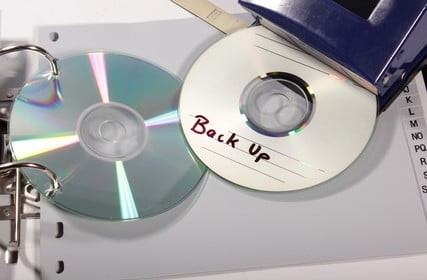
Do you back up your documents regularly? It is easy to forget, yet backups are vital. Should your computer fail, a copy in the cloud or on a memory stick means you can still open your files wherever you are. Also keep hard copies of important documents at various stages. A printout has saved more than one deadline.
The rule that holds up best in the lab is 3-2-1: three copies of every important file, on two different kinds of media, with one copy kept away from the building. A backup drive that sits next to the computer shares its fate in a fire, a flood, a theft or a power surge. Put a monthly reminder in your calendar and check that the backup actually opens, because a backup nobody has tested is only a hope.
3. User Mistakes Can Ruin Everything
We have all done it. You read through a document, presentation or other file, spot a section you dislike, delete it, hit save and shut the computer down. A few hours later you come back, realize something is missing, and then it hits you: the piece you removed was vital. Now you have to rewrite it as best you can, and it never comes out quite as good as the original.
To avoid these self-inflicted losses, use the version features your word processor already offers. Track the changes you make and compare earlier versions as you go. Another good trick is to save a separate copy before you start editing, so you always have that fresh first draft to return to. Many programs also keep version history in the cloud; learn where yours lives before the day you need it.
4. Emails Can Devour Your Data
When an email arrives with attachments, take a moment before opening them. We all know the risk of opening mail from senders we do not recognize. Spam can carry viruses and other malware that cause no end of problems for your computer and for the data on it. Be sure you trust the sender first, and be wary even of a familiar name if the message feels out of character.
There is a quieter trap too. If someone sends you another version of a document you already have, check the save location and the file name before you click save. If you are not careful you can overwrite your own version and lose the important file before you even realize what happened.
The Four Measures at a Glance
| Preventative Measures for Data Loss, Summarized | ||
|---|---|---|
| Measure | What it protects against | Effort |
| Files off the OS drive | Reinstalls after a crash or virus | One-time setup |
| Frequent 3-2-1 backups | Drive failure, fire, theft | Minutes a month |
| Save a copy before editing | Deleting the wrong section | Seconds |
| Careful with attachments | Malware and accidental overwrites | A moment of attention |
When Prevention Fails
If all of your preventative measures for data loss fail, professional data recovery services such as eProvided are available. Our lab works on lost data from camcorders, memory sticks, flash drives, SD cards, hard drives, SSDs and more, including physically damaged devices, and we are happy to advise on further preventative steps once your files are back.
The most useful thing you can do in the first minutes is stop. Do not keep saving to the affected drive, do not install recovery software onto it, and do not let a repair tool “fix” the file system. Deleted files usually stay on the media until something new is written over them, so every extra write shrinks what can be recovered. Unplug it, write down what happened, and get an evaluation.
What Our Customers Say
Frequently Asked Questions
Recovery Services for Every Storage Device Class
If a device has already failed, eProvided works on every class mentioned here: memory card data recovery for SD, microSD and CompactFlash; USB flash drive data recovery for broken connectors, dead controllers and corrupted file systems; professional hard drive data recovery for Seagate, Western Digital, Toshiba and HGST; SSD data recovery service for NVMe and SATA drives through original-controller revival; microSD card data recovery, including monolithic cards; and NAND flash chip-off recovery for unencrypted flash packages. Prefer to see everything at once? Browse all data recovery services →
Four habits, none of them expensive, cover most of the ways people lose files. The rest is knowing when to stop and hand the device to someone with the right tools.
Prevention Came Too Late? Get a Free Evaluation
Overwritten, deleted or trapped on a dead drive, tell us what happened and our lab will report which files can still be read, with no obligation.
Start My Free Evaluationor call (866) 857-5950 now
Related Recovery Services
When prevention is not enough, these services recover files from the devices people rely on most: