
Used by NASA · the FBI · the U.S. Navy · Since 1999
SSD Pros and Cons: Should Your Data Live on a Solid-State Drive?
- Written by a 27-year data recovery engineer
- Honest cons most reviews skip — from real failed drives
- SSD vs HDD compared side by side
- No Data, No Data Recovery Fee if a drive ever fails on you
What Are the Pros and Cons of SSDs?
They’re faster, silent, and far more shock-resistant than hard drives — zero moving parts. The cons: higher cost per terabyte, cells rated for limited erase cycles, deleted files becoming unrecoverable within minutes, and failures that arrive with no warning sounds. For most people the pros win; the cons decide how you back up.
“A hard drive usually warns you it’s dying — clicking, slowing down. An SSD is fine on Tuesday and gone on Wednesday. Plan for that difference.” — Bruce Cullen, founder, eProvided
Every laptop on a store shelf now ships with a solid-state drive, and the sales pitch is always the same: faster, quieter, tougher. All true. What the pitch leaves out is that they also fail differently, die more suddenly, and erase your deleted files far more permanently than the hard drives they replaced. After 27+ years of failed drives crossing our bench — and thousands of SSD data recovery cases among them — we can give you the honest version of the SSD pros and cons list: what solid-state storage genuinely gets right, the disadvantages of SSD storage nobody mentions at checkout, and how to decide what your data should live on.
Use one for speed, silence, and shock resistance — it has zero moving parts and boots in seconds. Accept the trade-offs: roughly 2–4x the cost per terabyte, limited erase cycles per memory cell, deleted files gone within minutes (TRIM), and sudden no-warning failures. Keep anything irreplaceable backed up on a second device, whatever you choose.
SSD Benefits: The Real Pros
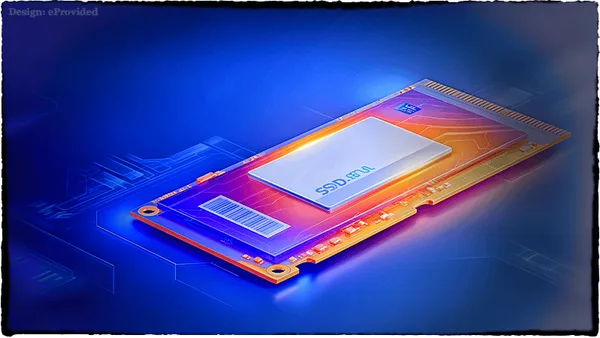
The pros of solid-state storage are real and, for daily use, decisive. It reads and writes data from non-volatile NAND flash memory cells — they keep your files with the power off — with no platters to spin and no heads to move, and that one design change produces almost every advantage on the list:
- Speed. A modern NVMe drive moves data 10–50x faster than a spinning hard drive. Boots take seconds; apps open instantly.
- Shock resistance. With zero moving parts, a drop that would crash a hard drive’s heads into its platters usually does nothing to it. This is the single biggest reliability win for laptops.
- Silence and heat. No motor, no seek noise, less power — which also means longer battery life on portables.
- Size and weight. M.2 drives are the size of a stick of gum, which is why thin laptops exist at all.
None of that is marketing exaggeration. If the question is purely about everyday performance, it wins and it isn’t close.
The Cons of SSDs Nobody Puts on the Box
The SSD disadvantages matter less for speed and more for what happens to your data over time — and when something goes wrong. Every list of SSD cons repeats the price complaint; the SSD drawbacks that actually cost people their files are below, and these are what we see the consequences of in the lab:
- Deleted means deleted — fast. A hard drive leaves deleted files in place until something overwrites them, sometimes for months. It runs a background command called TRIM that proactively erases those blocks within minutes so it can write faster later. Accidentally delete something and the recovery window closes far sooner than most people expect.
- Limited erase cycles. Every memory cell wears slightly with each erase — from roughly 100,000 cycles on premium SLC cells down to a few hundred on budget QLC drives. Wear leveling spreads the load well, but a heavily-written budget drive genuinely can wear out. This applies to every brand — Samsung, Crucial, Western Digital and the rest all build on the same NAND cell physics.
- Sudden, silent failure. Hard drives usually announce a decline — clicking, grinding, slowdowns. A failing controller typically gives no warning at all: the drive works, then it doesn’t exist in BIOS.
- Unpowered data fade. NAND cells hold data as trapped charge that slowly leaks. Left unpowered for years, it can lose data — the industry benchmark from JEDEC, the body that standardizes memory, guarantees only about one year of retention at the end of a consumer drive’s rated life. A drive in a drawer is not an archive.
- Cost per terabyte. Still roughly 2–4x the price of hard-drive storage at the sizes where bulk storage matters.
SSD vs HDD: Side-by-Side Comparison

The question isn’t “which is better” — it’s which trade-offs fit the job you’re giving the drive. Independent long-term reliability studies (Backblaze’s multi-year drive-failure reports among them) consistently find that SSDs and hard drives fail at roughly similar overall rates over a multi-year service life — neither wins outright on raw failure percentage. What actually differs, and what determines whether you get your files back, is how each one fails: an HDD usually degrades gradually and often gives some warning — clicking, slow reads, bad sectors creeping in — while an SSD’s controller tends to work perfectly until the moment it doesn’t, with little or no notice. SMART health counters rarely help here either: on most consumer SSDs the attributes look normal right up to the last boot, so a clean health report is not proof the drive will be there tomorrow.
That difference matters more than most buying guides admit. The table below breaks down the categories we actually see determine outcomes on the bench — not marketing bullet points, but the specific trade-offs that decide whether a failure is a minor inconvenience or a real data-loss event. Read it with your own habits in mind — a drive that rides in a laptop bag faces different risks from one that sits in a desktop tower and never moves:
| SSD vs HDD — What Actually Differs | ||
|---|---|---|
| What you care about | SSD (solid-state drive) | HDD (hard disk drive) |
| Speed | 10–50x faster — seconds to boot | Slower — mechanical seek times |
| Surviving a drop | No moving parts — usually shrugs it off | Fragile — heads can crash into platters |
| Warning before failure | Usually none — sudden death | Often clicks, grinds, or slows first |
| Deleted-file recovery window | Minutes — TRIM erases fast | Days to months — until overwritten |
| Cost per terabyte | Higher — ~2–4x | Cheap bulk storage |
| Unplugged shelf life | Years, then charge fade begins | Longer — magnetic storage holds |
| Noise, heat, battery | Silent, cool, efficient | Audible, warmer, hungrier |
When Should I Use an SSD?
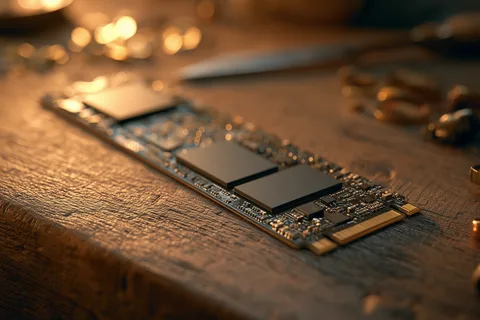
Use one wherever it travels or speed matters: laptops, your operating system, apps. Use a hard drive for bulk and permanence: photo and video archives, backups, files you rarely touch. We recommend both — one to work from, one as backup on a separate drive. Two copies end the dilemma. A practical split for most homes and small offices: an SSD inside the computer for the system and current projects, and a larger hard drive, kept on a desk or in a drawer, that receives a scheduled backup every night or every week. External SSDs make sense when you carry files between sites, because they tolerate being dropped in a bag far better than a portable hard drive does. For video editors and photographers, a fast SSD as the scratch and working disk plus a hard drive archive keeps the speed where it helps and the long-term copy where it lasts. Whatever the mix, check the backup now and then by opening a few restored files — a backup job that silently stopped months ago is one of the most common surprises we hear about.
SSD Lifespan and Safety
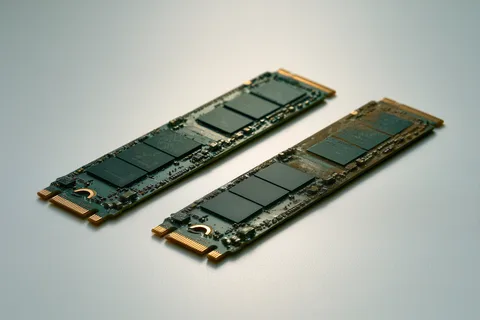
For safety in normal use, the honest reassurance is that a modern drive’s cells usually outlive the computer around them — wear leveling spreads writes across every block, and a typical user never approaches the rated erase cycles. Lifespan problems concentrate in three places we actually see: budget QLC drives given heavy sustained-write workloads, drives left unpowered for years and trusted as archives, and — most common of all — the controller chip failing long before the memory ever wears out. Watch total capacity too: a drive kept nearly full forces its wear leveling to work the same few free blocks over and over, aging them faster. A simple habit helps: keep roughly a fifth of the drive free, leave TRIM enabled, and glance at the drive’s health tool once or twice a year to see how much of its rated write endurance has been used. Heat matters as well — an M.2 drive squeezed under a graphics card or inside a thin laptop with a clogged fan runs hotter, and sustained heat speeds up charge loss in the cells.
When an SSD Fails: What Recovery Really Involves
Failure recovery here is a different discipline from hard drive work, and it’s where the cons above become personal. When you need to recover data from a drive that died suddenly, the failed part is almost always the controller or its power circuitry — the NAND chips holding your files are usually untouched. But here’s what makes modern drives unique: the controller encrypts everything it writes, with a key locked inside that specific chip’s fuses. Your files are locked to the drive’s own controller, not to the memory chips — so honest recovery means reviving the ORIGINAL controller and board. Moving the memory chips to another drive returns scrambled data, and even a donor controller of the same model derives a different key and fails the same way. That original-controller revival is exactly the in-house work our lab does; if your drive won’t mount or has vanished from BIOS entirely, our guide to fixing a dead SSD covers what’s safe to try first.
And a note on the sharpest edge of the TRIM con: if you accidentally deleted files, minutes matter — power the drive down, stop using it immediately, and call (866) 857-5950 before anything else writes to it. If the drive itself failed (rather than files being deleted), time pressure is lower: TRIM never got a chance to run, and the data typically sits intact behind the dead controller.
Frequently Asked Questions
Related Articles
More SSD Recovery Guides and background reading: our dead-SSD guide is linked above in the failure section, what NAND flash memory actually is explains the cells doing all this work in plain English, and our storage-device 101 guide compares every device class — each picks up a thread this page starts.
And if you’re reading this after an SSD already failed or files already vanished: the odds are better than the sudden silence suggests. Start a free evaluation and we'll tell you exactly what's still there, or call (866) 857-5950 — No Data, No Data Recovery Fee, since 1999.
Recovery Services for Every Storage Device Class
Whichever side of the SSD vs HDD fence your data lives on, eProvided recovers every storage class from one lab: