
Used by NASA · the FBI · the U.S. Navy · Since 1999
Fix a Dead SSD — Dead SSD Recovery That Works
- Written by a 27-year SSD recovery engineer
- Covers NVMe, M.2, SATA & external SSDs
- Safe checks first, honest answers on hardware failure
- No Data, No Data Recovery Fee
How Do You Fix a Dead SSD?
First check the cable, port, and BIOS detection on another PC — connection and firmware issues are common and safe to rule out yourself. If the drive still will not show up, it is usually a dead controller or damaged NAND, and DIY fixes make that worse. Professional board-level repair recovers data in most true hardware-failure cases.
“A dead SSD almost never means dead data — it means the controller stopped talking. Revive that controller, or a matching one, and the files are usually still there.” — Bruce Cullen, founder, eProvided
A dead SSD is one of the most alarming failures in a computer, because there is no clicking, no spinning, no warning sound — the drive is either there or it just isn’t. Before assuming the data is gone, it helps to know that most SSD deaths are NOT the memory chips failing; they are the small controller chip that manages the drive giving out, or a firmware fault that leaves it unable to identify itself. After 27+ years of SSD data recovery cases on our bench, this guide walks through the safe checks to try first, why SSDs actually die, and — honestly — when it is real hardware failure that needs a professional recovery lab instead of a DIY fix.
Try another cable, port, and PC first, and check whether the drive shows up in BIOS at all — those are safe, often-fixable causes. If the SSD still will not appear anywhere, the controller or NAND has likely failed physically, and continuing to try software fixes, reformatting, or DIY repairs risks making the data unrecoverable. Board-level recovery on the original controller succeeds in most of those cases; a 98% average success rate across eProvided’s SSD recovery cases.
Do RIGHT NOW
- Try a different cable, port, and computer before anything else
- Check whether the drive appears in BIOS/UEFI, even if Windows won’t boot from it
- Run the manufacturer’s official firmware/diagnostic tool if the drive IS detected
- Power the drive down and stop using it the moment you suspect real hardware failure
DON’T Do
- Don’t assume software recovery tools will work on an undetected drive
- Don’t attempt to open, reflow, or reheat the drive yourself
- Don’t keep power-cycling a drive that refuses to connect
- Don’t reformat or run repair utilities on a drive with signs of physical damage
Worried your SSD is actually dead, not just disconnected? A free evaluation will confirm what's actually going on before you try anything else, or call (866) 857-5950 to ask.
- What Does a Dead SSD Actually Look Like?
- 5 Signs Your SSD Is Failing Right Now
- Safe Checks to Try Before Assuming It’s Unrecoverable
- Why SSDs Actually Die
- When It’s Real Hardware Failure — and What Actually Works
- NVMe and M.2 SSD Recovery — What’s Different?
- Why Choose eProvided for Dead SSD Recovery
- What Our Customers Say
- Frequently Asked Questions
- Related Articles
- Recover Data from a Dead or Failed SSD
- Related Recovery Services
What Does a Dead SSD Actually Look Like?
Before troubleshooting makes sense, it helps to know exactly what “dead” looks like on an SSD: it rarely looks dramatic. There is no clicking or grinding like a failing hard drive — usually just a drive that silently stops appearing in File Explorer, Disk Management, or BIOS, with no visible physical damage at all.
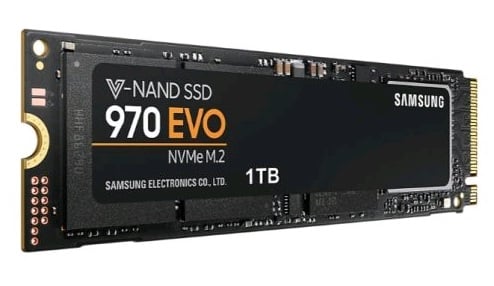
A dead SSD typically shows one of a few patterns: it doesn’t appear in File Explorer or Disk Management, it doesn’t show up in BIOS/UEFI before the OS even loads, the computer takes far longer than normal to boot while searching for it, or it appears briefly then disconnects. None of these symptoms alone tell you whether the drive is truly dead or just not communicating — which is why the safe checks below come before any conclusion about recoverability. Unlike a mechanical hard drive, an SSD gives almost no audible warning — no clicking, no grinding, just silence and a drive letter that stops appearing. That silence is often mistaken for "the data is gone," when in most cases it means the controller stopped responding, not that the memory holding your files failed.
Safe Checks to Try Before Assuming It’s Unrecoverable
A meaningful share of "dead SSD" cases are connection or firmware problems, not hardware failure — safe to check yourself, in this order. None of these five steps risk making things worse, which is exactly why they come before any conclusion about the drive being unrecoverable. Each one takes a couple of minutes, and together they rule out everything except a genuine controller or NAND failure:
| Safe Checks — Try These Before Anything Else | ||
|---|---|---|
| Check | What to do | Why it matters |
| 1. Cable & port | Swap the SATA/USB-C cable and try a different port | A worn cable or bad port is indistinguishable from a dead drive until ruled out |
| 2. Another computer | Connect the drive (internally or via an enclosure) to a second PC | Confirms whether the fault is the drive or the original system |
| 3. BIOS/UEFI detection | Check if the drive shows up in BIOS, even if Windows won’t boot | BIOS detection with no OS boot points to a software/boot issue, not a dead drive |
| 4. Manufacturer’s tool | Run the official diagnostic/firmware tool (Samsung Magician, WD Dashboard, etc.) ONLY if detected | Firmware corruption is fixable; running tools on an undetected drive risks nothing further but rarely helps |
| 5. Stop if none of this works | If the drive is invisible everywhere, stop and contact a professional | Beyond this point, DIY software or physical attempts can destroy what a lab could still recover |
If the drive shows up anywhere in that sequence, even faintly, there is a real chance the fix is a cable, a port, or a firmware update — not a recovery case. If it never appears in BIOS on any port, cable, or computer, continuing to try things yourself starts working against you.
5 Signs Your SSD Is Failing Right Now
These five warning patterns show up in most fix dead ssd cases eProvided engineers see. If more than one matches your drive, power it down and skip straight to the safe checks below:
- Drive not detected at boot. The PC or Mac starts, but the SSD never appears in BIOS, Disk Management, or macOS Disk Utility — sometimes with a "no bootable device" message.
- Frequent freezes and crashes. The system hangs at random, often followed by a Blue Screen of Death or kernel panic, especially during read-heavy tasks or cold boots.
- Corrupted files and read errors. Files open as garbled data, applications throw "read error" messages, or folders appear empty despite showing non-zero disk usage.
- S.M.A.R.T. warnings. Monitoring tools flag rising reallocated-sector counts, uncorrectable errors, or a percent-lifetime-remaining value that dropped suddenly.
- Extreme slowdown. Write speeds crawl toward zero as the controller struggles against failing NAND blocks — a fast NVMe drive starts behaving like a USB 2.0 stick.
Each of these points to a hardware-level problem software cannot repair — running recovery software on a drive already showing these signs risks overwriting the mapping tables a lab needs to reconstruct your files.
Why Do SSDs Die? The Real Causes Explained
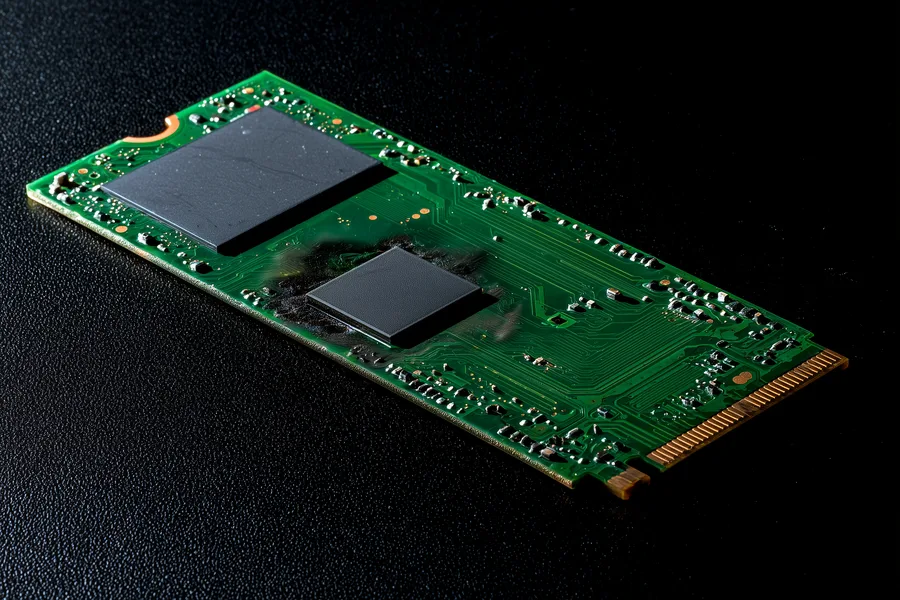
An SSD dying almost never means the memory cells wore out — NAND flash is rated for thousands of write cycles per cell and wear leveling spreads writes evenly, so outright wear-out is rare outside extreme enterprise workloads (our plain-English NAND flash explainer covers how that memory actually works). The controller — the small processor that manages every read, write, and the encryption key on modern drives — is the part that actually fails: a power surge or unclean shutdown during a firmware write, static discharge, an early manufacturing defect, or simple age. Firmware corruption is a close second cause: an interrupted update can leave the controller unable to read its own mapping tables even though the NAND underneath is fine.
Physical causes matter too, especially on portable and external SSDs: a dropped enclosure can crack solder joints, and liquid exposure can short the board before it reaches the chips. Across every brand — Samsung, WD, Crucial, SanDisk, Kingston — the pattern is the same: the controller and board fail far more often than the NAND flash itself, which is why fixing a dead SSD starts with diagnosing the controller, not the memory.
When It’s Real Hardware Failure — and What Actually Works
This is where honesty matters more than optimism. If an SSD has been through every safe check above and still will not show up on any cable, port, or computer, it is genuine hardware failure — and the correct recovery path depends on what modern SSD encryption does. On most SSDs made since roughly 2015, the controller holds an encryption key fused into its own silicon, so every byte written to the NAND is scrambled before it lands there. That rules out the DIY-friendly fix that works on a dead USB drive or SD card: pulling the memory chips and reading them directly (chip-off) returns unreadable, scrambled data on an encrypted modern SSD, because the key lives on the controller, not the memory. Even a replacement controller of the identical model derives a different key, so a straight swap does not work either.
The honest path for a genuinely dead, encrypted SSD is repairing the ORIGINAL controller — reviving the exact chip that holds the exact key — through board-level micro-soldering repair and firmware reconstruction. If that controller is physically destroyed (scorched, cracked, or missing), a donor-board transplant, moving surviving components to matching donor hardware, may still be possible, but it is far more involved and lower-certainty than the confident chip-off numbers quoted for simple USB and SD media. Any service promising a guaranteed fix for a destroyed, encrypted SSD controller without evaluating the actual board first is not being straight with you. This is also why articles listing only DIY software tools can mislead readers: those tools help with the safe-checks category above, but none can revive a physically failed controller or read encrypted NAND directly.
NVMe and M.2 SSD Recovery — What’s Different?
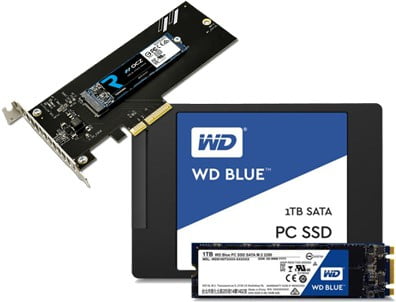
NVMe and M.2 drives fail through the same controller and firmware mechanisms as any other SSD, but two things make them show up differently on the bench. First, they are almost always soldered or tightly seated inside laptops, so the "try another computer" safe check often means testing in an external NVMe enclosure rather than swapping a cable. Second, an NVMe drive that vanishes from BIOS after a sudden power loss is often a firmware/mapping-table problem on a controller that is still good underneath — not a physical failure — which is why the safe-checks sequence matters here too. In our lab this shows up across brands: Samsung Elpis/Pascal controller failures, WD/SanDisk NVMe firmware bricks, and Micron or SK Hynix enterprise M.2 modules all fail through the same controller-first pattern. The Windows 11 TPM 2.0 hardware-upgrade wave has also driven a rise in fix dead ssd inquiries as marginal drives get swapped into new machines and finally give out — one of several shifts we track in our SSD technology news coverage.
When an M.2 or NVMe SSD really has failed at the controller level, the recovery approach is identical in principle to any other modern encrypted SSD: repair or revive the original controller so it can decrypt its own NAND. Our SSD data recovery service page covers the full range of NVMe, M.2, SATA, and external SSD form factors we handle daily.
Why Choose eProvided for Dead SSD Recovery

Dead SSD recovery, in one sentence: we diagnose the actual failure first, then choose board repair or a donor transplant — never a one-size-fits-all method.
eProvided has recovered data from failed SSDs since solid-state drives entered mainstream use, working across every major controller family — Samsung, Phison, Silicon Motion, Marvell, SandForce. Every case starts with a free evaluation that tells you which category your drive falls into before you owe anything, backed by the same “No Data, No Data Recovery Fee” guarantee on every dead SSD case.
What Our Customers Say
Frequently Asked Questions
Related Articles
More SSD guides for further reading: our full SSD data recovery service page (linked above) covers what a professional evaluation involves across every controller and form factor, and why some SSDs fail more than others explains the reliability trade-offs worth knowing before your next drive purchase.
Recover Data from a Dead or Failed SSD
NVMe, M.2, SATA, or external — our engineers will tell you exactly what's recoverable and which method fits your drive. Free, no obligation, confidential.
Start My Free Evaluationor call (866) 857-5950 now
Recovery Services for Every Storage Device Class
Whatever failed inside your SSD or drive, eProvided recovers it from one lab: