
Used by NASA · the FBI · the U.S. Navy · Since 1999
Digital Picture Recovery: Digital Photo Recovery from USB Flash Drives
- No Data, No Data Recovery Fee
- Free, confidential evaluation
- 4.9 / 5 on Trustpilot (67 reviews)
- Worldwide lab recovery
When a USB flash drive or camera card holding years of photos stops working, you need a solution fast. DSLR cameras and smartphones made digital pictures easy to take, and that same ease means more people than ever face a drive or card that suddenly will not open. Here is how digital picture recovery works on flash memory, what each symptom on a failing drive usually means, how newer resistive memory fits in, and where our USB flash drive recovery lab fits in.
What Is Digital Picture Recovery from a USB Flash Drive?
Digital picture recovery rebuilds lost or corrupted photo files by reading a flash drive’s NAND memory directly, even when the drive no longer mounts. Specialists extract the raw chip contents, then reassemble each photo. eProvided averages a 98% success rate and works under its No Data, No Data Recovery Fee guarantee.
“A photo that won’t open is often a damaged file header. The picture data behind it is usually intact.” — Bruce Cullen, founder, eProvided
- eProvided USB Flash Drive Recovery
- Digital Image Recording Devices
- NAND Flash and Digital Picture Recovery
- Why Photos Disappear or Will Not Open
- How a Photo Is Stored
- Safe Removal and Photo Corruption
- Old Flash Drives in a Drawer
- Real Photo and Flash Drive Cases
- Silicon-Oxide Resistive RAM
- NAND Flash Read/Write vs. the New Chip
- More Photo and Video Recovery Guides
- Customer Reviews
- Frequently Asked Questions
- Recovery Services for Every Storage Device Class
eProvided USB Flash Drive Recovery

eProvided works daily with flash drive recovery hardware and has stayed at the front of technical changes in the photo recovery world. For many people, lost pictures are the only copies of weddings, children and trips, so thumb drive recovery services carry real meaning. When a drive holding those pictures fails, the right recovery option can be a huge asset.
New memory technology keeps arriving. Researchers describe silicon-oxide resistive memory as faster than standard flash, and photo recovery must adapt to each new storage type. If your pictures disappear or become damaged on any of these drives, the first step is the same: stop using the device and get it evaluated.
Digital Image Recording Devices

The need for photo recovery has grown with the easy availability of digital image recording devices such as DSLR cameras and smartphones. Thumb drives hold backups and transfers, and camera cards hold the originals. Most camera cards do not last long under heavy shooting, which makes picture recovery a required service for memory cards.
Camera cards that fail can often be recovered with NAND recovery, and USB flash drives benefit from the same technique. Both store images on NAND flash, so the lab can read the chip directly when the card or drive no longer mounts on a computer.
NAND Flash and Digital Picture Recovery
NAND recovery focuses on dumping data and pictures directly from flash memory. Even severely damaged thumb drives can often be recovered with NAND flash recovery, because the chip often survives a broken connector or a dead controller. Digital images from any storage device that uses NAND flash technology can be retrieved this way, provided the device does not encrypt its storage with a key held in separate silicon.
- Evaluation — the drive or card is inspected and the NAND chip and controller are identified.
- Chip read — the NAND is read directly, bypassing a failed controller or snapped connector.
- Reconstruction — the raw dump is unscrambled and each photo is reassembled from its fragments.
- Delivery — recovered pictures are checked and returned on new media.
Lost Photos on a Flash Drive or Camera Card?
Stop using it. Get a free, confidential evaluation before running any recovery software.
Start My Free Evaluationor call (866) 857-5950 now
Why Photos Disappear or Will Not Open on a USB Flash Drive
A drive can lose its photos in several different ways, and each way points to a different cause. The table matches what you see to the likely cause and the safest next step. It comes from our lab experience with failed drives. Treat it as a guide and not a diagnosis, because only a look inside the drive confirms the cause. For the exact messages Windows and macOS show, see our guide to flash drive error messages.
| Photo Problems on a USB Flash Drive: Cause and Next Step | ||
|---|---|---|
| What you see | What it usually means | Safest next step |
| The drive connects, then drops off again, or never appears | The connector, the controller or the power path has failed. On most drives the photos sit in a separate memory chip | Stop plugging it in, because each try is another chance for a worn contact to break |
| Windows or macOS says the disk must be formatted or cannot be read | The file system records are damaged, and the pictures can still be on the drive | Say no to the format prompt and stop using the drive |
| Disk Management shows 0 bytes, “Please insert a disk” or no media | The controller cannot read the memory, which often means a controller or firmware fault | Leave it unplugged and have it evaluated |
| Folders are empty or photos are missing, yet the drive shows used space | The photos were deleted or hidden, or the folder listing is damaged | Copy nothing new onto the drive, because a new write can land on the old photos |
| Thumbnails appear but a photo will not open | The full picture data is damaged or incomplete, even though a preview shows | If a copy hangs or errors, unplug the drive and stop retrying |
| A photo shows only its top part, or the rest is grey or smeared | The file was cut short or part of it is unreadable. A standard JPEG is drawn from the top down, so a short file keeps its top | Keep the damaged copy, because a lab may still find the rest |
| Files show 0 KB, or a copy freezes at the same photo | The memory pages holding those photos are failing to read | Unplug the drive, because a standard copy that hangs on a damaged area will not finish |
| The plug is bent or snapped, or the case is cracked | The connector or board is damaged, and the memory chip may be fine | Do not force it into a port or try to straighten it |
| An old drive from a drawer will not read | Stored charge fades with time, and age and wear raise the risk | Read the drawer section below and have the drive evaluated before trying many computers |
A format prompt is a special case. Recovering a formatted thumb drive covers what changes once a drive has actually been formatted.
How a Photo Is Stored, and Why Software Sometimes Returns Broken Pictures
 Enlarge
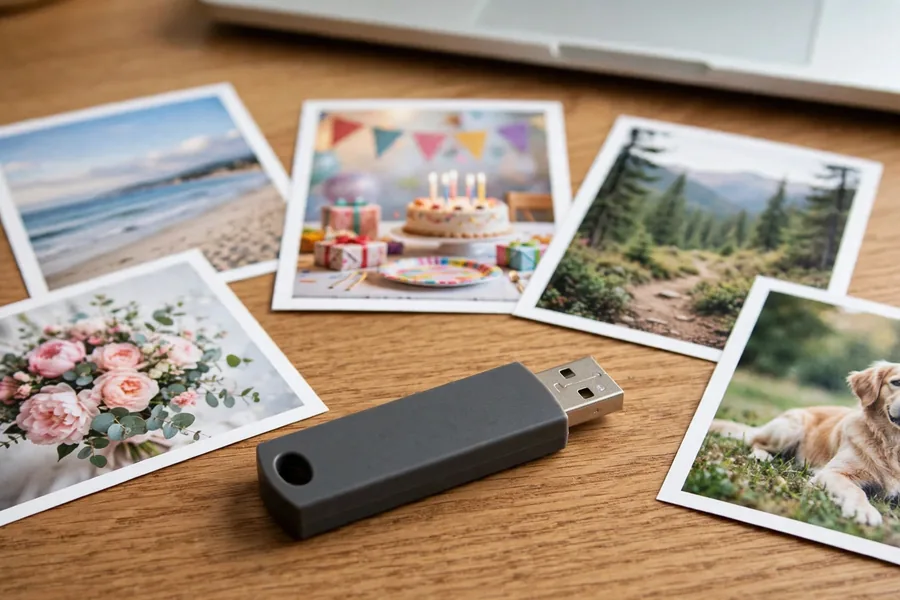
A photo on a flash drive is a file. A standard JPEG starts with the two bytes FF D8 and ends with FF D9, which Wikipedia’s JPEG article lists as the Start Of Image and End Of Image markers. The file system keeps a separate record of each photo’s name and of where its pieces sit on the drive.
That split explains most recovery stories. When you delete a photo, the file system usually removes its record while the picture data stays on the drive until something writes over it, a point the Wikipedia article on file carving makes. When the records are damaged instead, the photos can still be there with nothing pointing to them. A camera card that reads as blank in a card reader follows the same pattern, as in recovering photos from a corrupted SD card.
Programs such as PhotoRec ignore the file system and search the raw data for those start and end markers, an approach called file carving. Carving can find photos when the records are gone, but the record that held each file name is gone too, so carved photos come back without their original names. It also struggles when a photo is stored in pieces. The file carving article reports a study of more than 350 disks in which 16% of JPEG files were stored in two or more fragments. A tool that assumes one unbroken block can return a picture that is cut short or mixed with data from another file.
None of this helps when the computer cannot read the drive at all, because software needs the drive to answer. When the drive does not mount, or hangs on a failing area, the lab reads the memory chip itself and then rebuilds the photos from the raw dump. Our USB drive recovery solutions guide covers what is safe to try first.
Safe Removal and Photo Corruption
 Enlarge
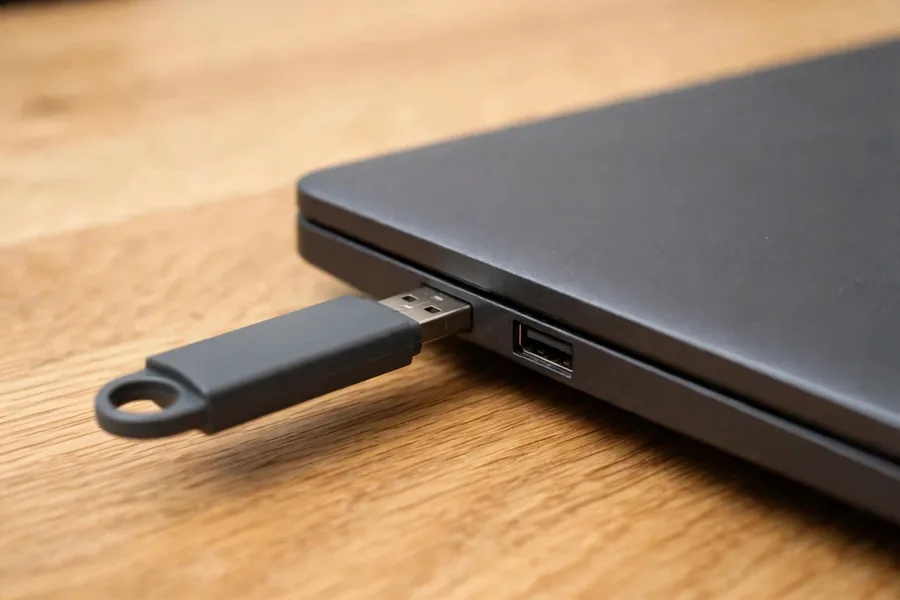
Windows can hold writes in memory before it sends them to a USB drive, so pulling the drive out at the wrong moment can leave a half-written file. Microsoft says its default policy since Windows 10 version 1809 is Quick removal, which keeps the drive ready to remove at any time but gives up write caching. The Better performance policy caches writes and, Microsoft says, requires the Safely Remove Hardware process, because without it you risk losing data. Both policies are described on Microsoft’s page on the default media removal policy.
For photos, the lesson is plain. A copy that is interrupted by pulling the drive can leave a picture cut short, so let the copy finish and eject the drive before you unplug it.
Old Flash Drives in a Drawer
 Enlarge
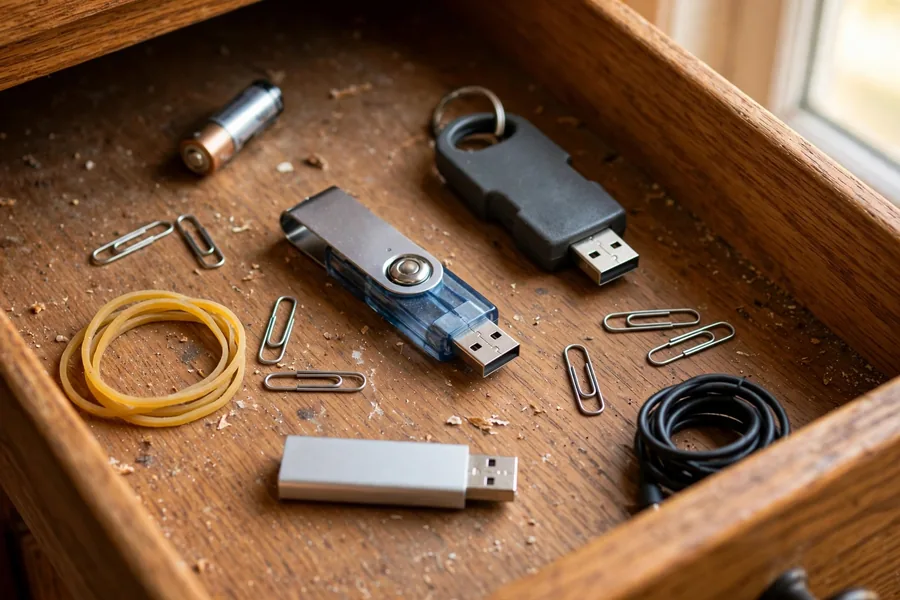
Flash memory holds data as stored electrical charge, and charge leaks over time. A Carnegie Mellon paper on data retention in NAND flash calls retention errors, caused by charge leakage after a cell is programmed, the dominant source of flash memory errors. Wikipedia’s flash memory article adds that it is unclear how long data lasts in archival conditions and that retention varies by type and model.
So a drive that sat unplugged for years may read perfectly, may read with errors, or may not read at all. No source gives one safe number. When an old drive does read, copy its photos to two other places before you do anything else. If it behaves oddly, stop and have it checked.
Five Things Not to Do With a Drive Full of Photos
- Do not straighten a bent plug or force it into a port. A bent plug can break off the board, and the memory chip behind it may be fine.
- Do not let a friend or repair shop solder it first. We have seen drives arrive after an earlier solder repair failed, and heat can damage the board.
- Do not keep re-plugging a drive that connects and then drops. Each attempt is another chance for a worn contact or a failing chip to get worse.
- Do not click “Scan and fix” before the photos are copied. Repair tools can rewrite file system records, and a rewrite cannot be undone.
- Do not pull the drive out in the middle of a copy. An interrupted write can leave a photo cut short, as the safe removal section explains.
Real Photo and Flash Drive Cases From Our Records
 Enlarge
The cases below come from our own case records. Each quote is what the customer typed into the form, minus names and contact details. Some ended in recovered files, some did not, and some have no result on record. We say which. Whether photos come back depends on the damage behind the symptom, and nobody can know that before the drive is on the bench. A drive that stops answering altogether is the subject of our NAND flash not detected guide.
Drive left in a computer for weeks, September 2026
Case 4V93WP. The owner wrote:
“I had it plugged into my computer for weeks kept forgetting to unplug it. I did hook it up to a laptop, it worked but when I click on a picture, it said something with corrupted and now the laptop won’t read the USB.”
The form says the drive held photos and business files. A picture that reports as corrupted, followed by a drive that stops reading, is the warning pattern from the table above. The owner approved our advanced recovery quote on September 9. The lab’s note says the flash memory chip had significant failure across it, which is why a standard file copy hung on the damaged areas, and that the lab built a custom recovery process for the case. On September 12 the record reads that we had a success recovering the data, and the owner picked the files up on September 15.
Snapped connector inside a backpack, October 2020
Case 5W66GD. The owner wrote:
“My flash drive was connected to my computer inside a backpack when it snapped. I tried to plug it back in but got an error that the computer couldn’t read the device and it was asking if I wanted to format the drive. The USB connector and green chip broke.”
The form lists documents and JPEG and PNG pictures as the data to save. The owner approved an advanced attempt on October 27, 2020, and the lab note says the memory chip looked internally damaged. In June 2021 the record reads that direct internal data extraction produced no data streams because there was too much damage, and that we did not have a success. This is a not-recovered case, and it shows why a snapped drive should never be forced back into a port.
Drive chewed by a dog, June 2019
Case HT97Z7. The owner wrote:
“My dog chewed my flash drive/crack in memory chip.”
The drive held years of work files and photos from two weddings and a trip. The lab note says basic recovery failed and the owner approved an advanced attempt. In July 2019 the record reads that there was too much damage to the memory chip itself and that we did not have a success.
Bent plug on a monolithic drive, January 2024
Case JYVC68. The owner wrote:
“I dropped my laptop when I was moving it to college and bent the head of my USB and my pc doesn’t recognise it and it isn’t receiving power.”
The owner already knew the drive held a monolithic chip, where the controller and the memory share one package. The record holds only the form, so we have no result to report for this case.
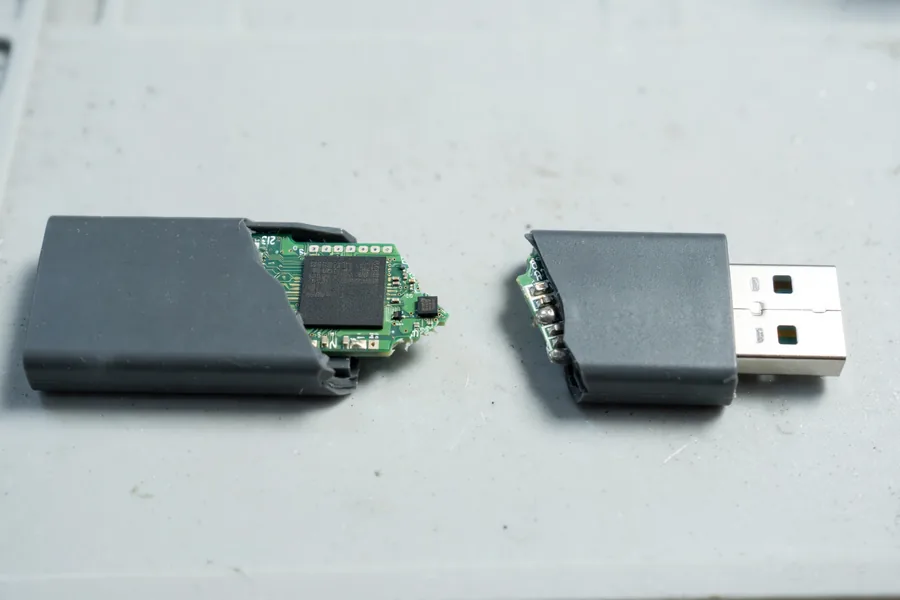
Drive that crumbled, December 2025
Case DWEDJD. The owner wrote:
“My flash drive basically crumbled and broke apart. I have a ton of pictures that are important to me (mostly my photos of my dogs) and I do not want to lose them.”
The record holds only the form. A drive in pieces can still carry an intact chip, but the record gives no result.
Old drives from a drawer, March 2026
Case N7JA66. The owner wrote:
“I have a few old flash drives that have been sitting in a drawer. They have various connection types that are just foreign to me now.”
The owner guessed the drives held photos and videos from the early 2000s. The record shows the owner accepted a recovery quote on April 5 and the drives were queued for the lab. It shows no result yet.
Silicon-Oxide Resistive RAM: A Newer Kind of Memory
Resistive RAM, or RRAM, stores each bit as electrical resistance instead of trapped charge. A thin insulating layer sits between two electrodes, and a voltage opens a narrow conductive path through it, as IEEE Spectrum explains. A Rice University team has worked on silicon oxide as that layer since 2010. In 2014 it reported a nanoporous version that needs under two volts to form its conductive paths and endures more than 100 times as many write-erase cycles as its earlier non-porous design, according to the Rice University news release.
That research is more than a decade old, and the USB drives and camera cards that reach our lab still hold their photos in NAND flash. Any new memory type means recovery methods must be revised and upgraded before a lab can attempt proper data retrieval. That is why digital photo recovery is an ongoing discipline and not a fixed procedure. What works on a NAND flash thumb drive today will need new tools for resistive RAM tomorrow.
NAND Flash Read/Write vs. the New Chip
Can NAND flash compete with the new silicon-oxide memory chip? On paper, the research says RRAM is faster than flash and can hold far more data in the same space. The 2014 Rice news release even expected RRAM to replace flash within a few years, and that has not happened for USB drives and camera cards. The Rice and IEEE Spectrum articles give no measured speed comparison with flash, so this page does not quote one.
Even on the new memory chips, data recovery will still be required. Drives fail, cards snap and files get deleted no matter how fast the memory is. When you need digital image recovery, contact eProvided: NAND flash recovery techniques give many failed camera cards a real chance of being read, though no lab can promise a result until the card has been examined, and USB flash drive recovery is handled in the same lab. eProvided is also taking on data recovery partners now.
For all your file recovery needs, contact eProvided at (866) 857-5950.

Our lab has handled flash drives, camera cards and hard drives since 1999, and every photo case begins the same way: a free evaluation that tells you what survived before you pay for anything. Tell us what happened to the drive or card, whether it was dropped, formatted or simply stopped being recognized, and which camera or phone last wrote to it. Those details point the lab toward the right method straight away. Until then, keep the device unplugged and do not run recovery software on it, because every new write can land on top of the photos you want back.
More Photo and Video Recovery Guides
- photo & image recovery — our main photo and video recovery service
- Repairing corrupted MOV & MP4 video
- Recovering deleted 4K video
- Data storage devices 101
- Recovering deleted photos from Android
- NAND flash chip-off recovery
- Browse all data recovery services
Do
- Stop shooting on a camera card the moment pictures go missing
- Keep a second copy of important photos on another drive or cloud account
- Get a free evaluation before running any photo recovery software
DON’T Do
- Don’t format a card or thumb drive when the camera or computer asks you to
- Don’t save recovered pictures back onto the same failing drive
- Don’t throw away a snapped thumb drive — the NAND chip inside may still hold every photo
What Our Customers Say
Each of these customers stopped using the drive or card as soon as the photos went missing, and that choice kept the files recoverable. If your pictures just vanished, read what to do after losing pictures before you try anything else.
Frequently Asked Questions
Lost Critical Photos? We’ll Evaluate Them Free.
USB drives, SD cards, hard drives, SSDs and flash media — one lab, one free evaluation.
Start My Free Evaluationor call (866) 857-5950 now
Recovery Services for Every Storage Device Class
Photos live on more than one kind of device. eProvided recovers them from every storage class: