
Used by NASA · the FBI · the U.S. Navy · Since 1999
The Real Risks of Data Recovery Software
- No Data, No Data Recovery Fee
- We image first, every time
- 27+ years of recovery experience
- Every device, every brand
What Is the Real Risk of Data Recovery Software?
The real risk is that recovery software writes to the very drive you are trying to save — overwriting deleted files and forcing more read attempts out of a failing disk. Deleted data usually still exists until something writes over it, and installing a scan is exactly that write.
“The moment you suspect a drive is dying, stop using it. Every extra minute of scanning is another minute of writing.” — Bruce Cullen, founder, eProvided
Losing files feels urgent, and a free download that promises to bring them back in minutes is a tempting first move. After 27+ years of professional data recovery at eProvided, we’ve seen that same download turn a recoverable drive into an unrecoverable one more times than we can count. This page walks through exactly what recovery software does to a drive while it runs, why that’s fine on a healthy drive and dangerous on a failing one, and what to check before you decide which situation you’re actually in.
Recovery software is safe on a healthy drive that simply had files deleted or a partition formatted — it reads what’s still there. It becomes dangerous the moment the drive itself is failing (clicking, disappearing, overheating, or throwing read errors), because the software still writes to that drive while it scans, and every failed read attempt on damaged hardware makes the physical problem worse. If the drive is making noise, getting hot, or vanishing and reappearing, stop running software on it and get a free evaluation instead.
Do RIGHT NOW
- Stop using the drive the moment you notice a problem — every additional read or write is a chance to overwrite recoverable data
- Listen for clicking, grinding, or repeated spin-up/spin-down cycles — those are hardware failure signs, not something software can fix
- If the drive is a laptop or desktop's boot disk, power the machine off rather than let it keep retrying to boot
- Write down exactly what happened right before the files disappeared — that detail matters for diagnosis
DON’T Do
- Don’t install any new software onto the same drive you’re trying to recover data from — the installer itself writes to the disk
- Don’t run a recovery scan repeatedly on a drive that’s clicking, overheating, or intermittently disappearing — each pass stresses already-failing hardware
- Don’t download a "free" recovery tool from an unfamiliar site without checking its reputation first
- Don’t run chkdsk, disk-repair utilities, or a factory reset on a drive with data you still need, before ruling out physical failure
Already ran software and things got worse, or the drive is making noise right now? Stop and get a free evaluation before doing anything else, or call (866) 857-5950 right away if the drive is still clicking.
- How Recovery Software Can Overwrite the Data You Want Back
- Why Software Makes a Failing Drive Worse, Not Better
- Software Can’t See Hardware Damage
- The Malware Risk Hiding in "Free" Recovery Tools
- When to Stop and Call a Professional
- What Our Customers Say
- Frequently Asked Questions
- Recover Your Data the Safe Way
- Related Recovery Services
How Recovery Software Can Overwrite the Data You Want Back
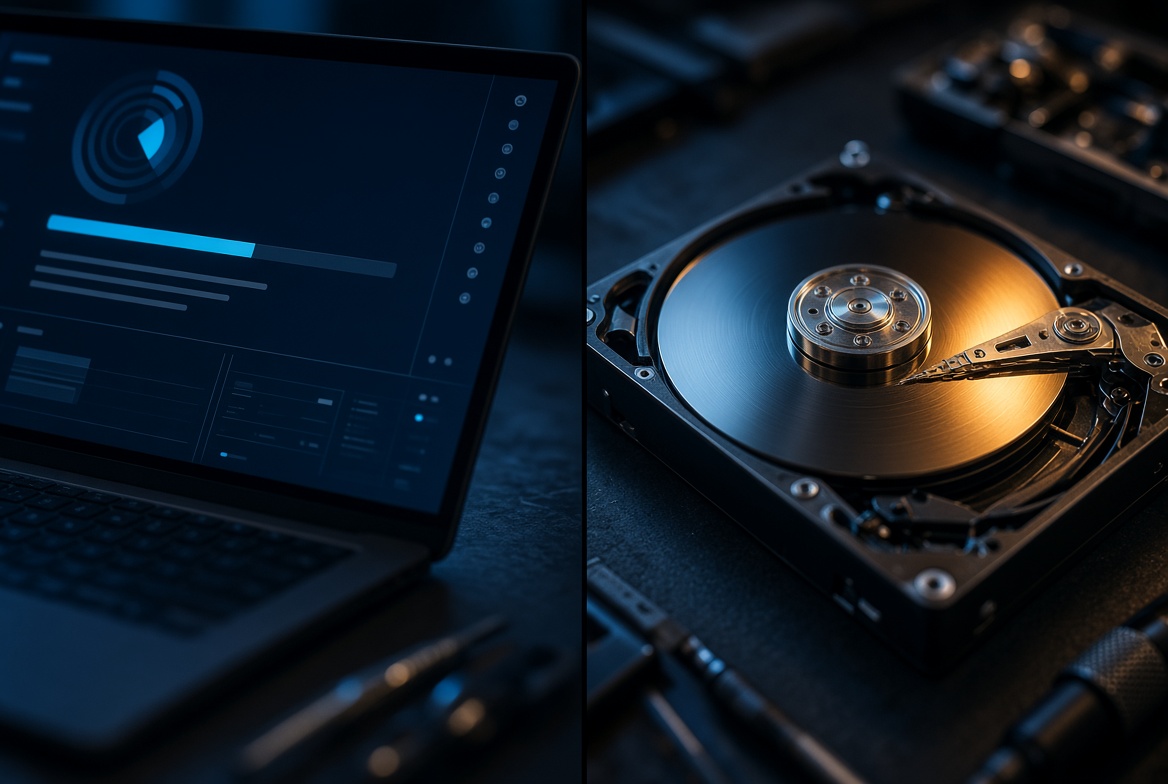
When you delete a file or format a drive, the data itself doesn’t vanish immediately — the drive’s file table simply marks that space as available to be reused. The actual bytes stay put until something writes new data into that same space. That’s the entire principle recovery software relies on: scan the raw disk, find data that still looks intact, and rebuild a file table pointing back to it. The problem is that installing new software, and then running it, both write to the drive. On a drive with no data actually needing that reused space, this is harmless. On a drive where the exact files you want back are sitting in space the operating system now considers free, every write is a small chance of landing on top of them.
This is why the very first step in our own data recovery process is imaging the original drive before any recovery work touches it — every read and write from that point forward happens on a copy, never the original. A downloaded recovery tool skips that step entirely, because most consumer software is built to be quick and simple, not to protect a drive that might already be failing.
Why Software Makes a Failing Drive Worse, Not Better
A mechanical hard drive reads data with a head that floats a few nanometers above a spinning platter. When that head starts to fail — from a worn bearing, a shock, or simple age — it struggles to read certain sectors cleanly. Recovery software doesn’t know that. It just keeps retrying the same failing sectors over and over, because that’s how the scan is designed to work on a healthy drive. Each retry is another attempt by an already-struggling head to make contact with the platter, and on a drive that’s truly failing, that repetition is what turns a partial, recoverable failure into a head crash that scratches the platter and destroys data permanently.
SSDs and flash drives fail differently but the underlying problem is the same: software can only talk to the drive through its controller, and if that controller is intermittently dropping connections, overheating, or reporting corrupted data back, a long scan just means more read cycles hitting hardware that’s already struggling to respond. Some drives will disconnect and reconnect repeatedly during a scan — each disconnect is the drive telling you something is wrong, and software has no way to recognize that signal and stop.
Software Can’t See Hardware Damage
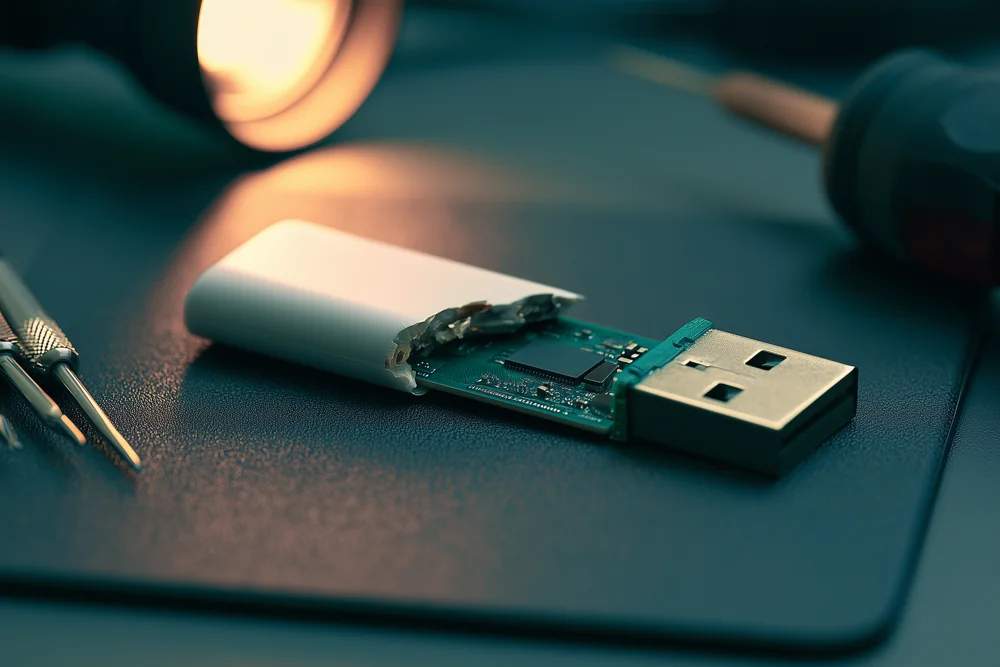
Recovery software operates entirely at the file-system level — it reads and interprets data, but it has no way to diagnose what’s physically wrong with a drive. A drive with a failed PCB component, a corroded connector, a burnt controller chip, or a head that’s no longer aligned with the platter often won’t even be detected by the operating system at all, let alone scanned by software sitting on top of it. In that situation, running a recovery program doesn’t fail gracefully — it simply can’t see the drive, and the person using it has no way to know whether that means the data is gone or whether the drive just needs a physical repair the software was never built to perform.
This is the gap between software-level recovery and hardware-level recovery. If the drive shows up, mounts, and lets you browse (even slowly or with some errors), software is working with a drive whose hardware is at least functional enough to respond. If the drive doesn’t show up at all, disappears and reappears, or was dropped, exposed to liquid, or shows physical damage, the problem is in the hardware, and no amount of software will change that.
The Malware Risk Hiding in "Free" Recovery Tools

Losing data under pressure makes people search for the fastest, cheapest fix, and that’s exactly the situation malware distributors count on. A search for "free data recovery software" surfaces plenty of legitimate tools alongside a genuine amount of bundled adware, browser hijackers, and outright malware disguised as a recovery utility. Installing one of these doesn’t just risk the files you’re trying to recover — it can compromise the rest of the system, and in the worst cases hand an attacker access to whatever else is on that computer.
Before installing any recovery tool, check independent reviews from sources you don’t control, confirm the publisher is a recognized company, and never install it onto the same drive holding the data you’re trying to save — install it to a different drive or a USB stick instead. If the download feels too good to be true for something this specialized, it usually is.
When to Stop and Call a Professional
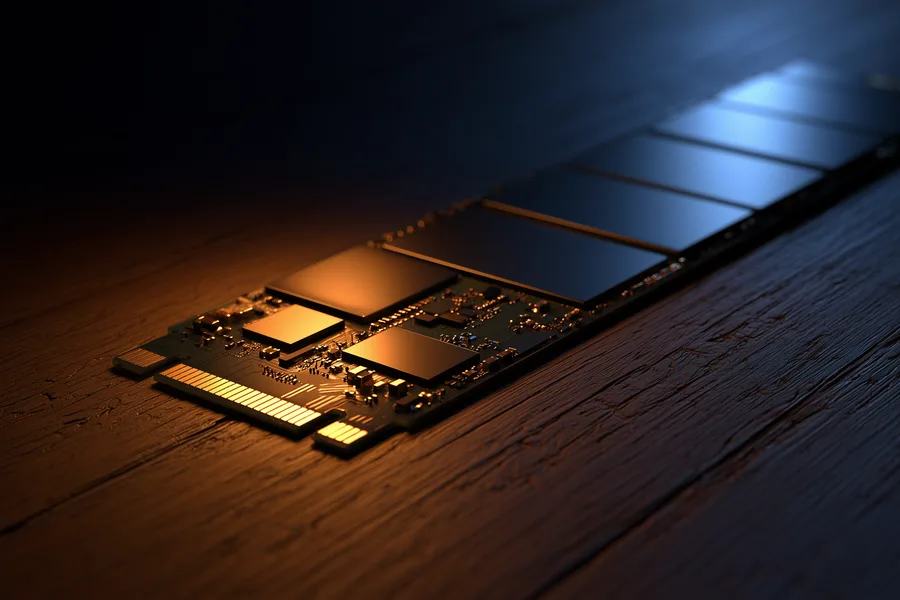
The honest line is simple: if the drive is healthy enough to mount and respond normally, and the loss was a deletion or a format, consumer software carries real but manageable risk. The moment a drive shows any sign of physical failure — clicking, grinding, overheating, disappearing and reappearing, or simply not being detected — every further attempt with software raises the odds of permanent loss. At that point, the correct next step depends on what actually failed: a hard drive with a damaged head assembly or scratched platter needs board-level and mechanical repair in a controlled environment, not another software pass; an SSD with a failed controller needs original-controller revival, and a USB drive with a failed controller needs direct chip-off extraction of the NAND chip itself, done with equipment no consumer software or general computer shop has access to. eProvided data recovery professionals start every case by imaging the drive first, exactly the step consumer software skips, so nothing further is ever written to the original.
Related reading: how professional data recovery tools work.
| Is Recovery Software Safe for Your Situation? | ||
|---|---|---|
| What you see | Likely situation | Recommended step |
| Drive mounts fine, files deleted or partition formatted | File-system level loss, hardware healthy | ✓ Software carries manageable risk |
| Drive clicks, grinds, or repeatedly spins up/down | Mechanical head or motor failure | ✓ Stop immediately, professional repair |
| Drive disconnects and reconnects on its own | Failing controller or connector | ✓ Stop, professional evaluation |
| Drive isn’t detected by the computer at all | PCB, controller, or connector failure | ✓ Board-level repair or chip-off |
| Software finishes a scan but finds nothing | Overwritten data or hardware fault software can’t see | ✓ Professional evaluation before further attempts |
What Our Customers Say
Frequently Asked Questions
Recovery Services for Every Storage Device Class
Whatever device the failed software attempt happened on, eProvided covers every storage class from one lab: hard drives (Seagate, Western Digital, Toshiba, mechanical and logical failures), SSDs (Samsung, Crucial, WD, NVMe and SATA, firmware repair and original-controller revival), USB flash drives (broken connectors, dead controllers, monolith chip-off), and memory cards (SD, SDHC, microSD, CompactFlash, Memory Stick, every brand) — see the full list below. See all our data recovery services →
More Data Recovery Guides
- SD card restoration — what actually happens physically when a memory card fails.
- Troubleshooting an SDHC camera card — camera-side checks before assuming the worst.
Once your data is back, a second backup made the same day is the cheapest insurance against needing this page again.
Recover Your Data the Safe Way
Don’t risk overwriting what’s left. Our engineers will confirm what’s recoverable during a free evaluation. No obligation, confidential.
Start My Free Evaluationor call (866) 857-5950 now
Related Recovery Services
Whatever device the failed software attempt happened on, eProvided recovers the data from every storage class in one lab: